6 GB of RAM
Unlimited Players
2 vCores
50 GB SSD NVMe
$11.40/mo


Enhance your Palworld experience on our robust servers, with seamless support, fast deployment, and the freedom to customize your world to spark creativity in your community. Scalable, Powerful, & Affordable.


This server includes:
$11.40/mo $ 137.00 once
 Texas United States
 Virginia United States
Miami United States
Utah United States
Virginia United States
Miami United States
Utah United States
 Paris France
 Finland Helinski
 Vienna Austria
 Sydney Australia
 Singapore Asia
 Mumbai India
$15.20/mo $ 182.00 once
Texas United States
Virginia United States
Miami United States
Utah United States
Paris France
Finland Helinski
Vienna Austria
Sydney Australia
Singapore Asia
Mumbai India
$19.00/mo $ 228.00 once
Texas United States
Virginia United States
Miami United States
Utah United States
Paris France
Finland Helinski
Vienna Austria
Sydney Australia
Singapore Asia
Mumbai India
$22.80/mo $ 274.00 once
Texas United States
Virginia United States
Miami United States
Utah United States
Paris France
Finland Helinski
Vienna Austria
Sydney Australia
Singapore Asia
Mumbai India
$30.40/mo $ 365.00 once
Texas United States
Virginia United States
Miami United States
Utah United States
Paris France
Finland Helinski
Vienna Austria
Sydney Australia
Singapore Asia
Mumbai India
$45.60/mo $ 547.00 once
Texas United States
Virginia United States
Miami United States
Utah United States
Paris France
Finland Helinski
Vienna Austria
Sydney Australia
Singapore Asia
Mumbai India
$60.80/mo $ 730.00 once
Texas United States
Virginia United States
Miami United States
Utah United States
Paris France
Finland Helinski
Vienna Austria
Sydney Australia
Singapore Asia
Mumbai India
RocketNode's exclusive DDOS Protection platform allowing your community to stay protected with top-tier protection firewalls along with advanced mitigation, we assure a smooth experience
We offer 24/7 support online and via our discord platform. Our unique approach to service support allows our clients to feel reassured when encountering a server error. You know we are here for you.
RocketNode uses the most redundant cloud backup provider, this assures redundant data storage for your backups. We offers up to 3 rotating backups on any of our game hosting services for no additional cost.
We offer global accesspoints to our services to assure high quality and efficient services world-wide.
Rocket Panel 🚀
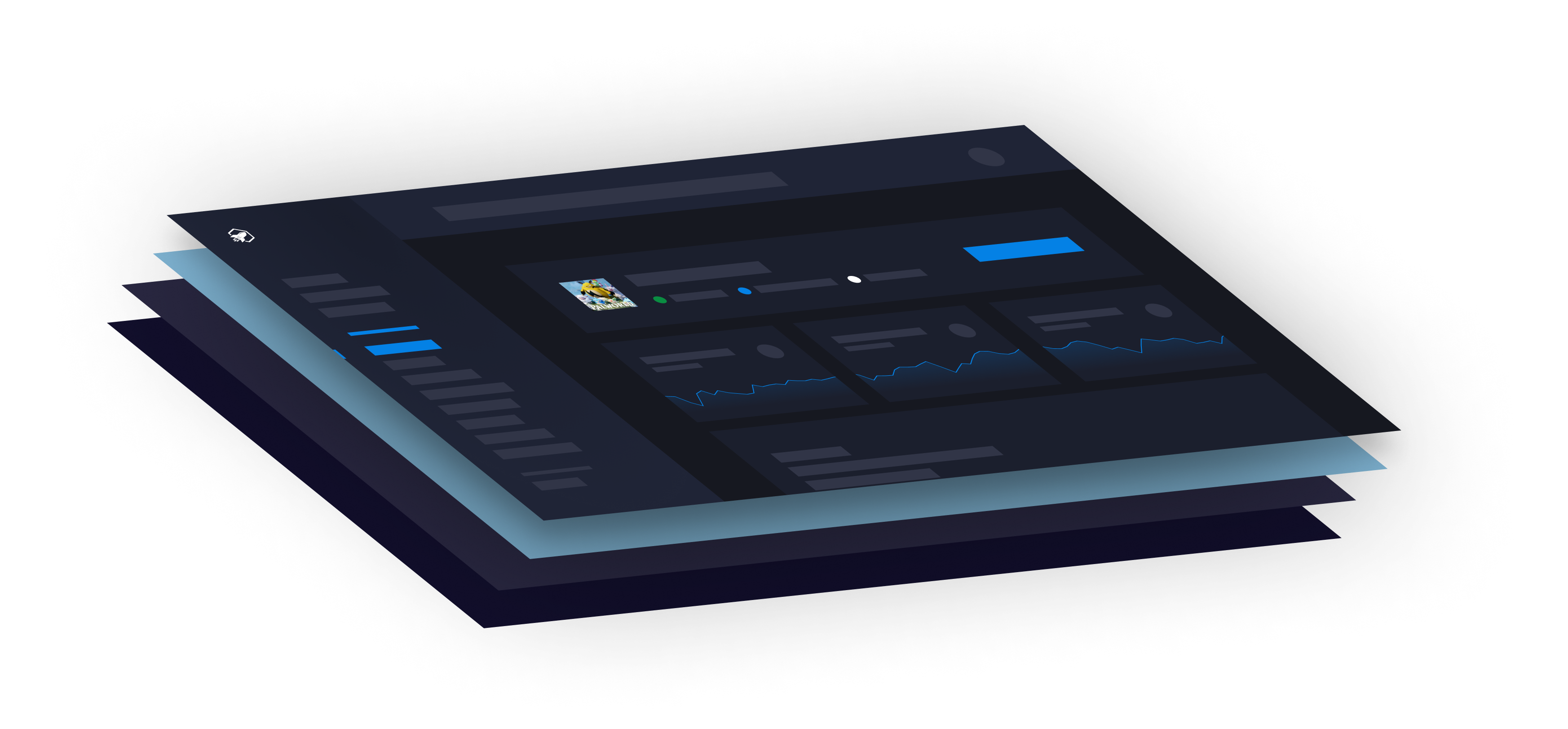
At RocketNode we have spent a lot of time developing and improving our game panel. Our goal was to make managing your game server as easy as possible through an advanced interface and addons.
RocketNode is at the forefront of providing exceptional Palworld Server Hosting, perfectly crafted to let you delve into the captivating world of Palworld with absolute ease. Our streamlined control panel is engineered for convenience, enabling swift setup and fine-tuning of your Palworld server. If your search for a reliable gaming host has been unfruitful, look no further—RocketNode is your gateway to an unparalleled Palworld experience!
Palworld is a rich, immersive game, teeming with opportunities for adventure and creativity. Our hosting platform simplifies the integration of a wide array of mods and configurations, allowing you to tailor your server to your specific preferences without the need for complex frameworks. Hosting a Palworld server is hassle-free with RocketNode. Let us handle the backend, while you immerse yourself in the vast, dynamic landscapes and engaging gameplay that Palworld offers.
At RocketNode, we're not just about hosting; we're about enhancing your gaming experience. We recognize the unique essence of Palworld—a world where you can explore, battle, and collaborate with your Pal, building an experience that grows with you. Our commitment is to provide hosting solutions that are not only robust and reliable but also perfectly aligned with the ever-evolving narrative of Palworld. Choose RocketNode Hosting, and power your community with a hosting service that's as engaging and dynamic as Palworld itself, all while being supported by the industry's most dedicated support team.
Navigate to RocketNode.com and select "Game Hosting" from the top menu bar. Scroll down to "Palworld Server Hosting" and select this option to find our available plans. All of our hosting packages are customizable, and this allows you to select a plan with the exact amount of RAM you'd like for your server. Available options range from 6 to 32 GB. Choose your RAM based on the number of players you will have in your server.
When selecting a location, RocketNode recommends picking one closest to your player base's physical location - this will ensure optimal game performance. On the following screen, you will be able to configure your billing cycle, choosing between Monthly, Quarterly, or Semi-Annual, based on your preference and budget.
Scroll down to the Additional Information section where you can change the server name and create the Admin Password for your server. You can also create a Server Password if you'd like your server to be private. Click "Continue" and you will proceed to the billing details section. Log in to an existing RocketNode account or sign up to ensure you have access to your server once purchased. Select your payment method, provide your payment details, and be sure to agree to the terms of service to continue. Click "Checkout" to finalize your purchase, and you will receive a confirmation email that provides access to your control panel.
Navigate to panel.rocketnode.com and log in to your account. Before you start your server, select the "Settings" button in the top menu bar to change some essential settings. Here you will find your SFTP Login Details such as your Username, Server Name, and Server Info. Now, click the "Configuration" button in the top menu, and navigate to the "Variables" section. We highly recommend leaving "Auto Update" toggled on. You will also be able to change the Max Players, Admin Password, and Server Password, among other settings, on this page. We also recommend keeping the RCON Enabled option toggled to "True". We will be making future tutorials to explain the RCON.
Navigate back to the "Overview" tab, and select the green "Start Server" button on the upper right side of the screen to start your new Palworld server.
Begin by opening Palworld on your desktop and selecting "Join Multiplayer Game". Paste in your new server's IP Address from your control panel in the button field and click "Connect". Be sure to uncheck the "Enter Password" option if you do not have a password set up for your server. Now you can enjoy playing on your new Palworld server.
Get started with RocketNode today and experience the best game hosting available. Our hosting solutions are designed to provide you with the best experience possible, with the best support team in the industry.