How to Optimize Your Minecraft Server - 2025 Updated
 RocketNode Staff
A laggy Minecraft server can be frustrating for both players and admins. Performance issues like high ping, low TPS, or constant server crashes can drive players away. But with the right server optimizations, you can ensure smooth gameplay, faster load times, and an overall better experience for everyone.
In this guide, we'll explore two powerful approaches to optimize your Minecraft server:
- The RocketNode Way – Utilizing our feature-rich hosting panel to fine-tune server performance with ease.
- The Manual Optimization Approach – Best practices for those hosting on a VPS or dedicated server without RocketNode.
Whether you're already using RocketNode’s game server hosting or looking to optimize your server from scratch, this guide will equip you with all the essential tweaks to improve performance.
Optimizing Minecraft Servers with RocketNode’s Panel
RocketNode provides a custom-built hosting panel that streamlines Minecraft server management. With one-click plugin installs, an integrated version selector, and automated maintenance tools, it allows you to fine-tune performance effortlessly.
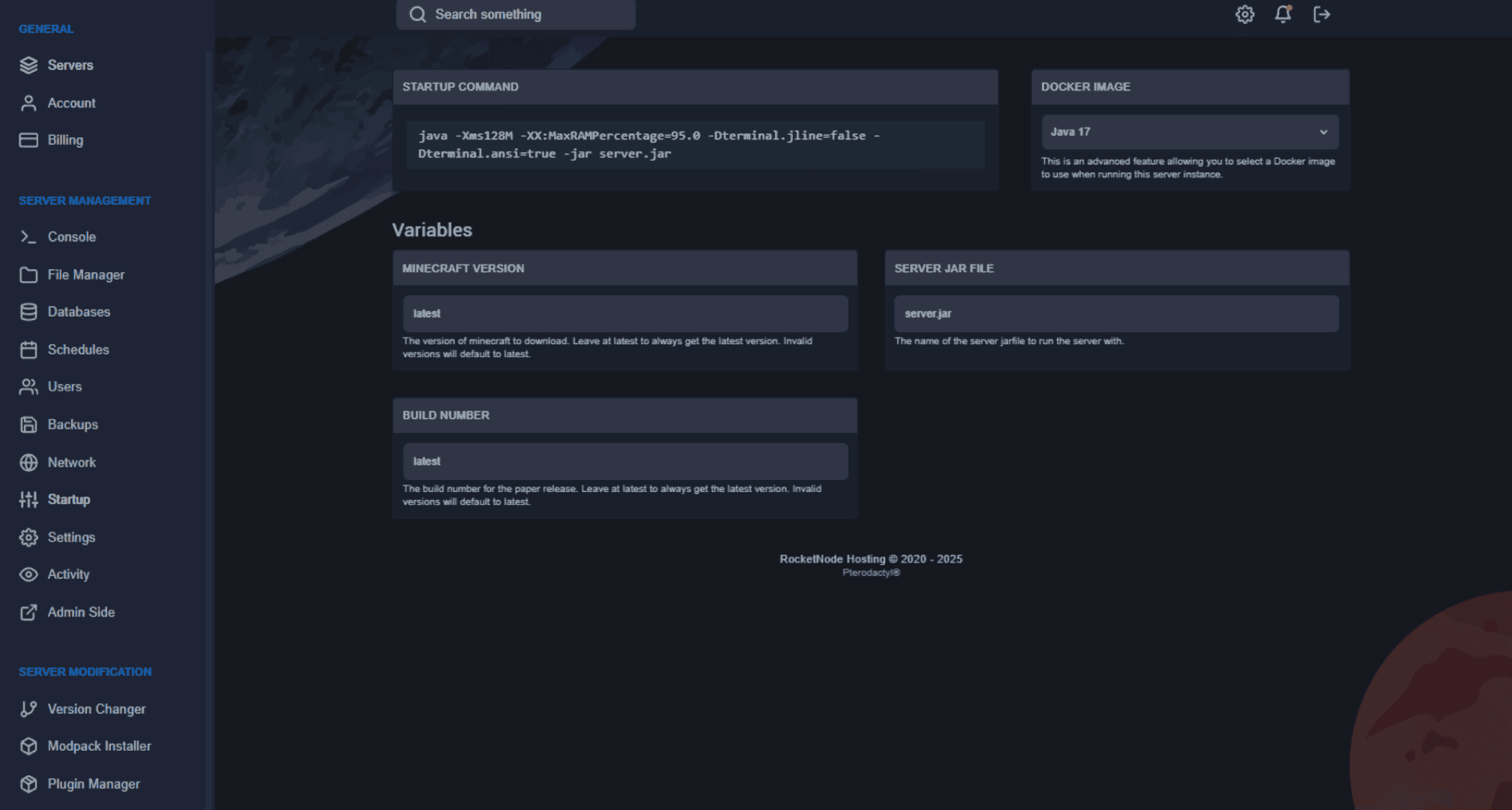
1. Selecting the Best Minecraft Version & Server Build
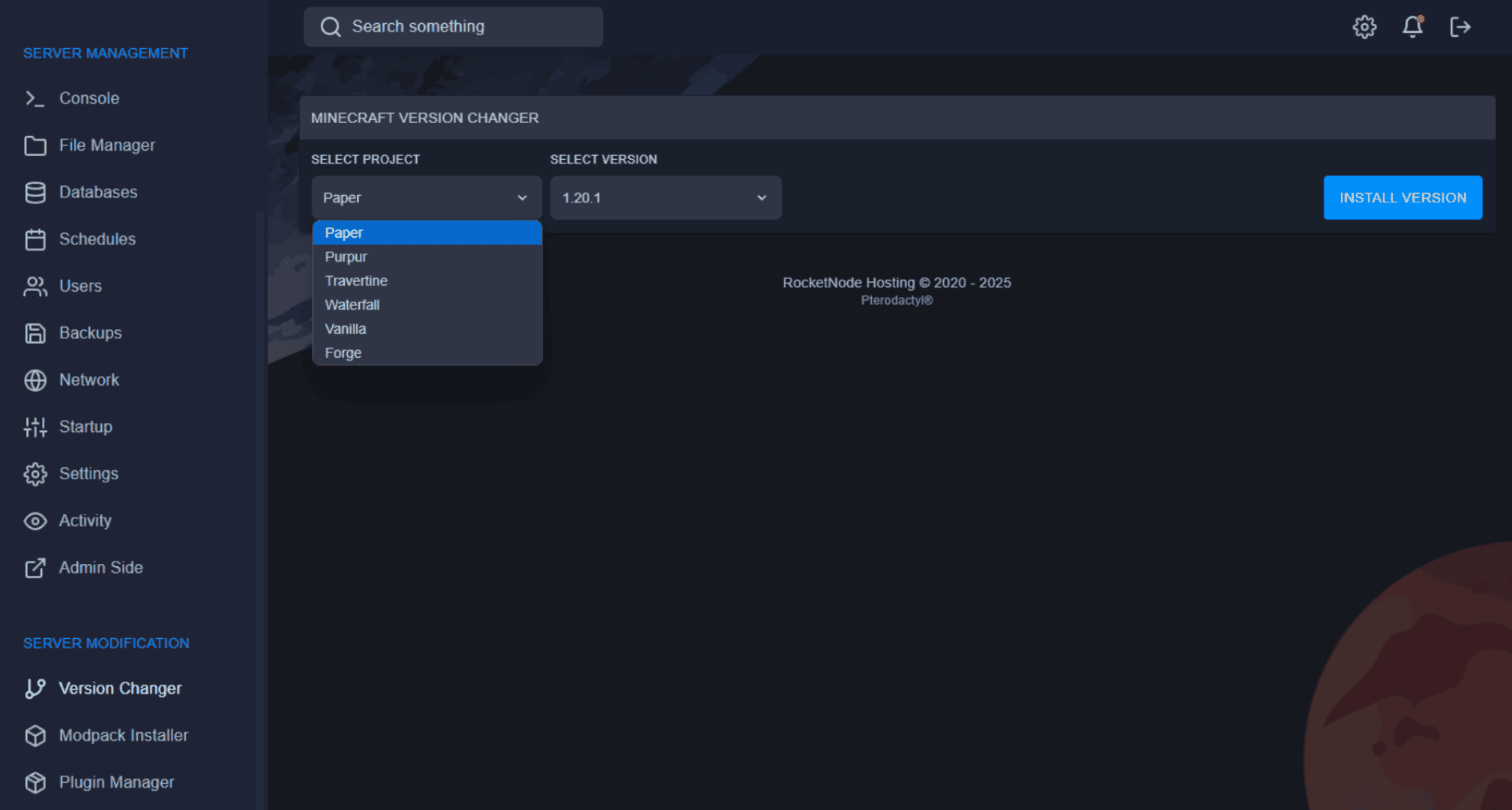
Choosing the right Minecraft version is key to performance. Some versions handle optimizations better than others, and RocketNode makes switching easy.
- Navigate to: Panel → Startup
- Select "Latest" to always use the newest stable version.
- Use PaperMC or Purpur instead of Vanilla for better optimization and improved tick rates (TPS).
Why PaperMC?
- PaperMC fixes lag issues by reducing unnecessary chunk updates and optimizing entity processing.
- It includes additional configuration settings to improve performance without sacrificing gameplay.
Why Purpur?
- Purpur is a performance-focused fork of PaperMC that adds extra control over AI behavior and physics optimizations.
- Recommended for larger servers that need more extensive fine-tuning.
RocketNode makes switching between server versions seamless—simply choose your preferred build, and the panel handles everything automatically.
2. Plugin & Mod Management
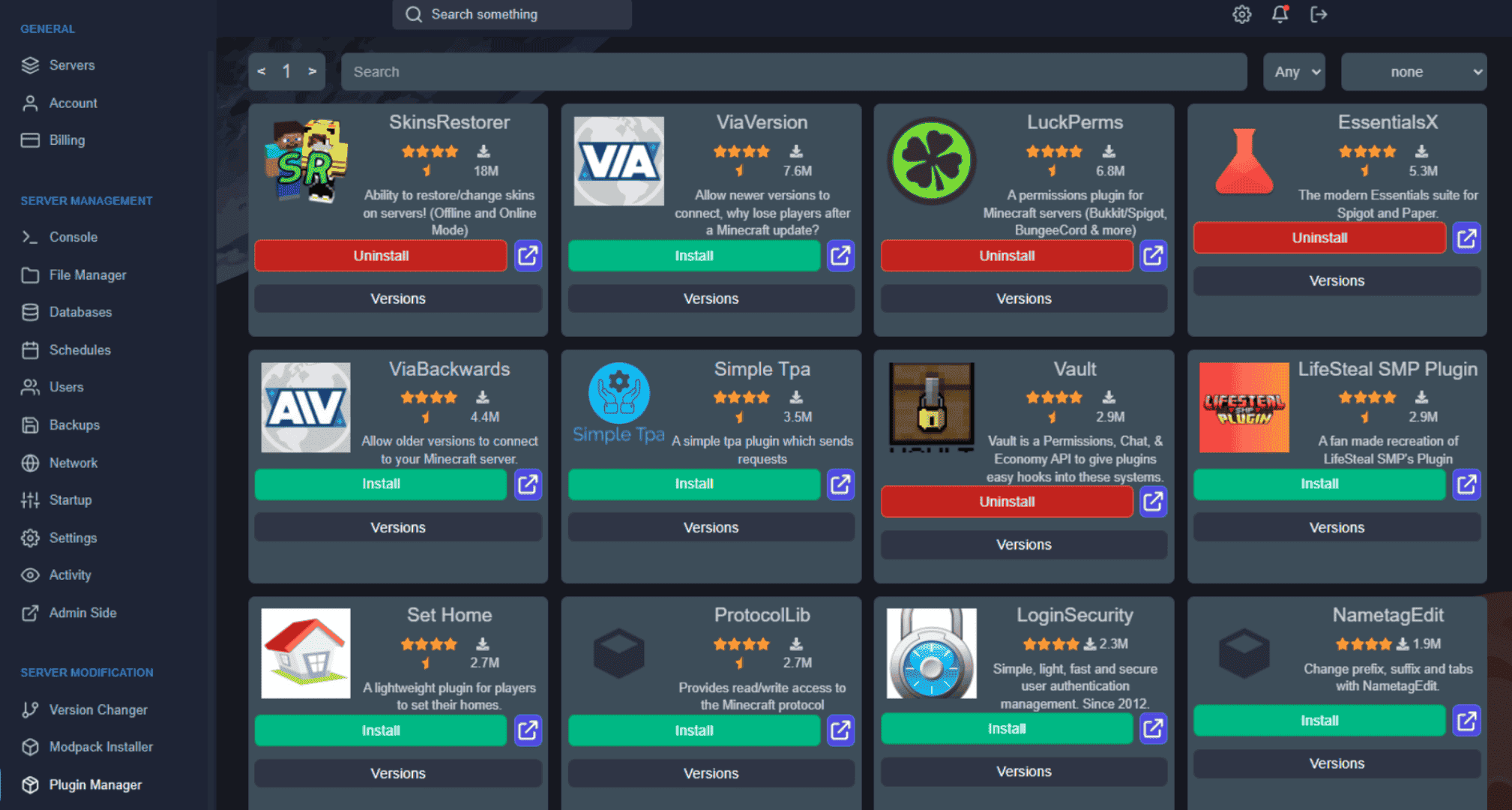
Too many unoptimized plugins can be a major cause of lag. RocketNode’s built-in Plugin Manager allows one-click installation and removal, making it easier to manage only essential performance plugins.
- Go to: Panel → Plugin Manager
- Remove unnecessary or outdated plugins that increase CPU usage.
- Install essential performance boosters:
- ClearLag – Cleans up entities, reducing lag spikes.
- Spark – Monitors memory, CPU, and tick performance.
- FastAsyncWorldEdit (FAWE) – A faster alternative to WorldEdit with optimized performance.
- ViaVersion & ViaBackwards – Allows different Minecraft versions to connect without additional overhead.
Pro Tip:
If you’re running a modded server, avoid loading excessive mods at startup. Some mods are poorly optimized and can cause TPS drops.
3. Automating Maintenance for Better Server Performance
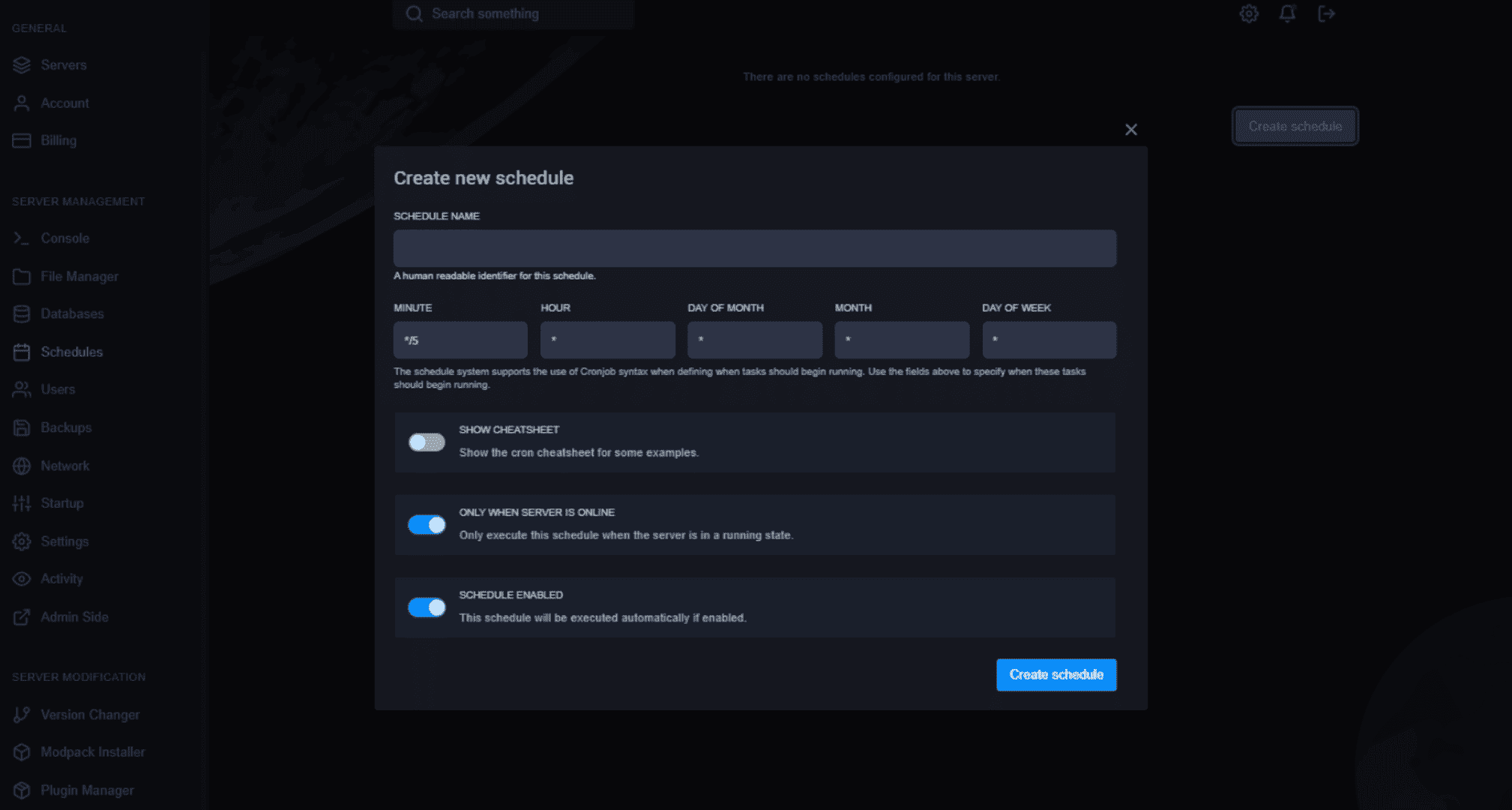
Scheduled tasks help keep your server running smoothly by automating essential processes like backups, restarts, and cache clearing.
- Go to: Panel → Schedules
- Set automatic restarts every 12 hours to free up memory.
- Enable automated world saves to prevent data loss and reduce chunk corruption issues.
Regular maintenance prevents RAM buildup and lag caused by excessive entity loads.
4. Startup Command Adjustments – Submit a Support Ticket
Unlike other hosts, RocketNode optimizes startup settings for you. If you need custom startup arguments, our support team will adjust them upon request.
- Submit a support ticket for:
- Tweaking Java garbage collection settings for memory efficiency.
- Adjusting tick rate limits for smoother gameplay.
Why Can't You Edit the Startup Command?
Modifying startup arguments incorrectly can cause instability, memory leaks, and crashes. That’s why RocketNode handles optimizations for you.
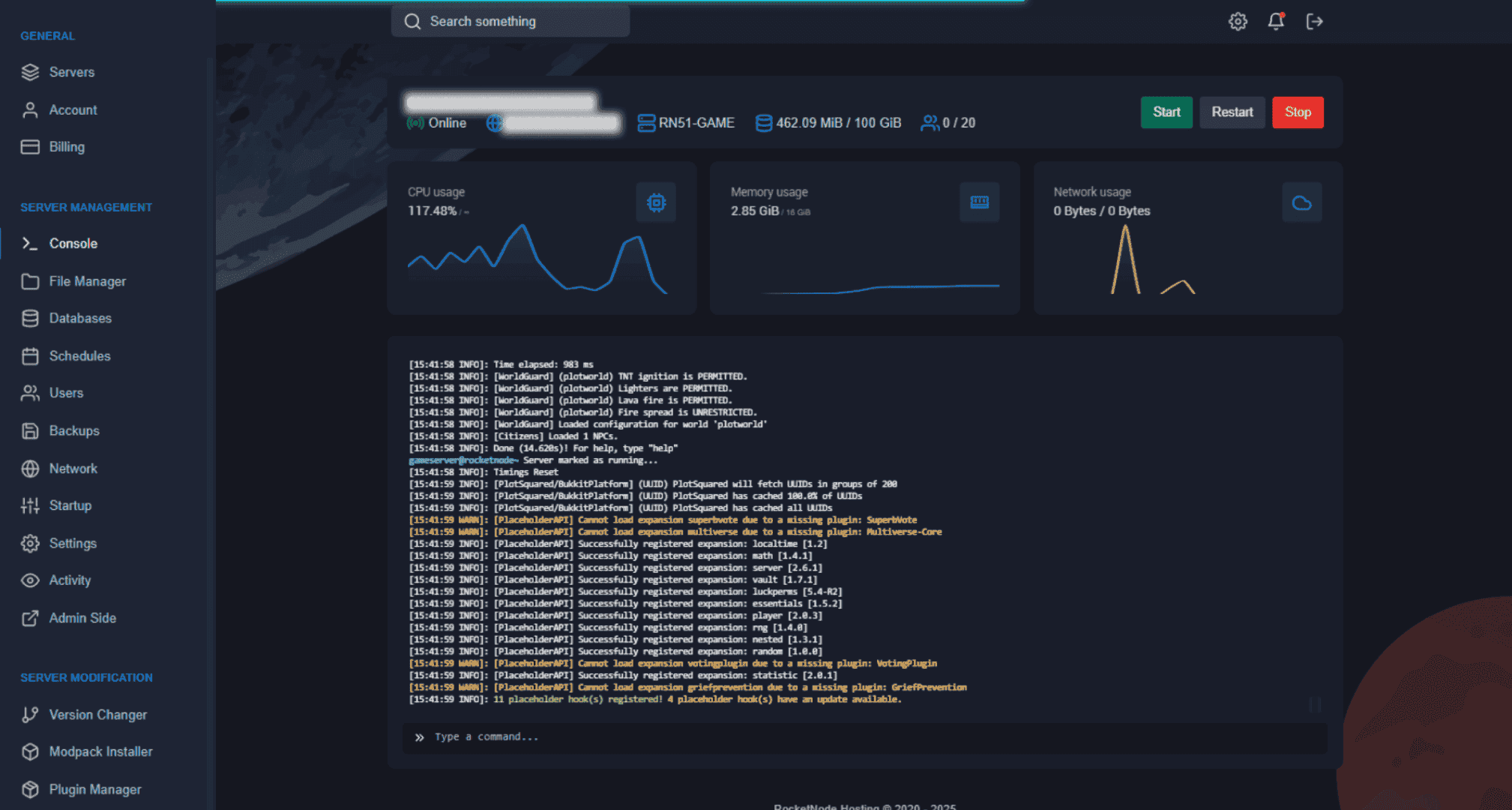
5. Monitoring Resource Usage & Performance Metrics
RocketNode’s real-time performance dashboard lets you monitor CPU, RAM, and network usage.
- Go to: Panel → Console
- Identify performance bottlenecks:
- High CPU Usage? Reduce complex plugins and lower render distance.
- Maxed Out RAM? Upgrade your plan or schedule frequent server restarts.
RocketNode's premium hardware ensures your server runs at optimal speeds—but monitoring usage helps fine-tune settings further.
Manual Optimization for Non-RocketNode Servers
If you're hosting a Minecraft server on a VPS or dedicated machine, follow these manual optimizations to improve performance.
1. Adjusting Server Properties for Efficiency
Editing the server.properties file helps reduce lag:
properties
CopyEdit
view-distance=6
max-tick-time=60000
use-native-transport=true
- Lowering
view-distancereduces the number of chunks loaded per player, decreasing CPU usage. - Setting
use-native-transport=trueimproves network performance.
2. Tweaking Spigot & Paper Settings
Both Spigot and Paper have settings that can drastically boost server performance.
- Edit
spigot.yml:
yaml
CopyEdit
entity-activation-range:
  animals: 16
  monsters: 24
  misc: 8
- Edit
paper.yml:
yaml
CopyEdit
max-entity-collisions: 2
Reducing entity activation ranges improves tick rates (TPS).
3. Removing Unnecessary Entities & Chunks
Use ClearLag to automate entity removal and unload unused chunks. Run this command manually:
/lagg clear
4. Regular Server Restarts & Aikar’s Flags for Java Optimization
Schedule daily restarts and use Aikar’s Java Flags:
ruby
CopyEdit
java -Xms2G -Xmx6G -XX:+UseG1GC -jar server.jar nogui
This improves garbage collection and prevents memory leaks.
Final Thoughts – Why Choose RocketNode for Minecraft Hosting?
While manual optimizations can help improve performance, RocketNode’s game panel makes it easier than ever to manage a lag-free server.
- One-click optimizations
- Automatic plugin and version management
- Enterprise-grade hardware
- 24/7 support for custom optimizations
Make server management effortless with RocketNode. Check out our Minecraft Hosting Plans today!