Web Hosting4 min read
How to Create Your First Website
Learn how to add your first website to your hosting panel, what to do next, and how to fix common problems like domain-in-use errors and missing SSL.

Adding a website is the first thing you'll do after your hosting account is set up. It takes about a minute. Once the site exists, everything else in your panel (email, databases, SSL, backups) hangs off it, so it's worth getting this step right.
Before you start
You'll need three things:
-
Access to your hosting panel. If you haven't logged in yet, start with How to log in to your hosting panel for the first time.
-
A registered domain name. You don't have to have pointed it at us yet, and you don't need it working before you create the site. Register it first, though, because the panel will ask for it.
-
A free website slot on your plan. Most plans include a set number of sites. If you're not sure how many you've used, check the usage summary on your dashboard.
One thing to decide before you click anything: which domain will be the main one for this site. You can add more domains and subdomains to the same site later, but the first one you enter becomes the primary domain, and that's the address that shows up in the panel from then on.
Steps
-
Log in to your hosting panel.
-
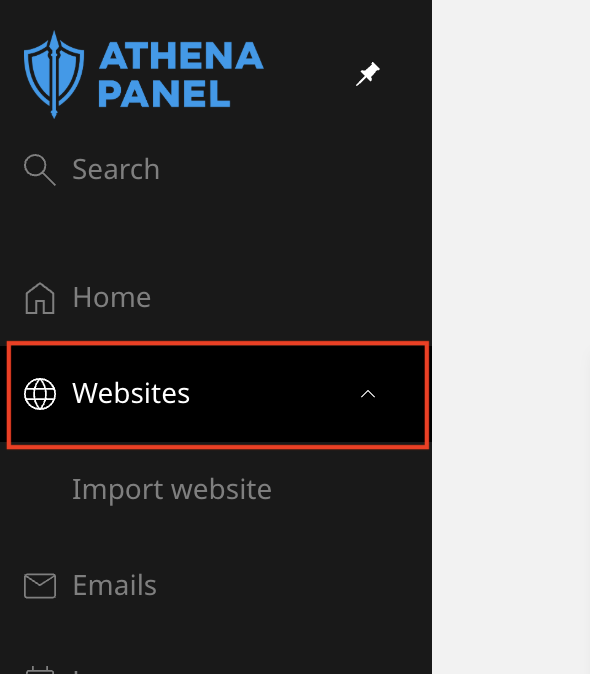
Click Websites in the left-hand menu. If this is a new account, the list will be empty.
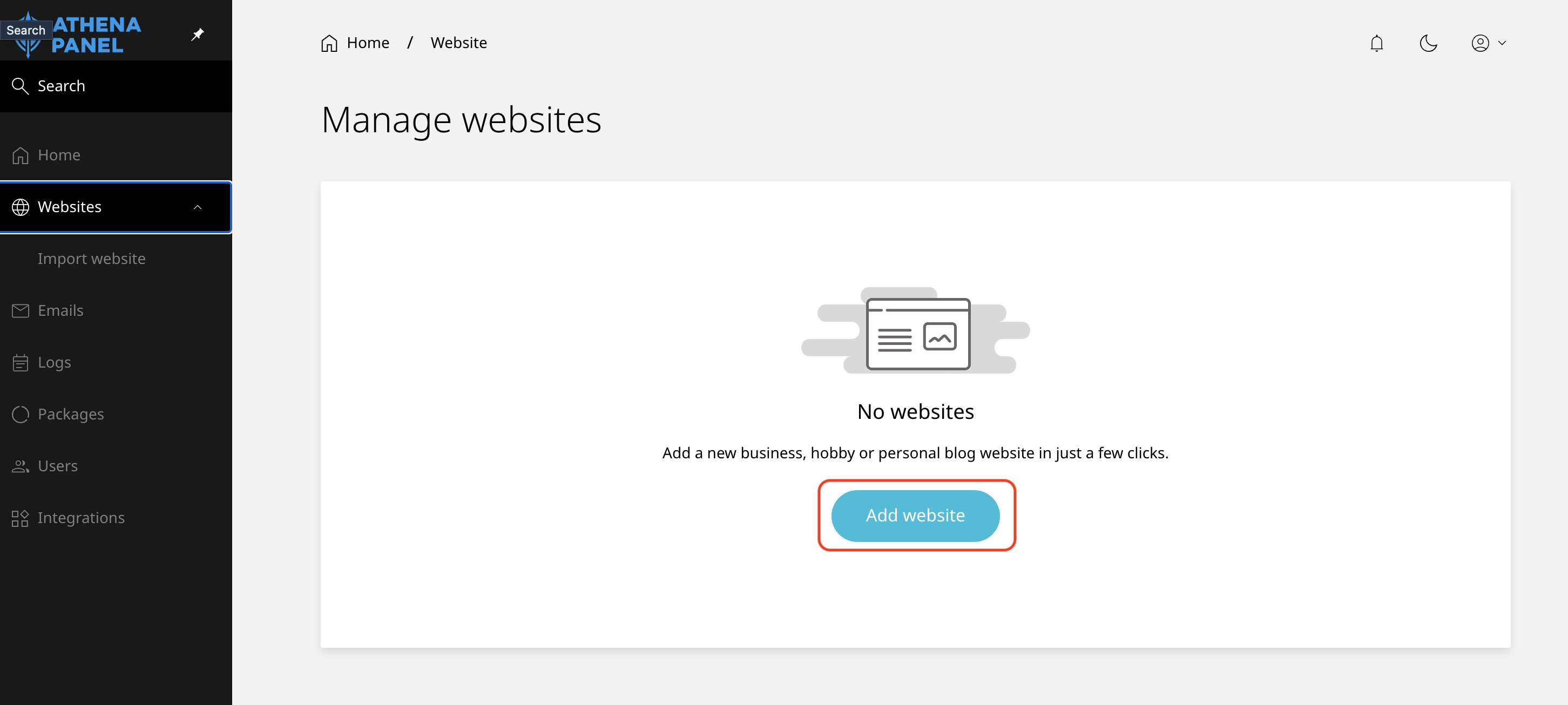
- Click Add website (some panels label this button New website).
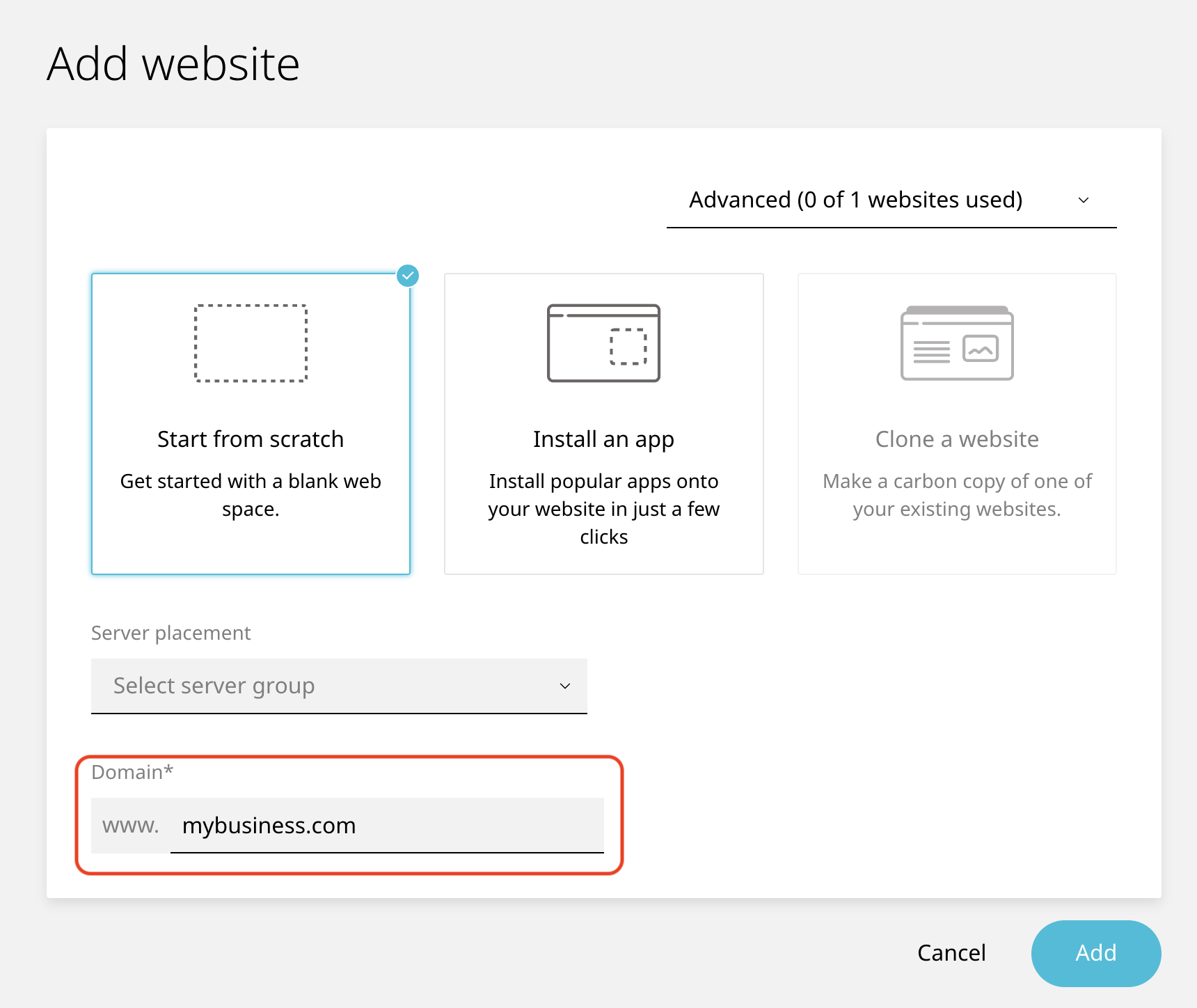
- Type your domain name without
http://orwww. Somybusiness.com, notwww.mybusiness.com. The www version is handled automatically.
- Click Add.
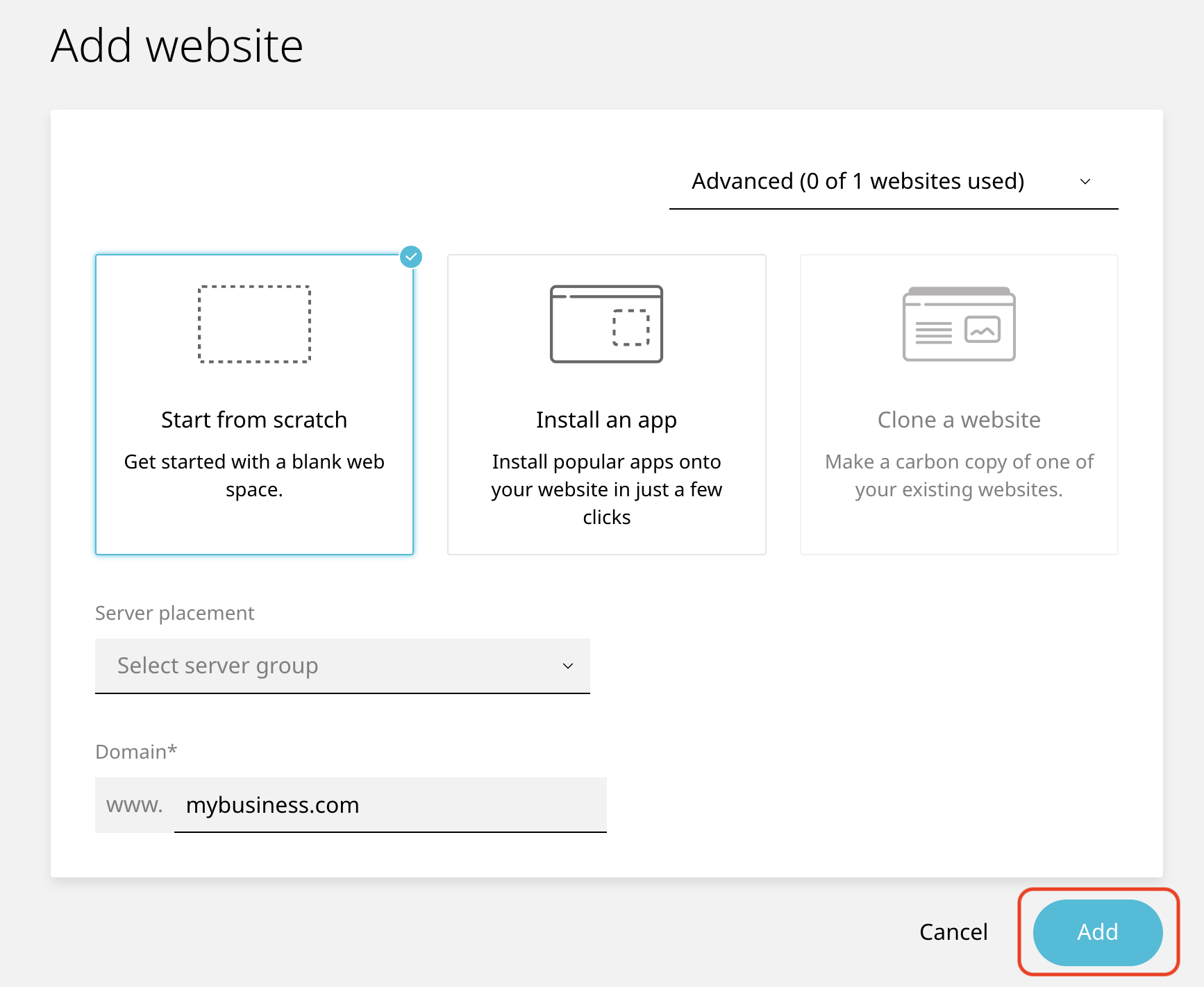
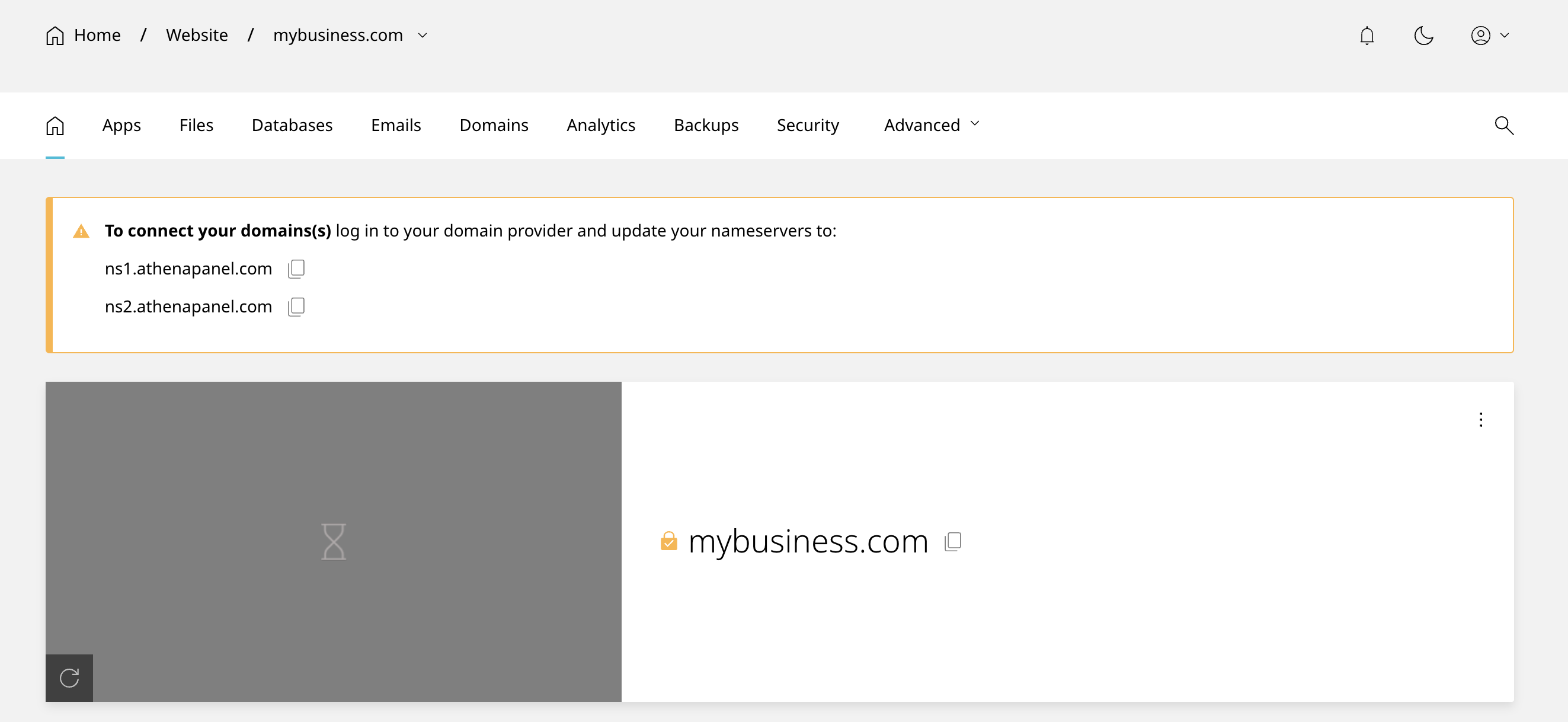
That's it. The site appears in your list within a few seconds, and the panel creates the folder structure, the default document root (usually public_html), and the DNS zone for the domain in the background.
Click the site name to open it. The tabs across the top are where you'll spend most of your time: apps, files, databases, email, domains and backups all live there.
What to do next
A brand new site has no content in it, so visiting the domain will show a placeholder page. You have two ways to change that:
-
Install an application. If you're building with WordPress, go to the site's apps section and install it from there. It's faster than doing it by hand, and it sets up the database for you. See how to install WordPress in one click.
-
Upload your own files. Use the file manager or connect over FTP, and put your files inside the document root. Your homepage file should be named
index.htmlorindex.php.
And if your domain isn't pointing to your hosting yet, your visitors will still land on your old host (or on nothing at all) until you change that. That's a separate job at your domain registrar: How to point your domain to your hosting.
How to check it worked
Open the domain in a private or incognito browser window. If you see the placeholder page, your site exists, and DNS is pointing to us correctly. If you already uploaded files, you should see your homepage instead.
Seeing your old site, or an error saying the server can't be found? The website was still created properly. The domain just isn't pointing here yet, and that usually takes anywhere from a few minutes to a few hours after you change the nameservers.
Common problems
-
"This domain is already in use." The domain exists somewhere else in the system, either on another one of your sites or on an account with a different provider using the same infrastructure. Delete the duplicate if it's yours. If it isn't, open a ticket, and we'll check it for you.
-
You've hit the website limit on your plan. The Add button either won't appear or will tell you the limit is reached. Delete a site you no longer use, or upgrade the plan.
-
You added the domain with www, and now the panel shows
www.mybusiness.comeverywhere. It still works, but it's untidy, and it can complicate your SSL certificate. Easiest fix while the site is empty: delete it and add it again without the www. -
The site loads, but there's no padlock in the browser. Certificates are issued once the domain resolves to the server, so a brand new site with a domain that's still propagating won't have one yet. Give it an hour. If it's still missing, see How to enable your site's SSL certificate.
-
You typed the domain wrong. Domain names can't be edited after the fact. Delete the site and create it again. Nothing is lost if you haven't uploaded anything.