Web Hosting4 min read
How to Create an Email Account on Your Domain
Create a mailbox like [email protected] from your hosting panel, set a password and quota, and fix common problems with delivery, limits and spam.

An address like [email protected] comes with your hosting, and you can create as many as your plan allows from the same panel where your website lives. Each one is a real mailbox with its own password and its own storage space.
Before you create half a dozen, it's worth knowing that you don't need a separate mailbox for every address you want to use. Addresses like sales@ or support@ are often better set up as forwarders pointing to an existing mailbox, so you get the messages without another inbox to check and without spending part of your storage quota. Create mailboxes for people, and forwarders for departments.
Before you start
-
The domain needs to be on your hosting account already. If you haven't added the website yet, do that first, because email is managed per domain.
-
Decide where the domain's email is going to be handled. If you currently use Google Workspace, Microsoft 365 or your old host for mail, creating a mailbox here won't move anything by itself. Mail follows the MX records in the domain's DNS, and until those point here, messages keep going to the old provider.
-
Have a password manager open, or somewhere safe to write the password down. You'll need it again when you set up the account on your phone and your computer.
Steps
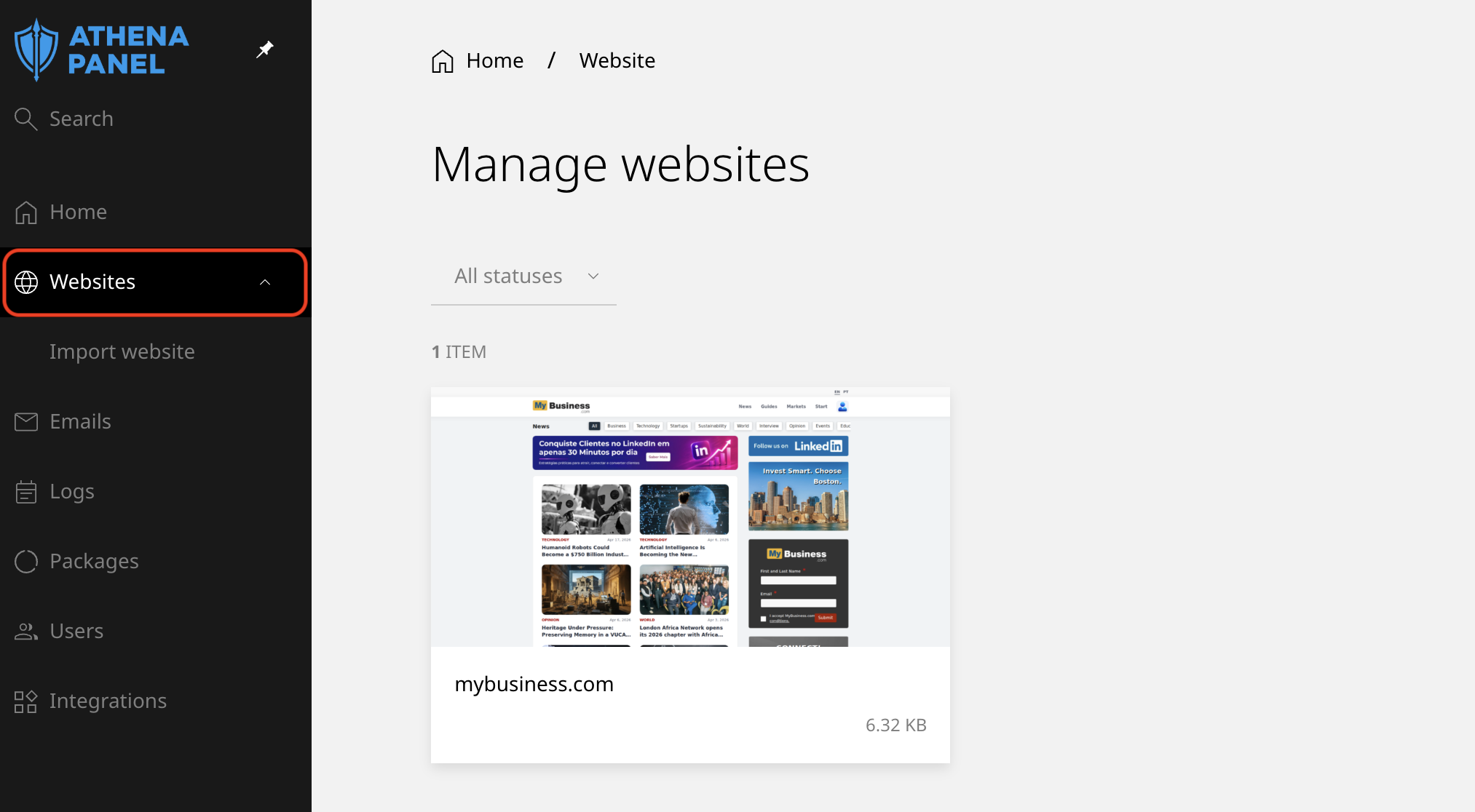
- Log in to your hosting panel and click Websites in the left-hand menu.
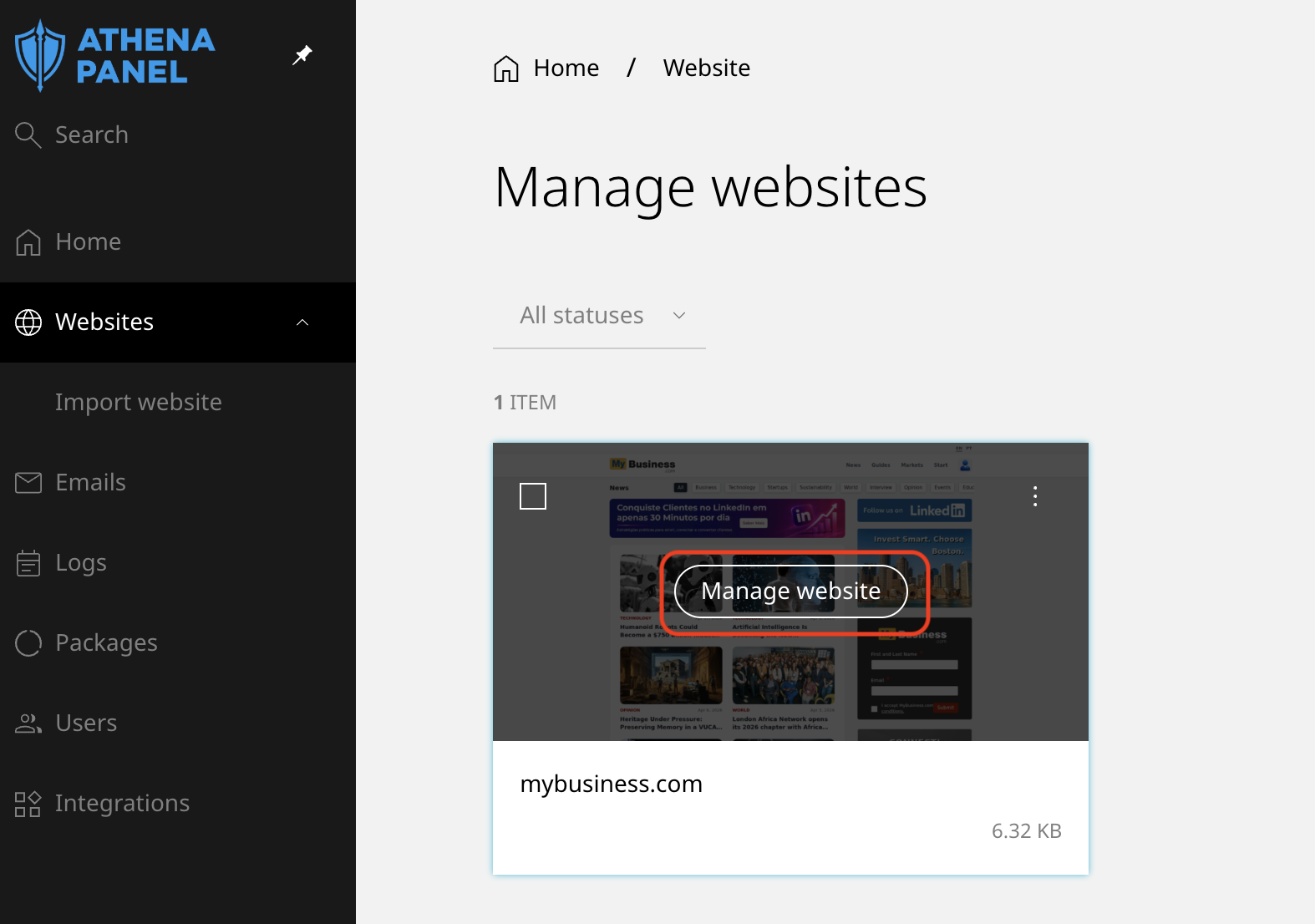
- Click the website that uses the domain you want the address on.
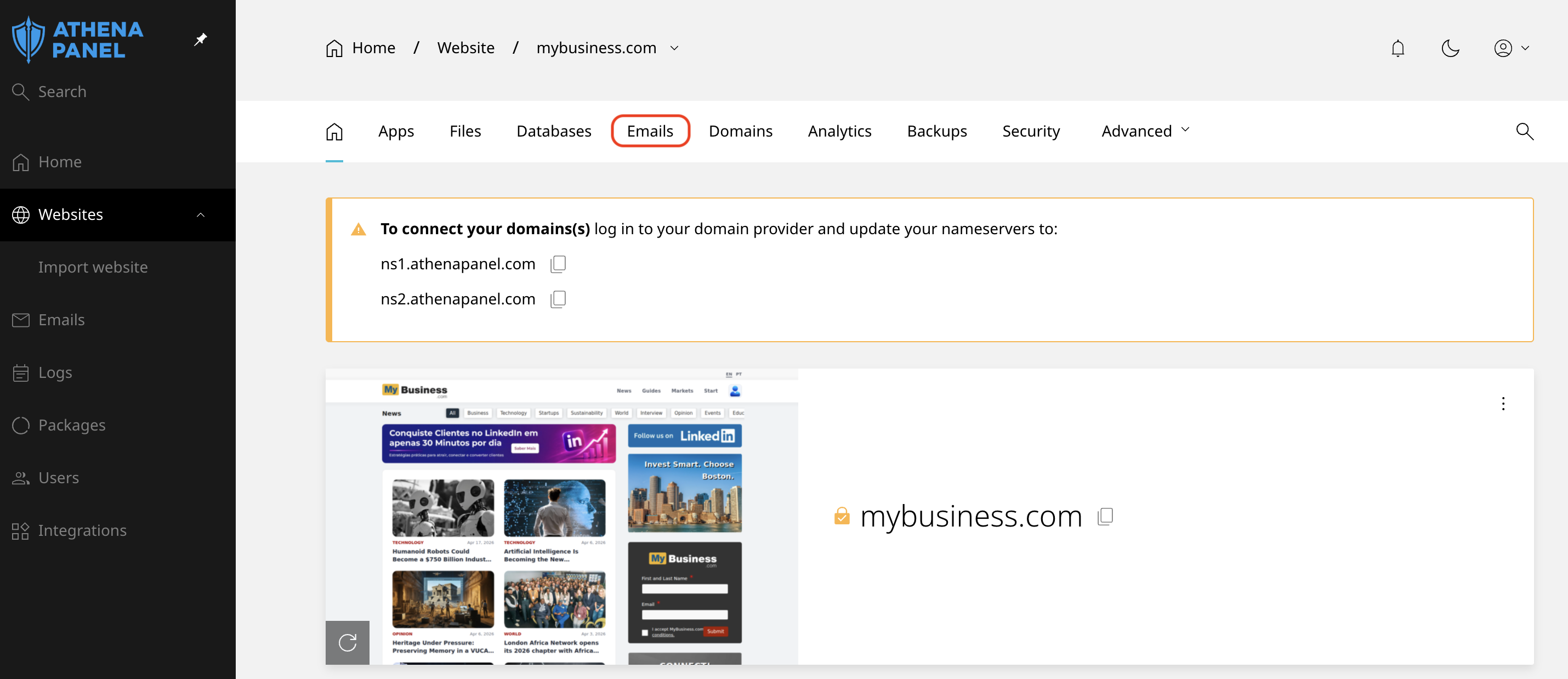
- Open the Emails tab.
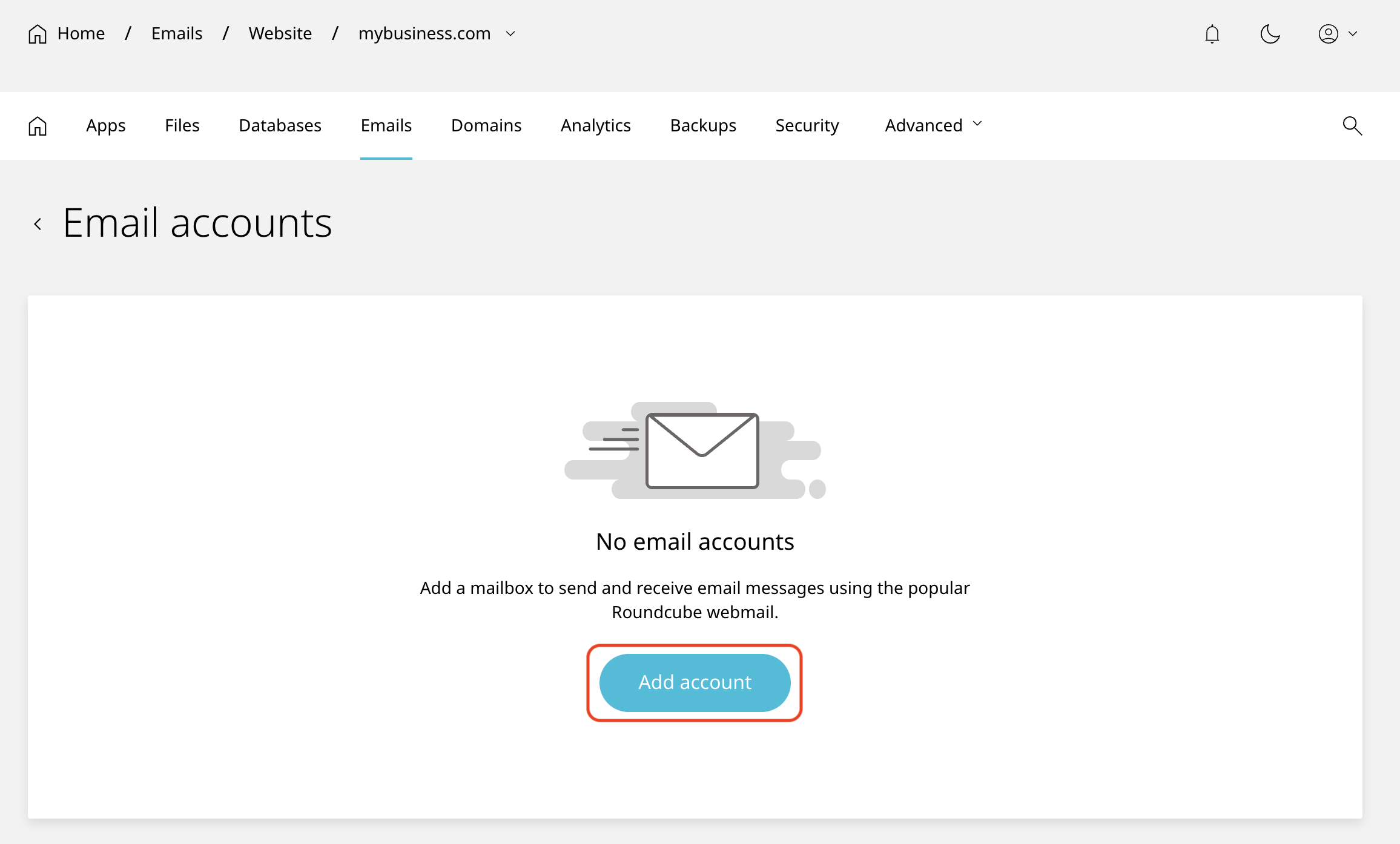
- Click Add account.
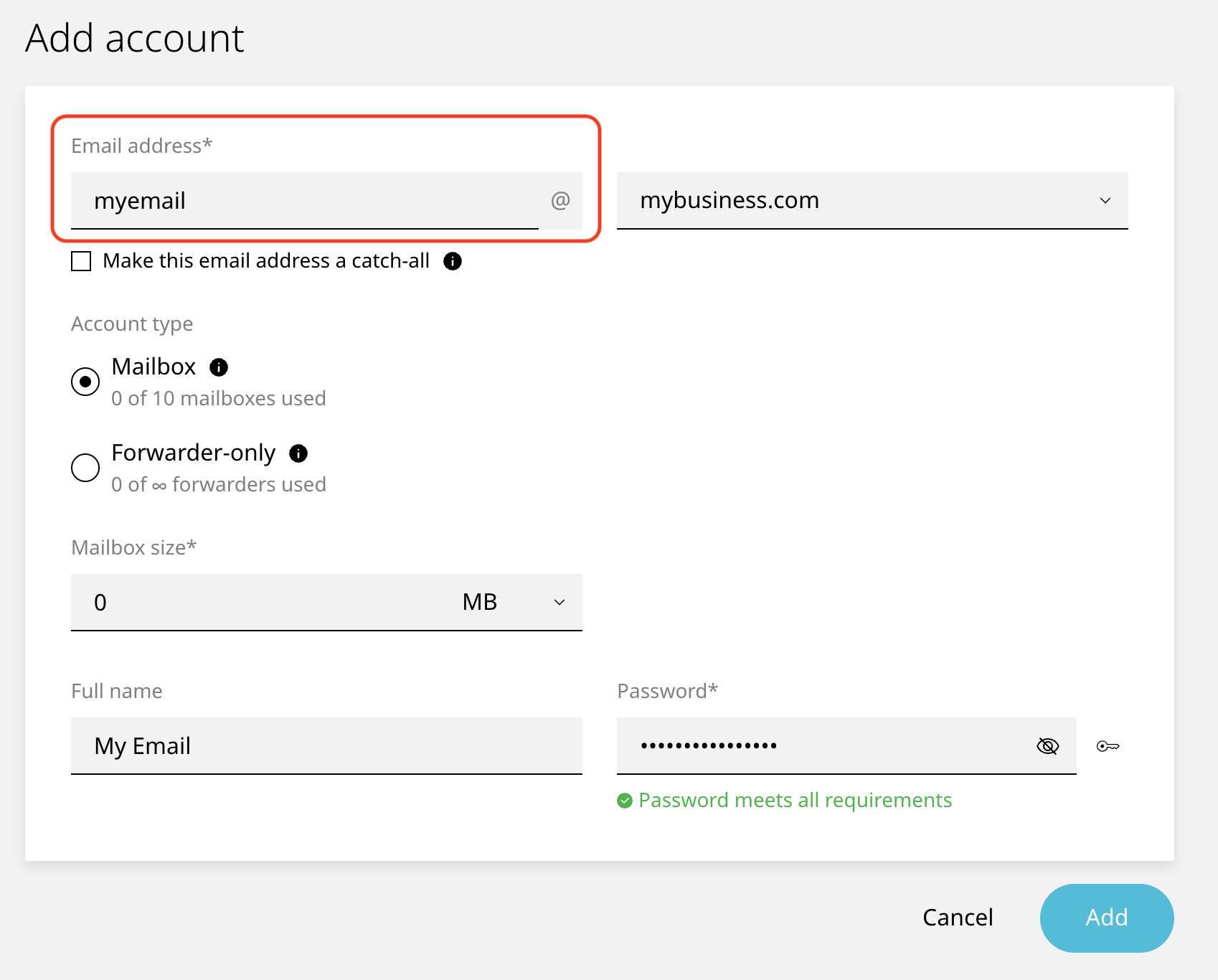
- Type the part that goes before the @. Keep it short and predictable:
luis,info,billing. Avoid accents, spaces and underscores, since they cause trouble when people type the address by hand.
-
Confirm the domain. If you have several domains on the account, make sure the right one is selected.
-
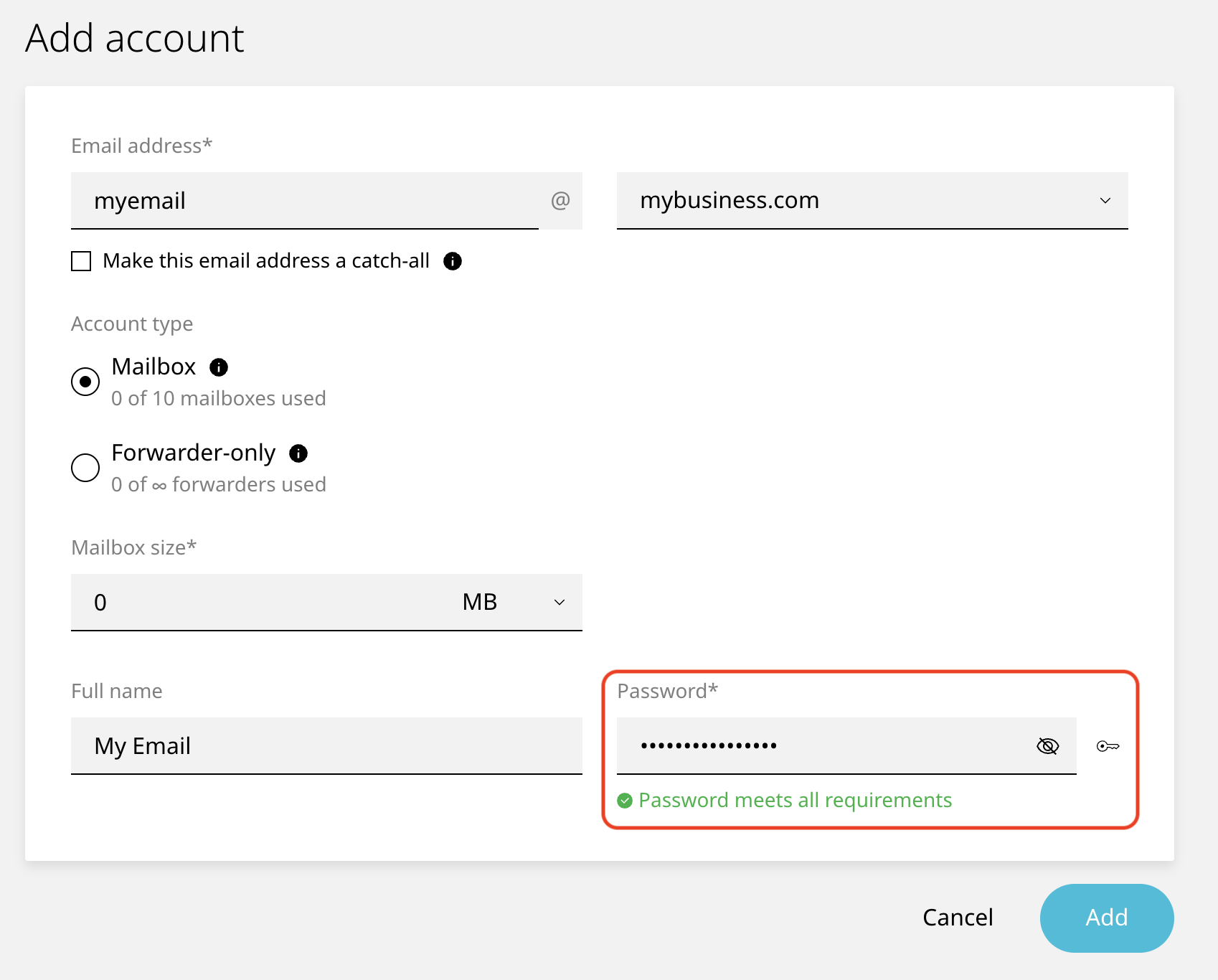
Set a password. Use the generator. This password protects a mailbox that can be reached from anywhere on the internet, so it will get guessed if it's weak.
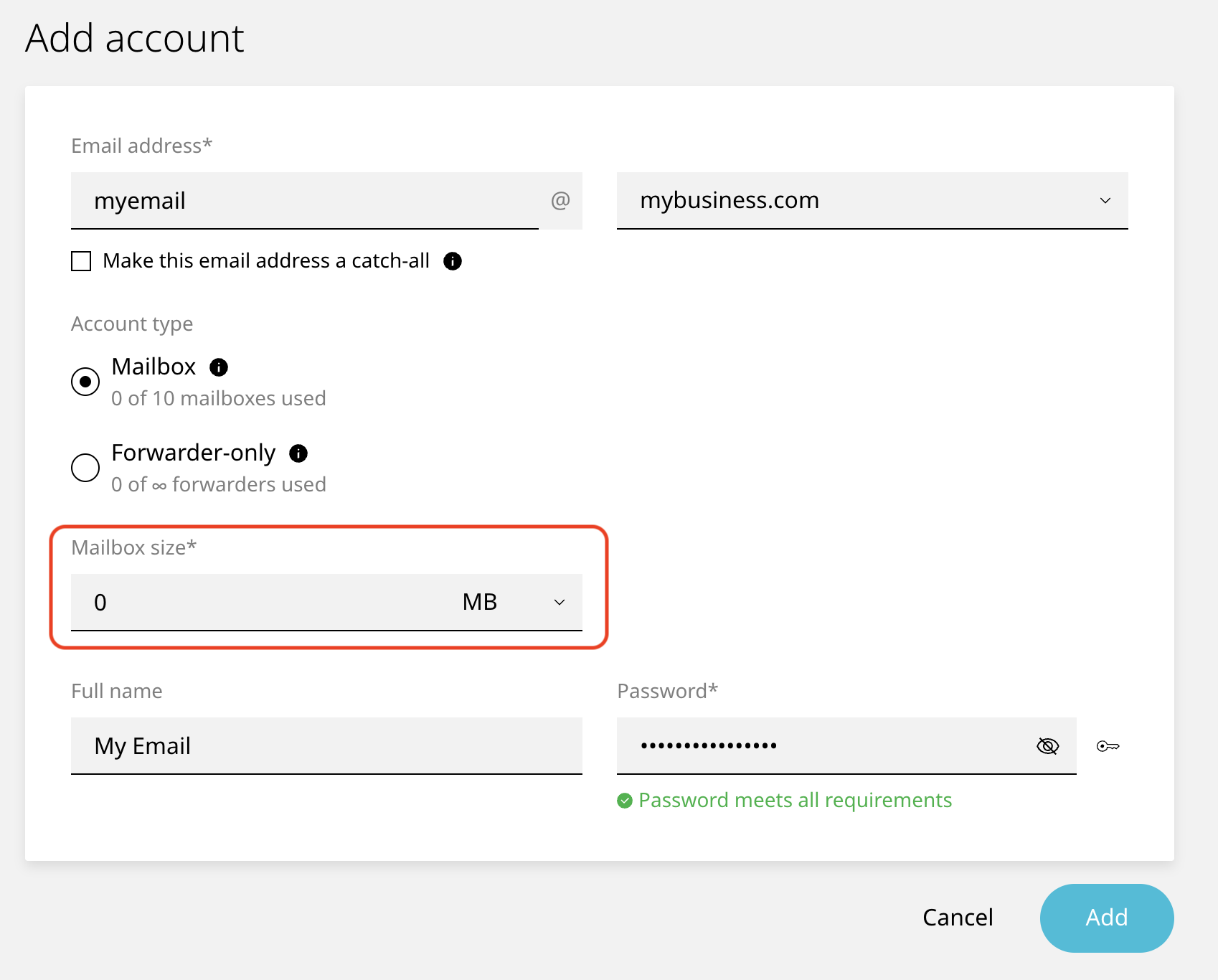
- Set the storage quota. A few gigabytes is plenty for most people. The total of all mailboxes has to fit inside your plan, so don't give everyone the maximum out of habit.
- Create the account.
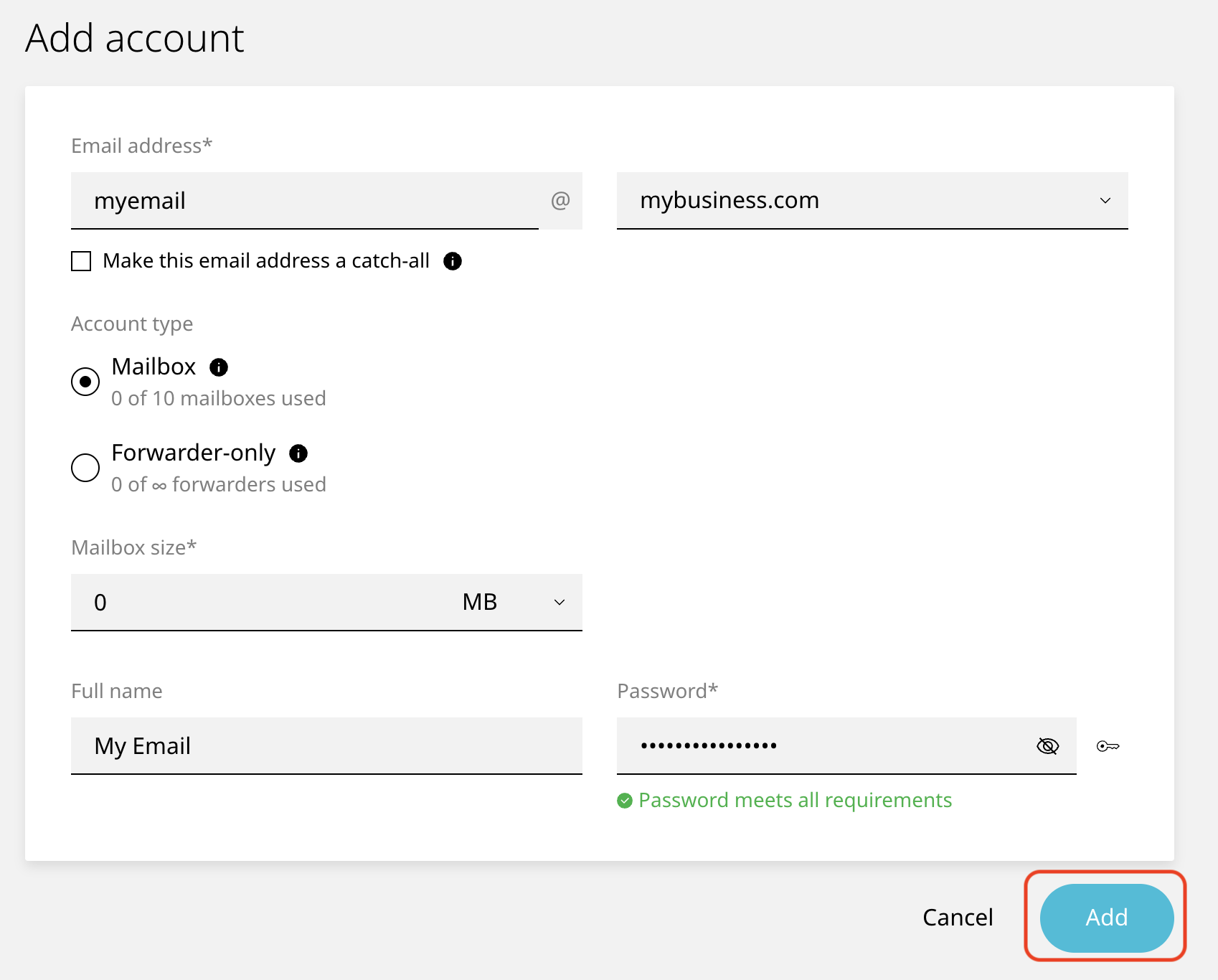
The mailbox is ready immediately. You can log in to webmail with the full address as the username and the password you just set.
How to check it worked
Open webmail and sign in with the new address. If you get to the inbox, the account exists, and the password is right.
Then do a round trip, because sending and receiving can fail independently. From a personal account somewhere else, Gmail, for example, send a message to the new address. Then reply from the new mailbox back to that personal account. If both arrive, the mailbox is properly working, not just created.
Give the first delivery a minute or two. Later ones are close to instant.
Common problems
-
You can send, but nothing arrives. The domain's mail is still being delivered somewhere else. Open the domain's DNS records and check the MX entries: they need to point to this hosting, not to your previous provider. If you're not sure what they should say, open a ticket, and we'll confirm the correct values for your account before you change anything.
-
"This email account already exists." The address is in use, or a forwarder with the same name is set up on the domain. Check the list of existing accounts and forwarders before creating a new one.
-
The panel rejects the password. Passwords have a minimum length and complexity. Use the generator, then store the result rather than trying to invent something memorable.
-
You've run out of mailboxes or space. Plans include a limited number of accounts and a total storage allowance. Delete mailboxes nobody uses, reduce an oversized quota, or upgrade the plan.
-
Your messages land in the recipient's spam folder. A brand new address with no sending history gets treated with suspicion, and the domain also needs SPF, DKIM and DMARC records configured for providers like Gmail and Outlook to trust it. Those records are usually set up automatically, so if your mail is being filtered, open a ticket, and we'll check that the domain is authenticated correctly.
-
You changed the password, and now your phone keeps asking for it. Mail apps store the old one. Update the password on every device and client that uses the account; otherwise, repeated failed logins can temporarily lock the mailbox.
-
You deleted a mailbox by mistake. Deleting an account deletes the mail inside it. It can usually be recovered from a backup if you act quickly, so open a ticket the same day rather than recreating the account.