Web Hosting4 min read
How to Create a Database and Its User
Create a MySQL database and user in the hosting panel, find the connection details your application needs and fix common connection errors.

A database is where your site stores everything that isn't a file: posts, products, orders, users, settings. Any application built on WordPress, PrestaShop, Laravel or a custom PHP script needs one.
You only have to do this by hand when you're installing something yourself, or migrating a site from another host. If you install an application from the panel's one-click installer, the database is created for you, and you can skip all of this.
Before you start
-
Have somewhere safe to record four values: the database name, the username, the password, and the host. Your application will ask for all four, and the password is shown only once.
-
Check whether the site already has a database. Sites migrated from elsewhere often do, and creating a second one is a common way to end up connected to an empty copy of your own site.
-
Decide on a name before you open the form. Something that tells you what it belongs to, like
shop_liveorblog_wp, saves you guessing in a year's time when the account has six of them.
Steps
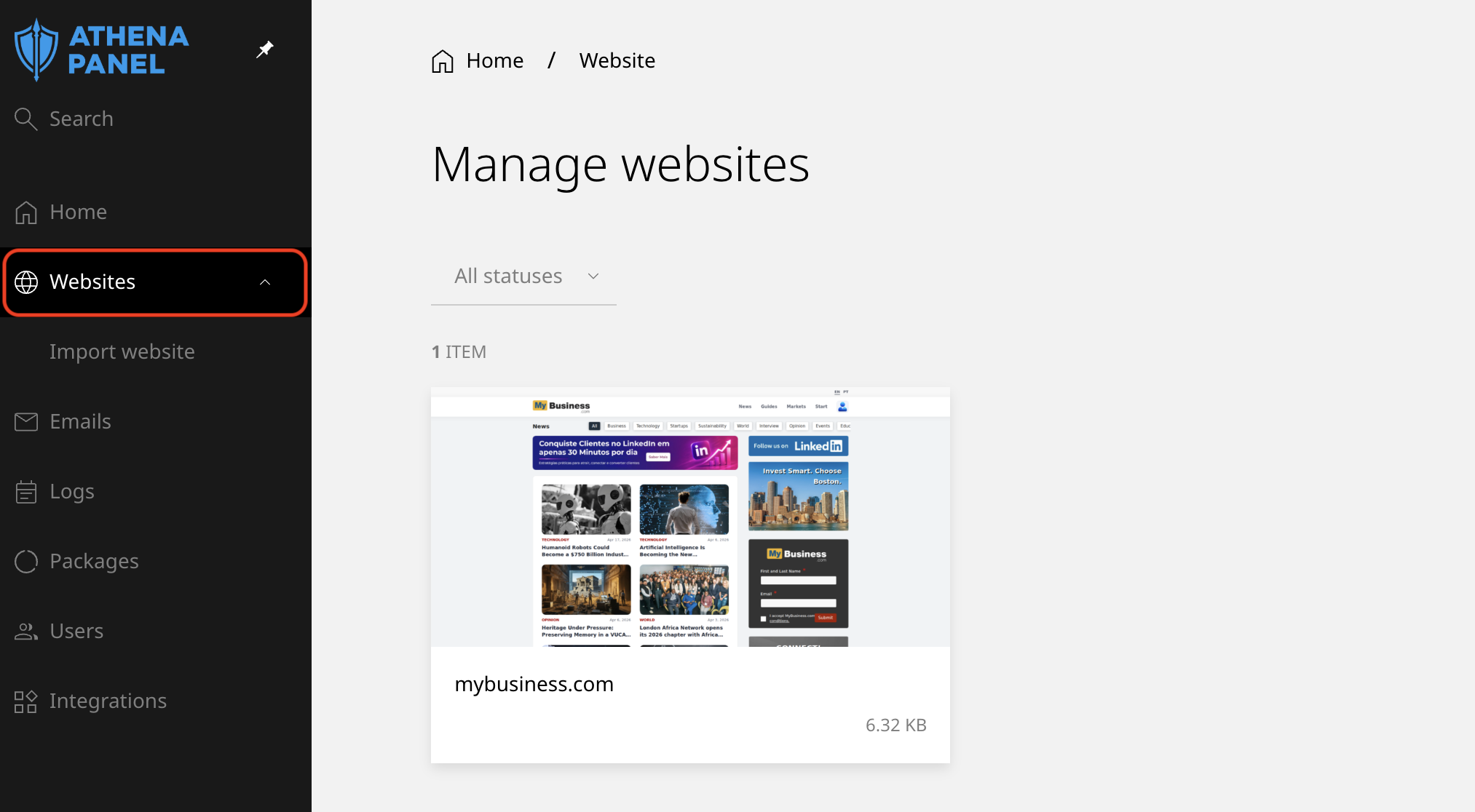
- Log in to your hosting panel and click Websites in the left-hand menu.
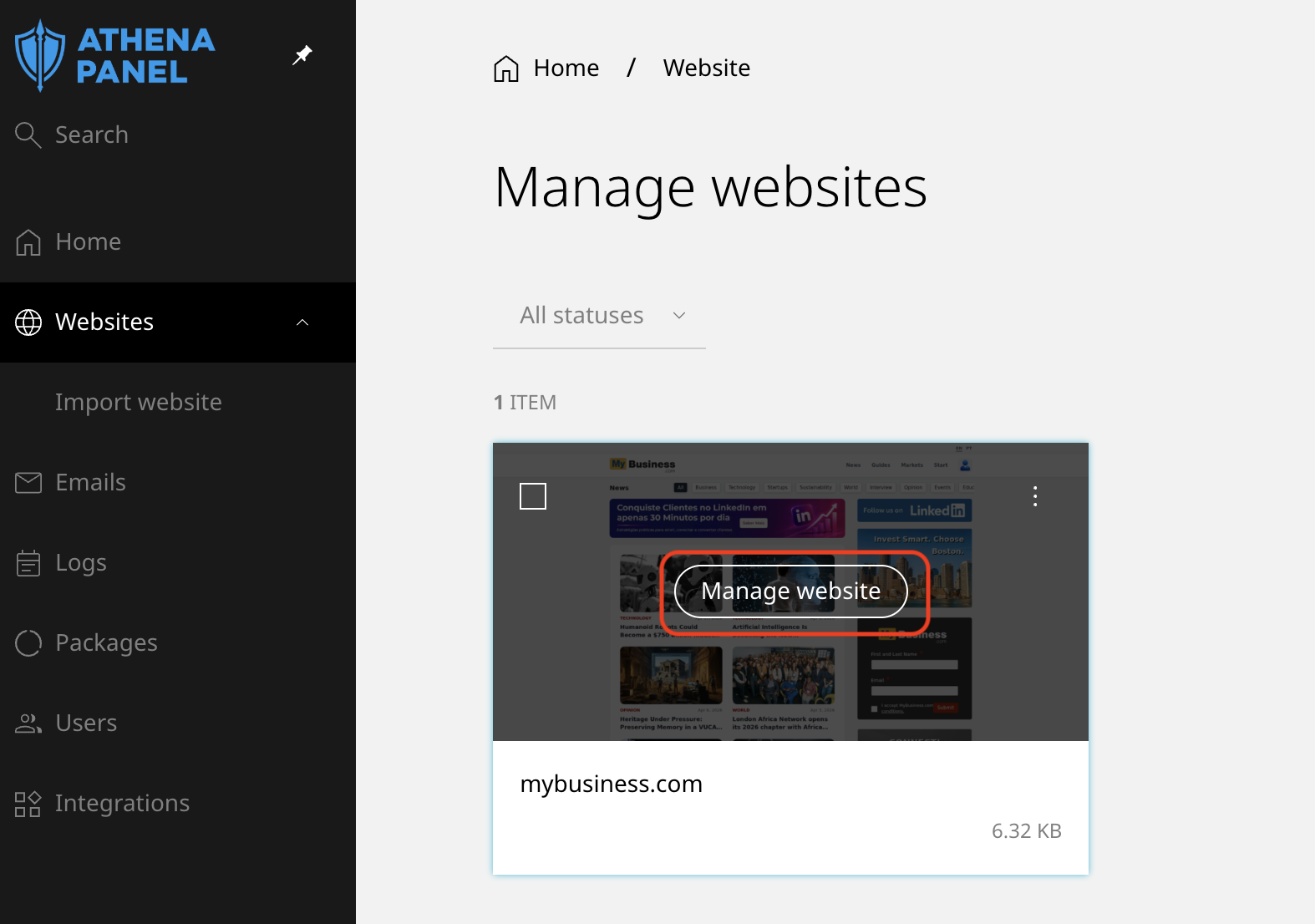
- Click the website the database belongs to.
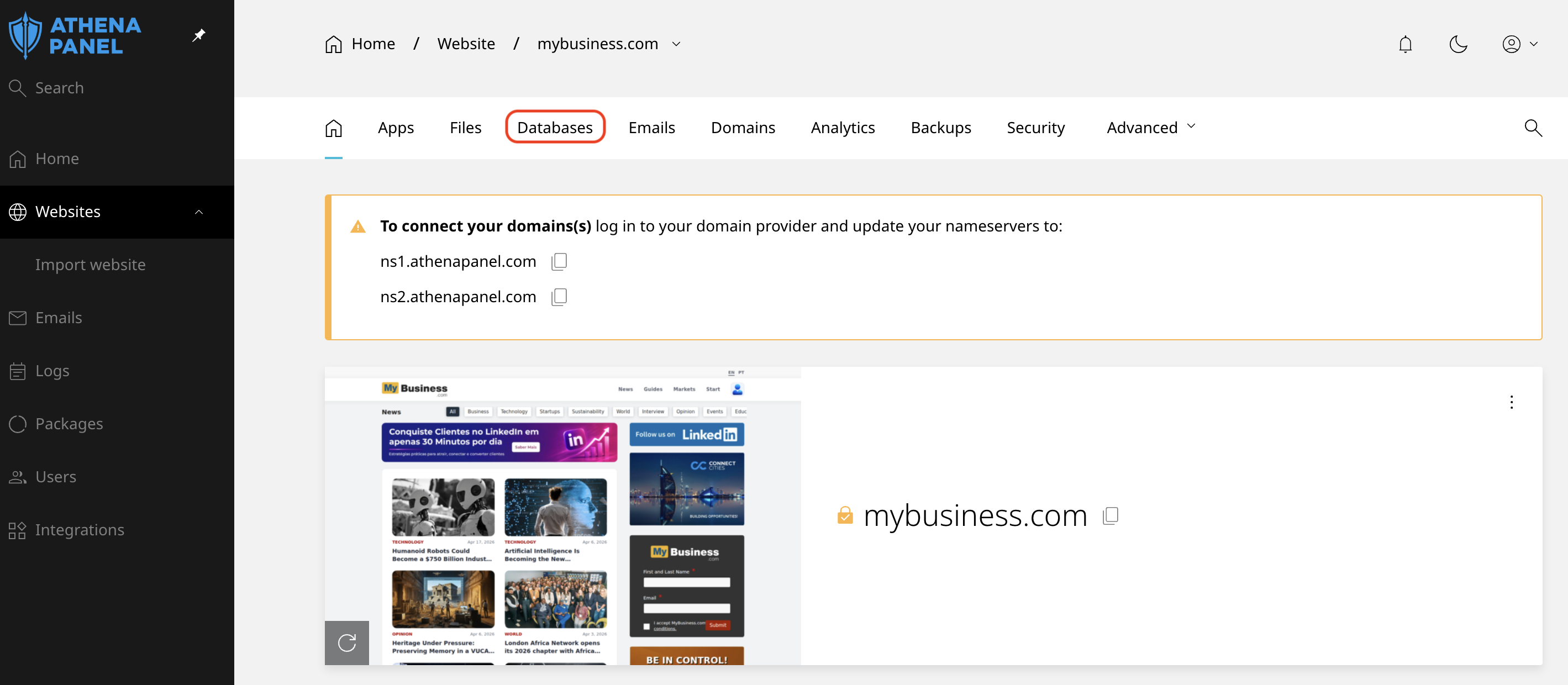
- Open the Databases tab.
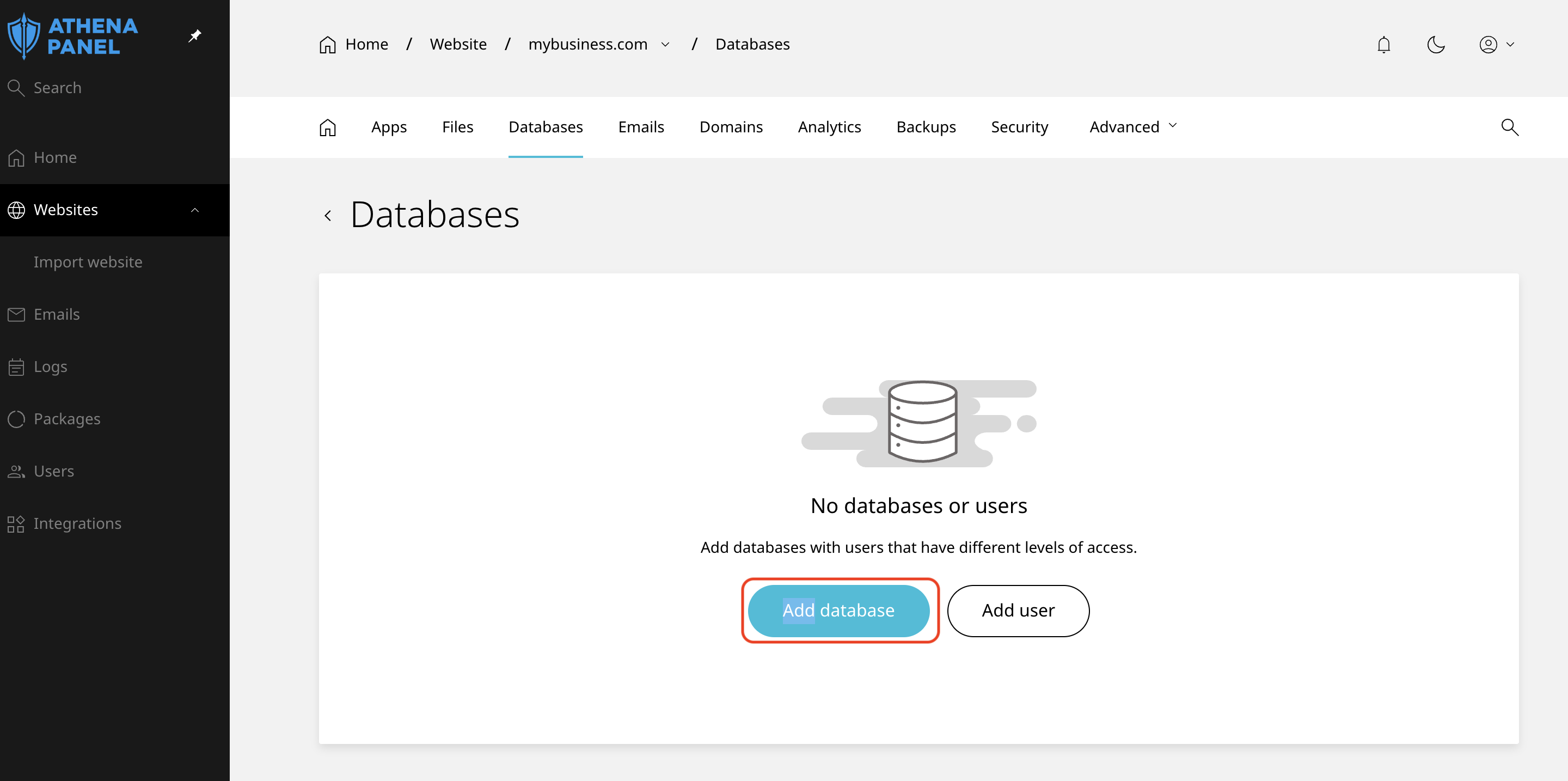
- Click Add database.
- Enter the database name. Use lowercase letters, numbers and underscores only. No spaces, no accents, no hyphens.
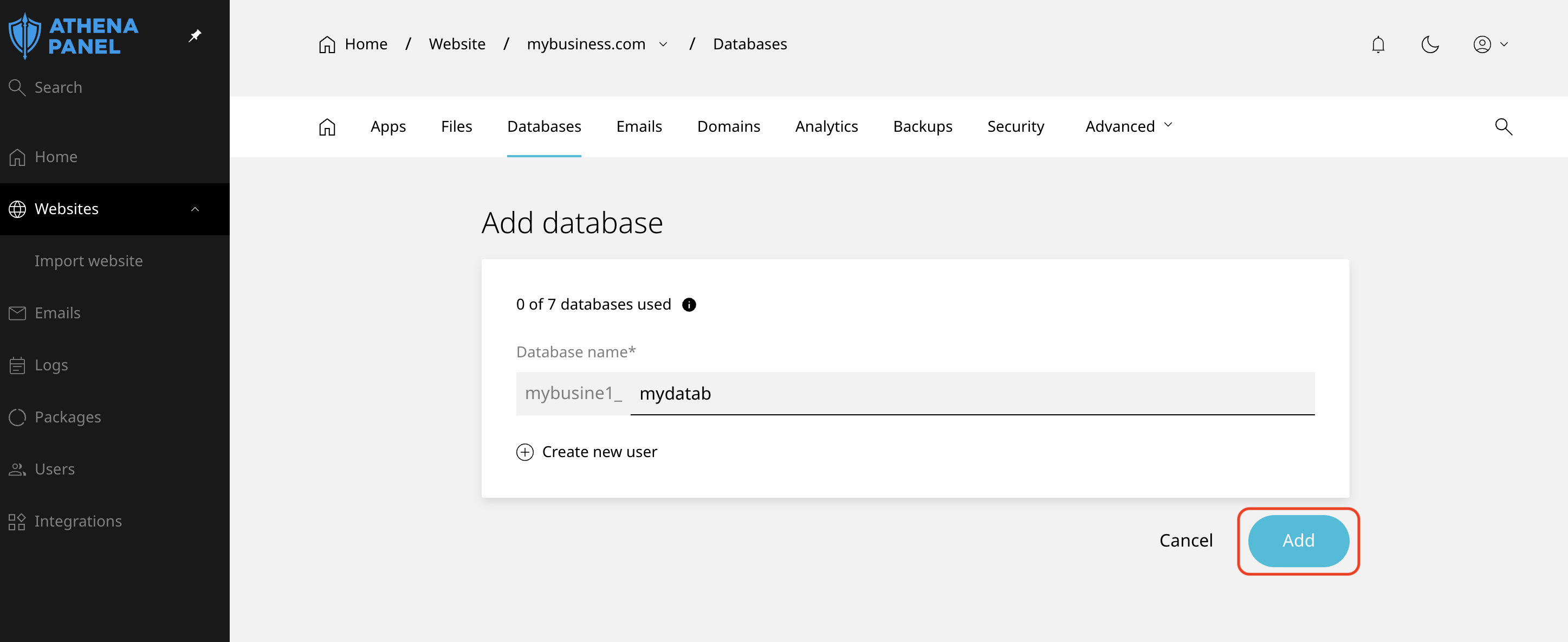
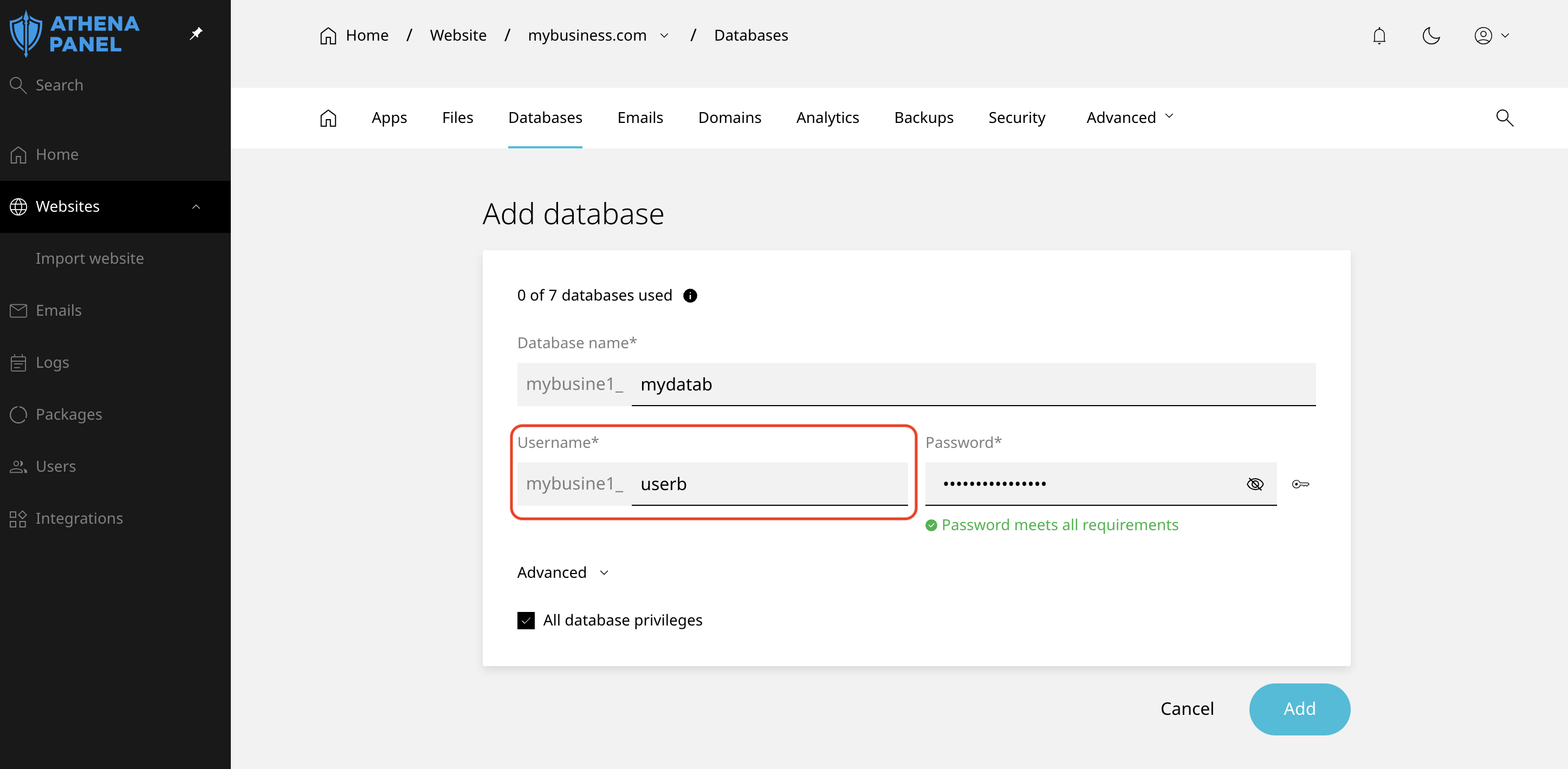
- Create the user for this database. In most cases, the panel lets you create the database and its user in the same step. If it doesn't, create the database first, then add a user and assign it to that database.
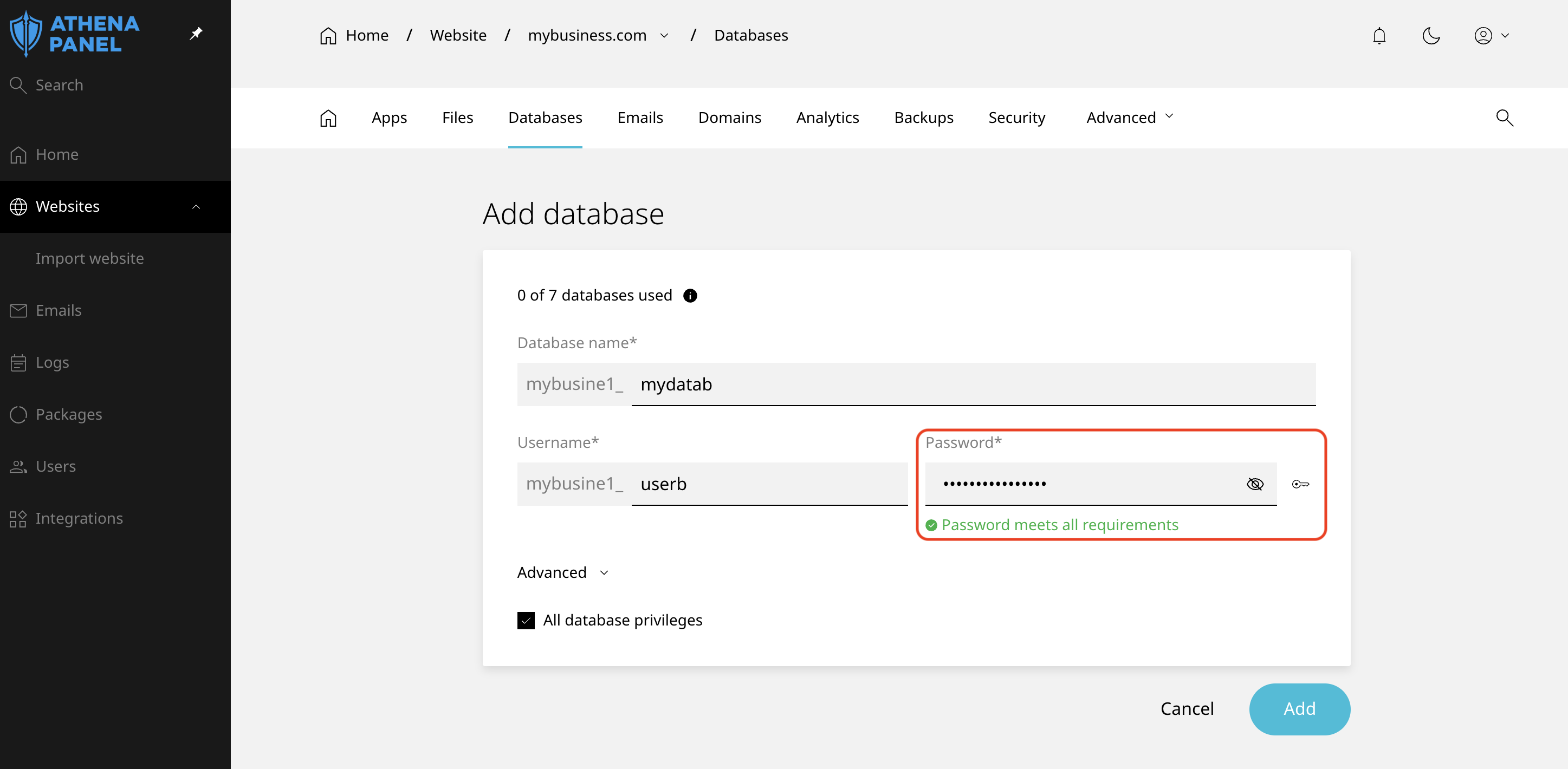
- Set a password, or use the generator. A generated password is the better choice here, because nobody types this one by hand. Copy it before you close the dialogue.
- Confirm and create.
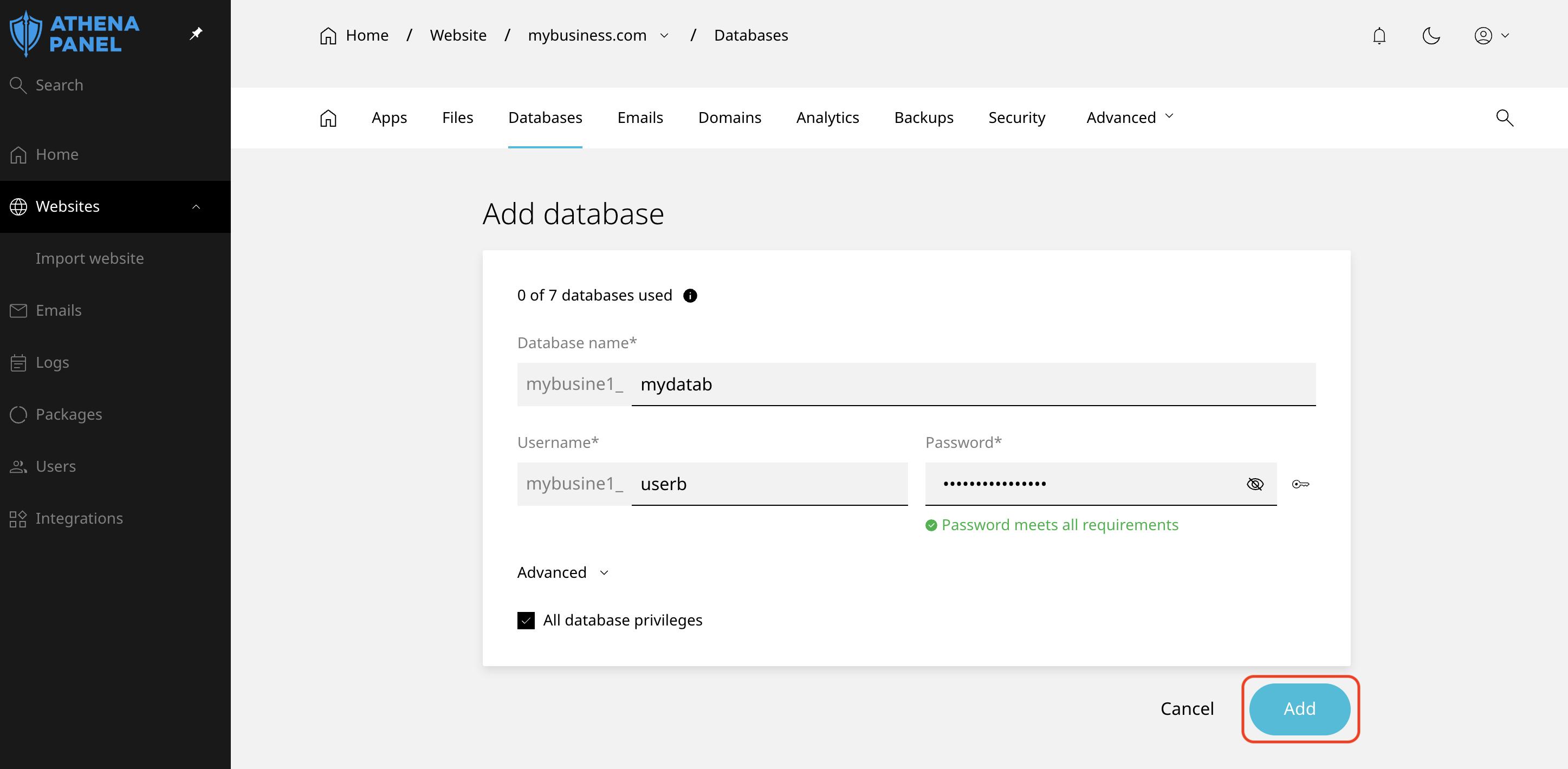
The panel may add a prefix to the name and the username, so what you end up with might look like acct1_shop_live rather than shop_live. Always use the values exactly as they appear in the database list afterwards, not the ones you typed.
The connection details your application needs
When the installer or config file asks, this is what goes where:
| The application asks for | What to enter |
|---|---|
| Database name | The full name from the panel, including any prefix |
| Username | The full username from the panel, including any prefix |
| Password | The password you set when creating the user |
| Host or server | localhost |
| Port | 3306, if it asks at all |
The host trips up almost everyone. It is not your domain name and not an IP address. The application and the database are on the same server, so localhost is what connects them. If localhost doesn't work, try 127.0.0.1 before assuming anything else is wrong.
In a WordPress wp-config.php file, these are the DB_NAME, DB_USER, DB_PASSWORD and DB_HOST lines.
How to check it worked
The database appears in the list right away, but that only proves it exists. To prove the credentials work, open phpMyAdmin from the Databases tab and sign in with the username and password you just created. If you reach the database, your application will connect too.
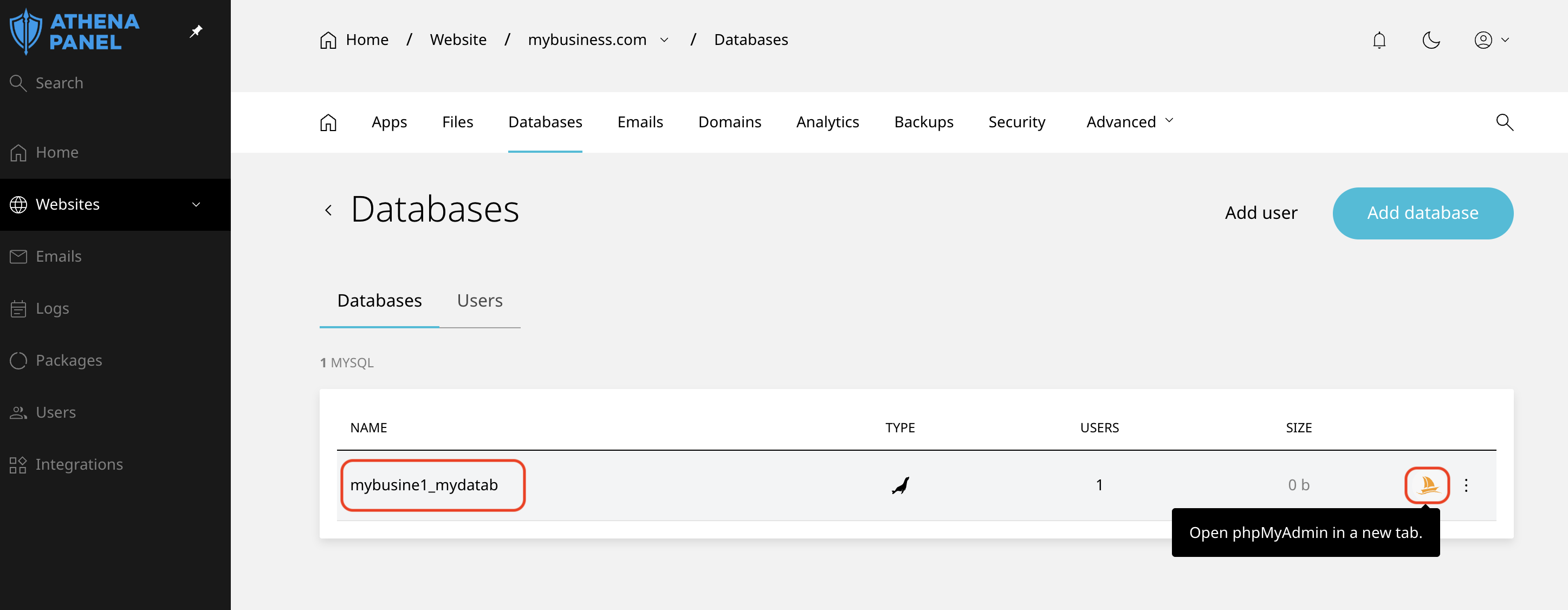
The other real test is the application itself. Run the installer, or reload the site if you were fixing a config file. WordPress showing its setup screen means the connection is fine.
A brand new database is empty. Seeing no tables in phpMyAdmin is expected until the application creates them.
Common problems
-
"Error establishing a database connection". One of the four values is wrong. Check them in this order: host first (it should be
localhost), then the username and database name including the prefix, then the password. Retyping the password from the panel solves this more often than anything else. -
"Access denied for user". The username and password don't match, or the user was never assigned to that database. Open the database in the panel and confirm the user is listed against it.
-
The password contains characters that break the config file. Quotes, backslashes and dollar signs can end a PHP string early, so
wp-config.phpreads only half the password. If your generated password has any of those, generate a new one without them rather than trying to escape it. -
You've reached the database limit on your plan. Each plan includes a set number. Delete databases from sites you no longer run, or upgrade.
-
You deleted the wrong database. Deletion is immediate and takes the data with it. Stop and open a ticket the same day, so we can check whether a recent backup still holds it.