Web Hosting4 min read
How to Connect to Your Site Over SSH
Set up an SSH key, enable SSH access in the hosting panel and connect to your site from a terminal, with fixes for common connection errors.

SSH gives you a command line on the server, in the folder where your site lives. It's the right tool if you work with Git, Composer or WP-CLI, if you need to move thousands of files without waiting for an FTP client, or if you'd rather read a log with tail than download it.
If what you actually want is to upload a few files, you don't need any of this. The file manager or an SFTP client will be faster, and there's nothing to set up.
SSH access isn't included on every plan, and on some accounts it has to be switched on first. If you can't find the section described below, that's usually why.
Before you start
You'll need a terminal. On macOS and Linux, it's already installed. On Windows, use PowerShell or Windows Terminal, both of which include an SSH client, so there's no need for extra software anymore.
You'll also need your connection details from the panel: the username, the host to connect to, and either a password or, better, a key pair.
A word on keys. A password can be guessed, and a server that accepts passwords gets hammered with login attempts all day. A key can't realistically be guessed, and once it's set up, you stop typing anything at all. If you're going to use SSH more than once, spend the two minutes setting up a key.
Setting up a key
On your own computer, generate one:
ssh-keygen -t ed25519 -C "[email protected]"
Press Enter to accept the default location, and set a passphrase when it asks. That passphrase protects the key file itself if your laptop is ever lost.
Then copy the public key, the file ending in .pub:
cat ~/.ssh/id_ed25519.pub
Copy the whole line, starting with ssh-ed25519 and ending with your email.
The file without the .pub extension is your private key. It never leaves your machine, and it never gets pasted anywhere.
Steps
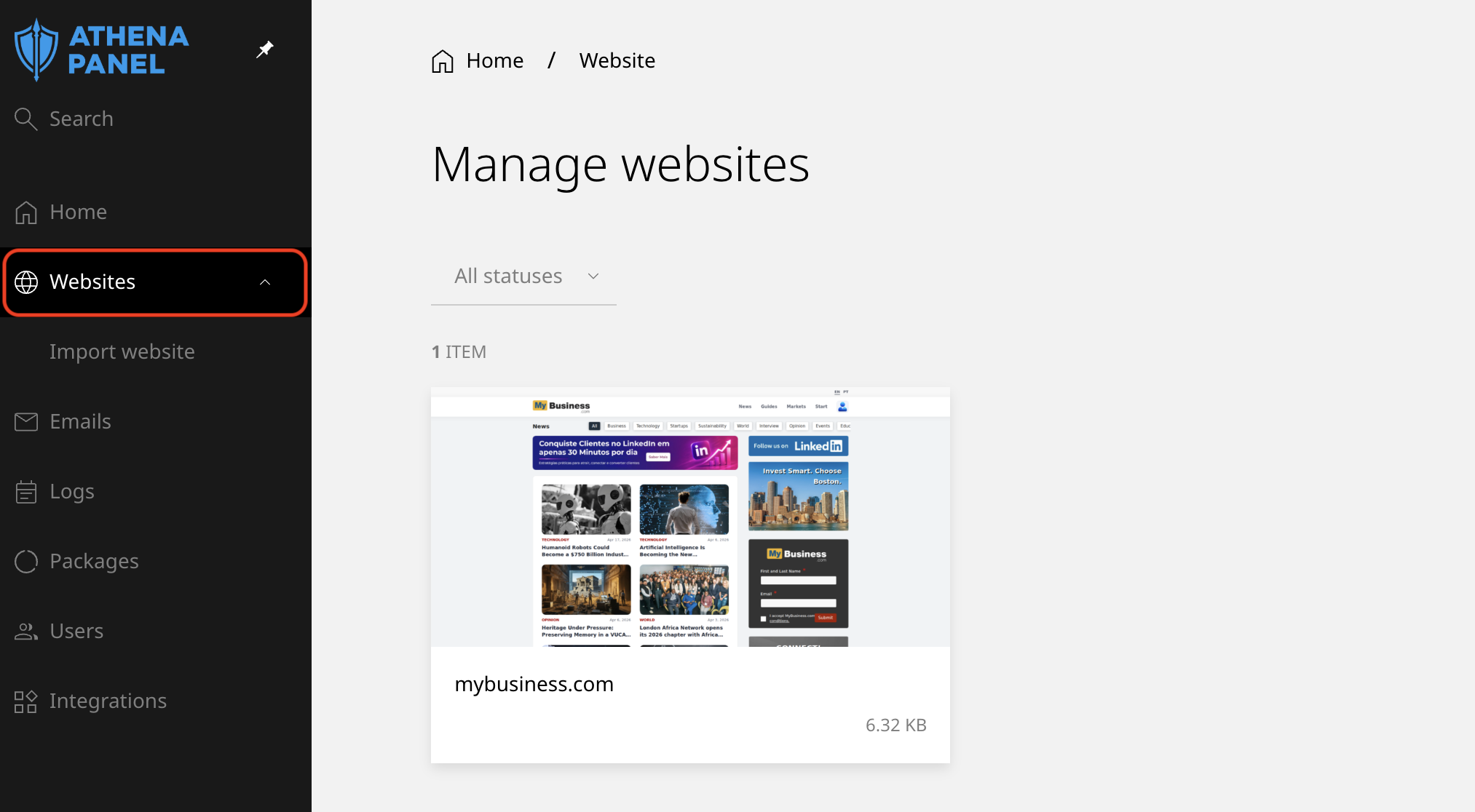
- Log in to your hosting panel and click Websites in the left-hand menu.
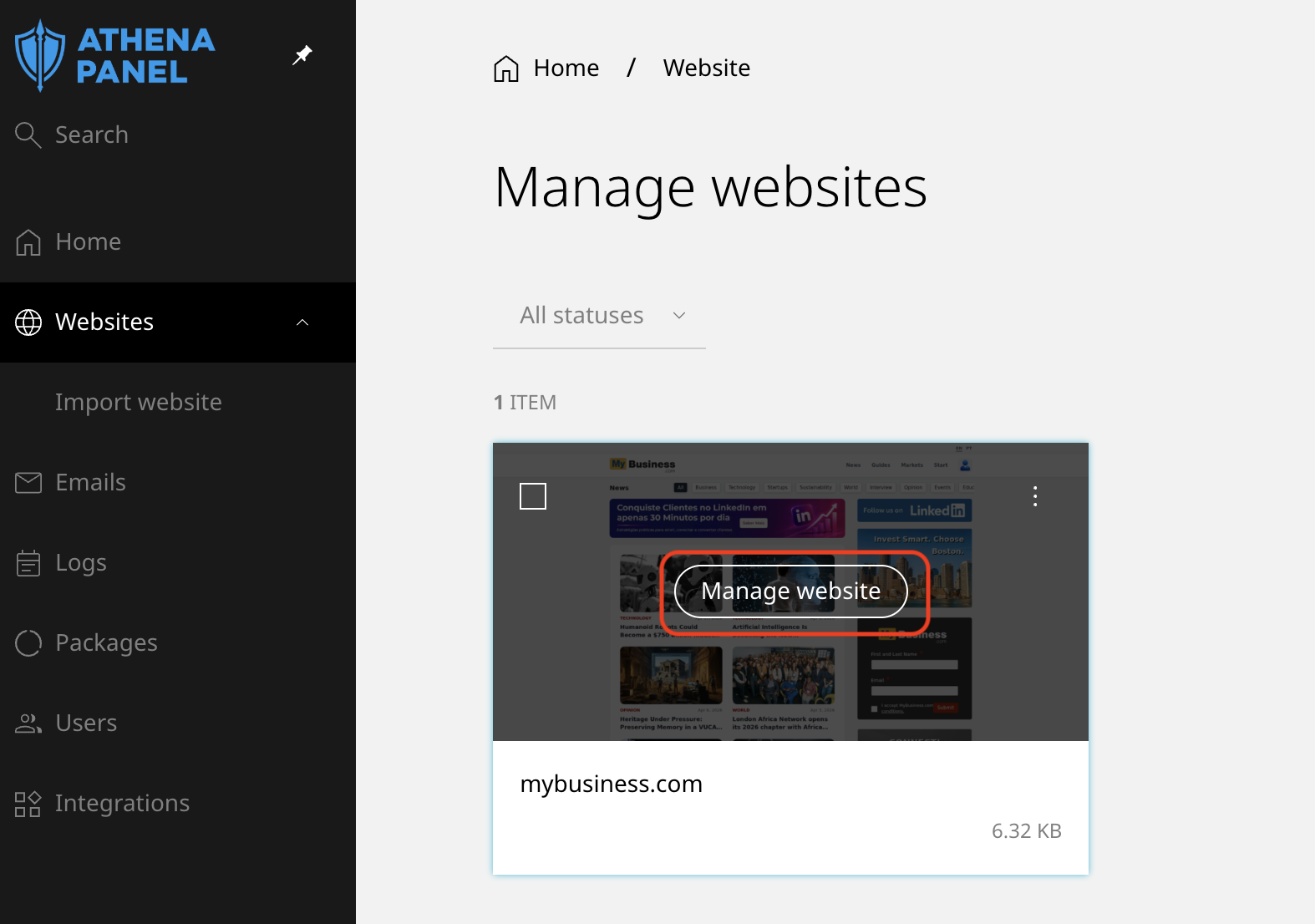
- Click the site you want access to.
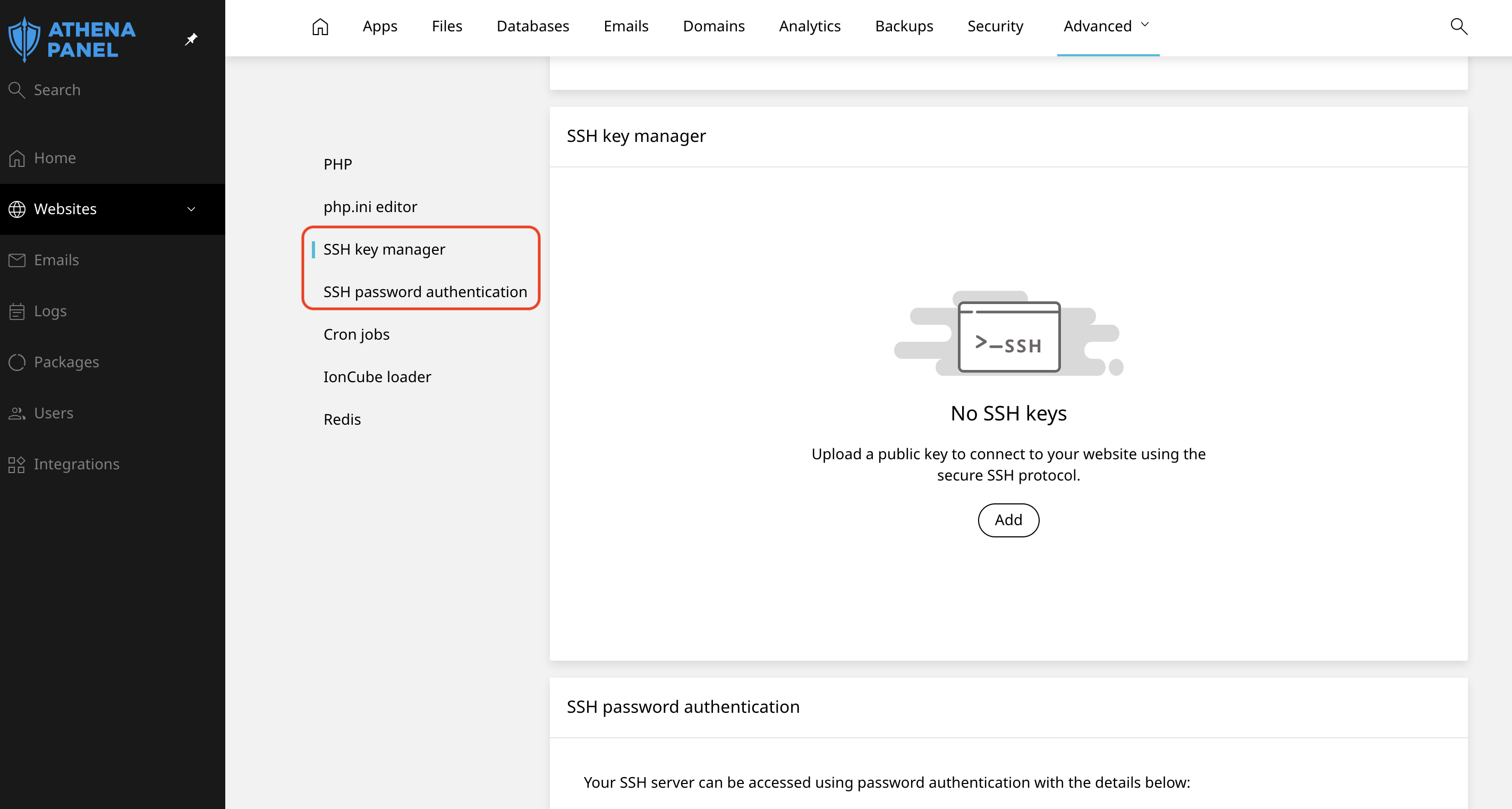
- Open the Developer Tools tab and find the SSH section.
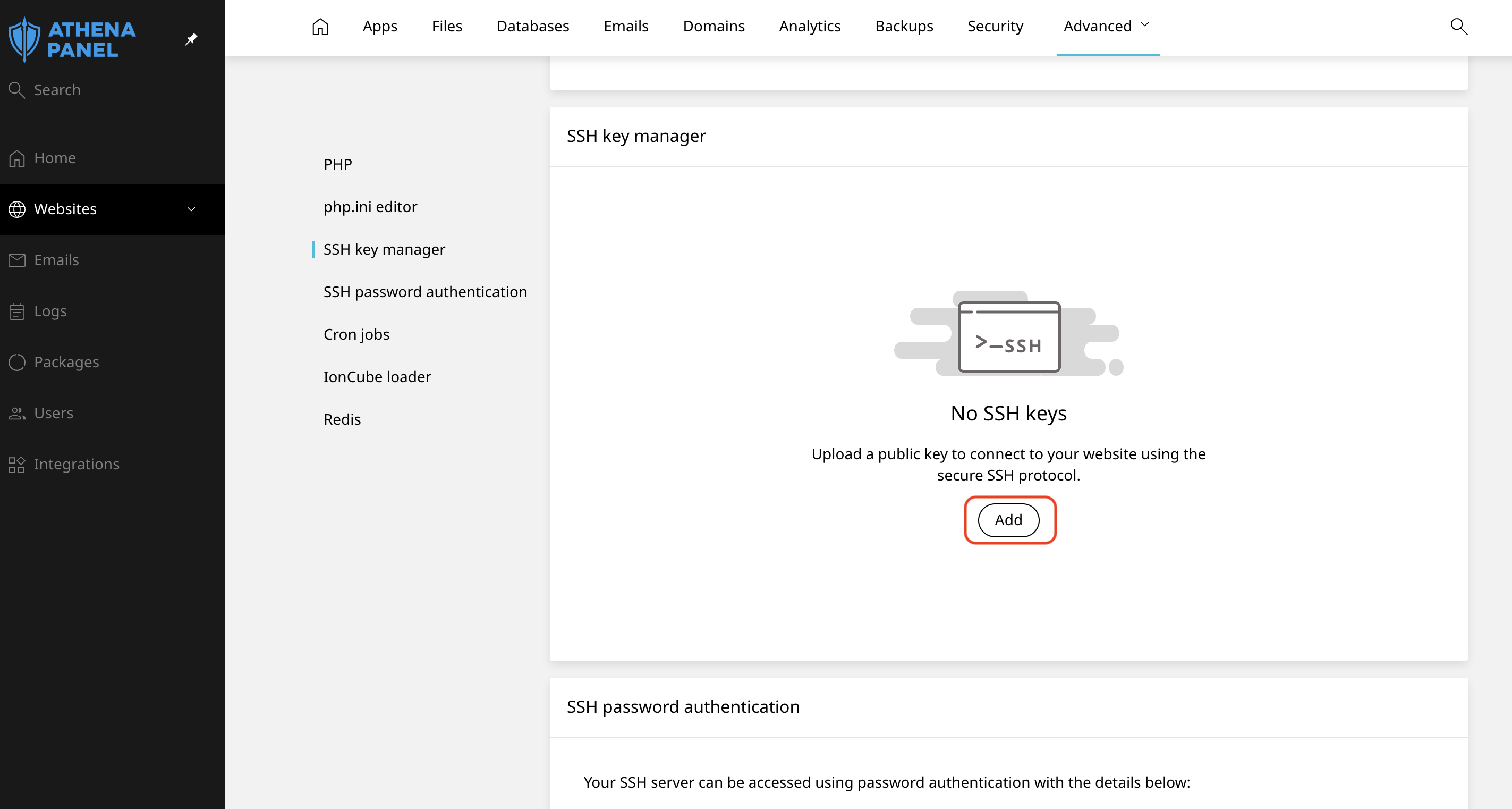
- Enable SSH access if it isn't already, and paste your public key into the field provided.
-
Note the username and the host shown there. The host is often your domain, though on some accounts it's a server hostname instead.
-
In your terminal, connect:
ssh [email protected]
Port 22 is used unless your panel tells you otherwise, in which case add -p and the port number.
- The first time, you'll be asked to confirm the server's fingerprint. Type
yes. This only happens once per machine.
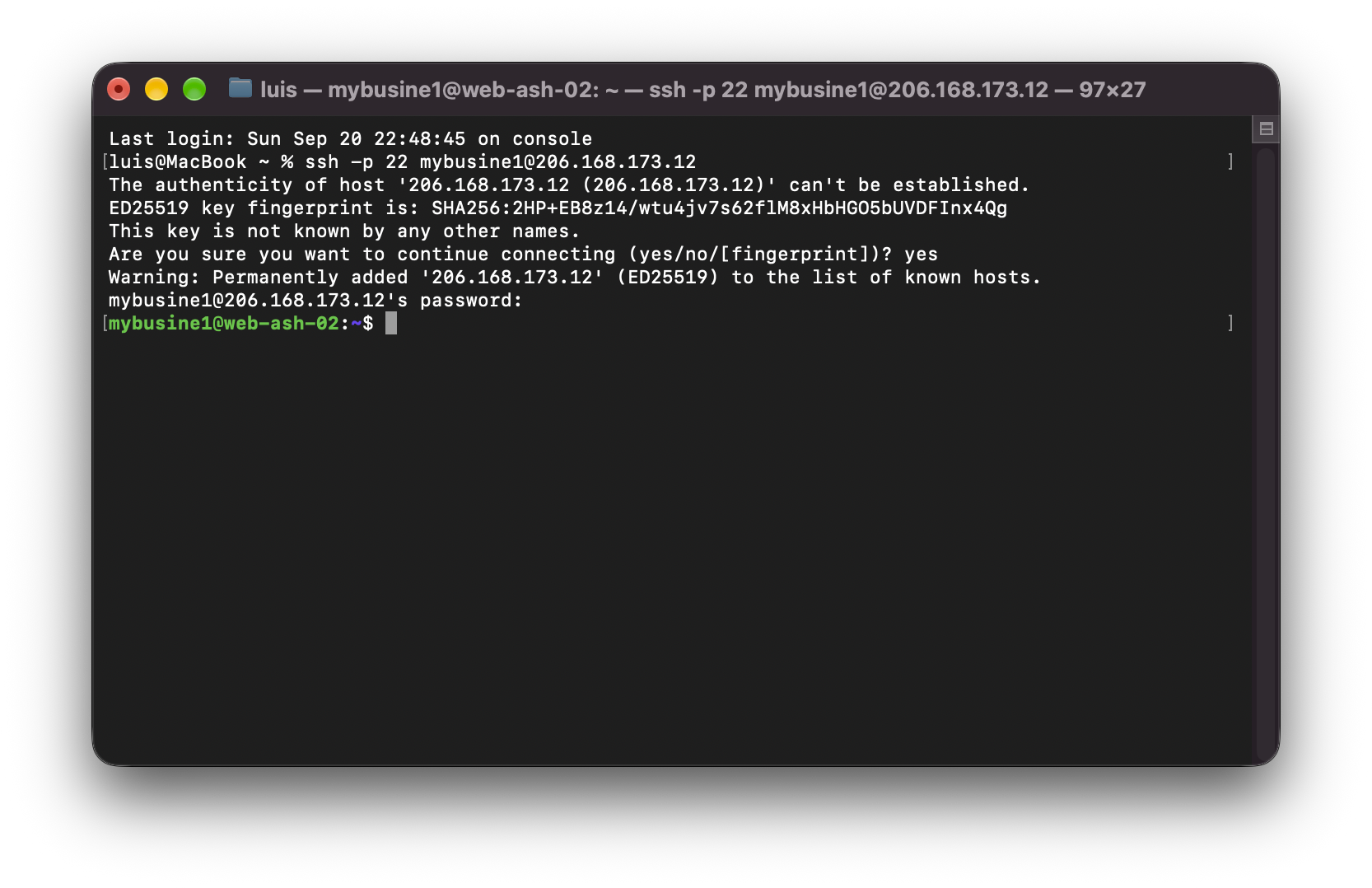
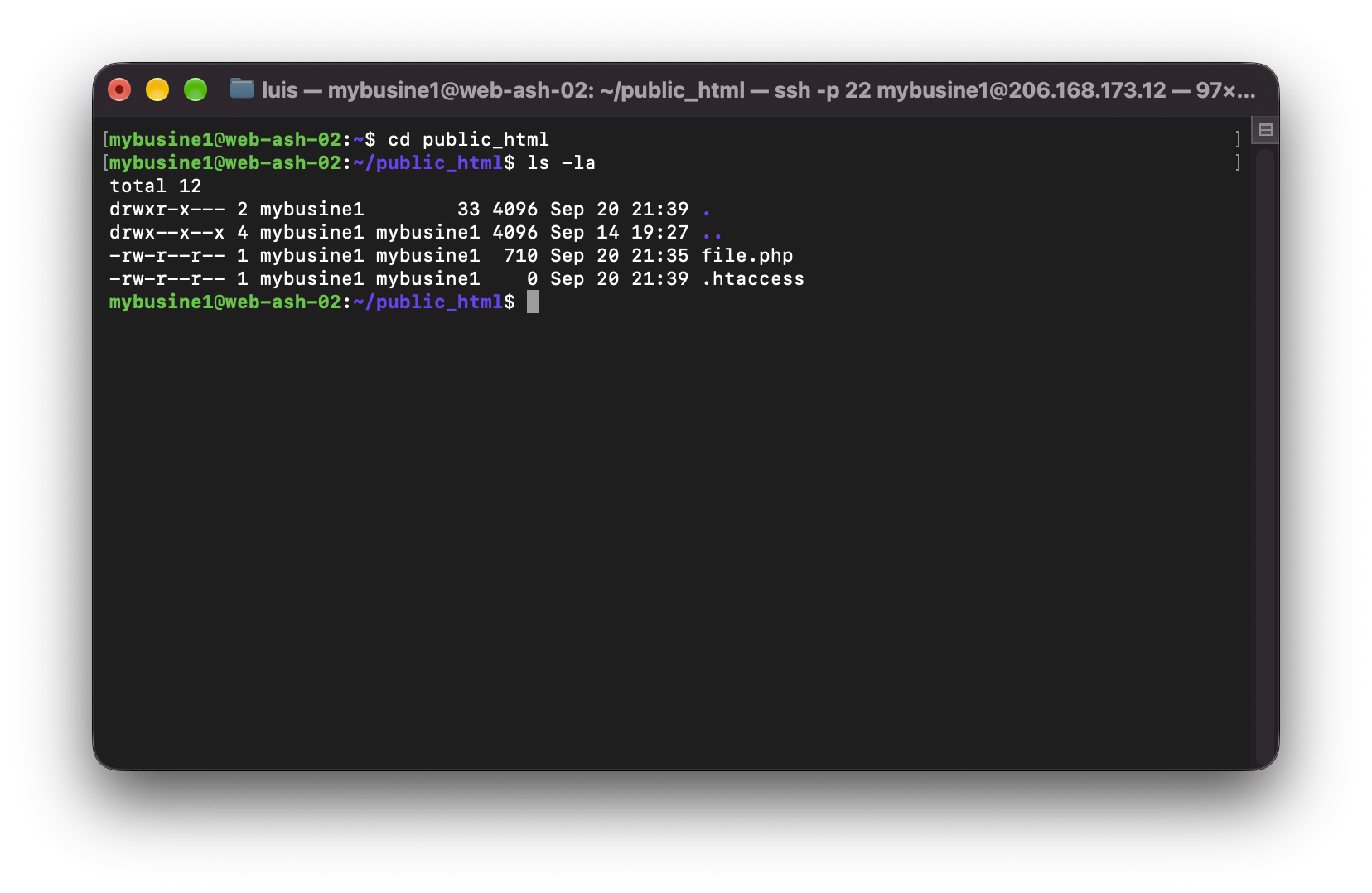
You'll land in your account's home directory. Your website files are one level down:
cd public_html
ls -la
What you can and can't do
You're inside your own isolated space, not on the server as a whole. You can read and write your own files, run Git, Composer, WP-CLI and PHP scripts, and inspect your logs.
You can't become root, install system packages, or see anything belonging to other accounts. Long-running or heavy processes may also be stopped automatically if they consume more resources than your plan allows, which is worth knowing before you start a large import and walk away.
How to check it worked
Run pwd to confirm where you are, and ls -la to see your files, including hidden ones. If public_html is in that list, you're in the right place.
A quick one to confirm the environment: php -v shows the PHP version available at the command line. Note that this can differ from the version your website runs, which matters if you're running scripts from here.
Common problems
-
"Permission denied (publickey)". The server didn't accept your key. Either the public key wasn't saved correctly in the panel, or your client is offering a different key than the one you added. Check that you pasted the whole line with no line breaks, and try connecting with
ssh -vto see which key is being offered. -
"Connection refused", or it hangs and times out. SSH isn't enabled for the account, the plan doesn't include it, or the port is different. It's also worth testing from another network, since some office and hotel connections block outbound SSH entirely.
-
"Host key verification failed". The server's fingerprint changed, usually after a migration. Remove the old entry from
~/.ssh/known_hostsand connect again, confirming the new fingerprint. -
You connect but don't see your website files. You're in the home directory, one level above the site. Run
cd public_html. -
A command exists on your computer but not on the server. The environment is deliberately minimal. If you need a specific tool, ask us before assuming it can be installed.
-
Everything works, but a long import dies partway through. The process hit a resource or time limit. Break the job into smaller pieces, or open a ticket before running it so we can advise on the best approach for your plan.