Web Hosting4 min read
How to Check Your Plan Usage
See how much disk space, how many websites, mailboxes and databases you're using, find what's taking up space, and free some up before you hit a limit.

Your hosting plan includes a set amount of disk space and a set number of websites, mailboxes and databases. Everything works normally until you reach one of those limits, and then things start failing in ways that don't obviously point to the cause: uploads that won't finish, emails that bounce back to the sender, an "add" button that refuses to do anything.
Checking your usage takes a few seconds and tells you whether the problem is a limit or something else entirely.
Where to look
-
Log in to your hosting panel.
-
Your usage summary is on the main screen you land on, at the account level. You don't need to open a website to see it.
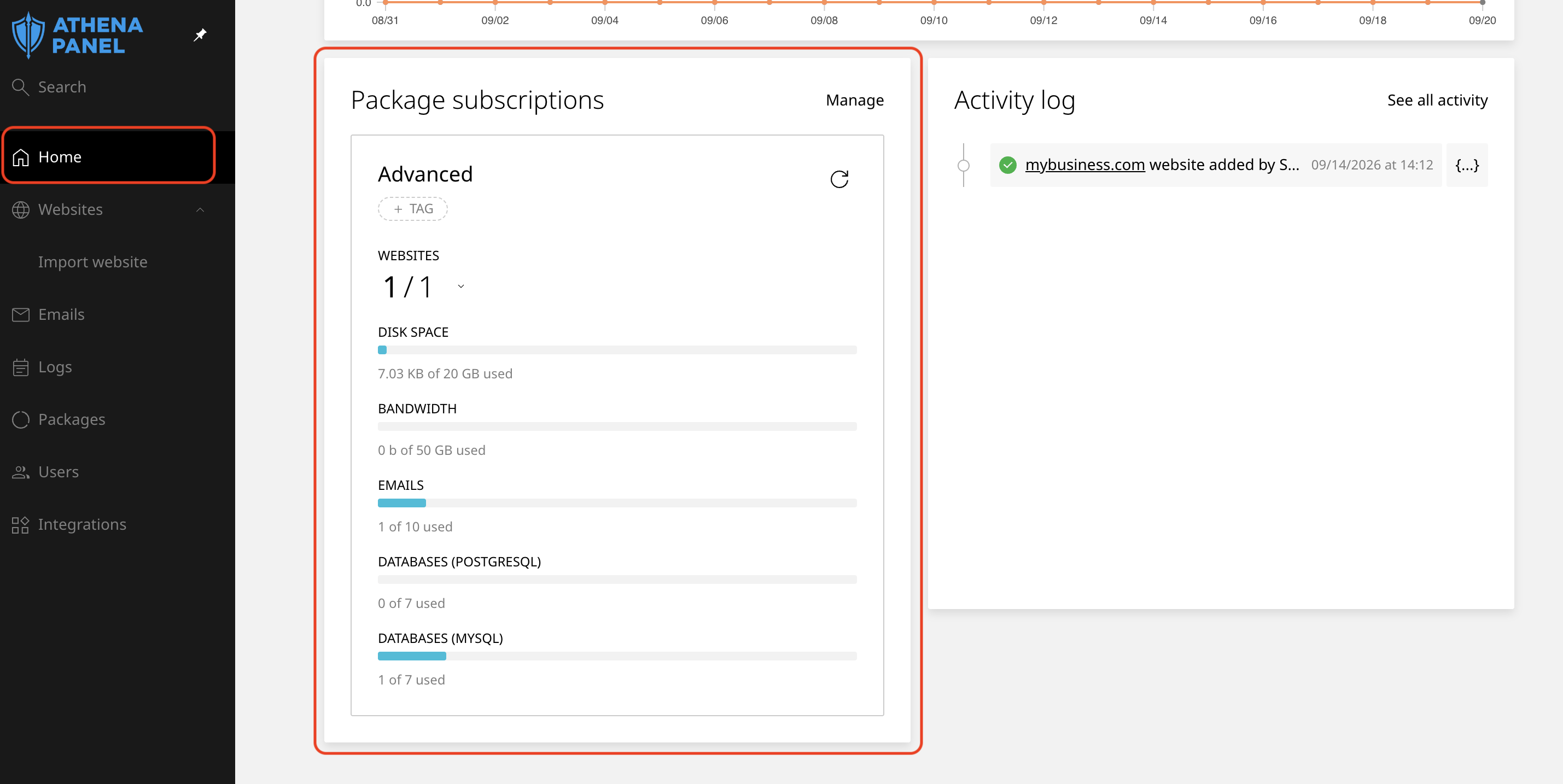
- Read the figures next to each item. Typically you'll see disk space used against your total, how many websites you have out of the number your plan allows, and the same for mailboxes and databases.
To see which site is responsible for the space, click into each website. The site's overview shows its own usage, so with three or four sites it's quick to spot the heavy one.
What actually counts toward your space
This is where most of the confusion comes from. Disk usage is not just the files of your website. It normally includes:
-
Everything in your site folders, including things you uploaded and forgot about
-
Your databases
-
Your email, which on a busy account is often the biggest single item
-
Any
.zipor backup files you created yourself and left on the server -
Staging copies, which are complete duplicates of a site
Two mailboxes that have been collecting mail with attachments for three years will quietly use more space than the website itself. If your number looks far too high for the size of your site, email is the first place to check.
Whether the automatic backups we keep for you count against your quota depends on the plan. If you're not sure, ask, and we'll tell you how yours is configured.
What the different limits mean
-
Disk space is the total storage you're using. When it fills up, uploads fail, new email stops being delivered, and databases can refuse to write. This is the limit that causes the most damage, because it affects everything at once.
-
The number of websites, mailboxes and databases are counts, not space. You can be using two gigabytes out of fifty and still be unable to create another mailbox, because you've used all the mailboxes the plan includes. Space free and slots free are separate things.
-
Traffic or bandwidth, if your plan lists it, is the data your visitors download over a month. It resets at the start of each billing period.
-
Worth separating from all of the above: an error 508 on your site is a resource limit, not a storage one. That's about processing power during a moment of load, and it has nothing to do with how full your account is.
If you're close to a limit
Before upgrading, look for the easy wins. In most accounts, there are several.
Empty the trash and spam folders in your mailboxes, and check for a very old account nobody uses anymore. Delete any archive files you uploaded and extracted but never removed. Remove staging copies of sites you finished testing months ago. Check your site's media folder for the original uncompressed images from a redesign.
If after that you're still near the ceiling, upgrading the plan is the honest answer, and it's better done before something breaks than after.
Common problems
-
The figures look out of date. Usage is recalculated periodically rather than the instant you delete something. Wait a while and check again before assuming the cleanup didn't work.
-
You deleted a lot of email, and nothing changed. Deleted messages usually sit in a trash folder that still counts. Empty the trash, and empty the spam folder while you're there.
-
Your space is fine, but you can't add a mailbox or a website. You've hit a count limit rather than a storage one. Remove one you don't use, or move up a plan.
-
Emails to your address bounce back. A full mailbox, or a full account, rejects incoming mail. Free up space and delivery resumes on its own, though messages that already bounced won't be resent automatically. The sender has to try again.
-
The total doesn't match what you can see in your files. Hidden files, databases, email and staging copies all count and none of them show up when you look at the website folder alone.
-
You're not sure what's using the space, and nothing obvious stands out. Open a ticket. We can see the breakdown per folder and per mailbox on your account and tell you exactly where it's going.