Web Hosting4 min read
How to Change Your Site's PHP Version
Switch the PHP version your website runs on from the hosting panel, check that everything still works, and roll back if something breaks.

PHP is the language most websites run on, including WordPress, and your panel lets you pick which version each site uses. You'd normally change it for one of three reasons: a plugin or script needs a newer version, something old broke on a newer one, or the version you're on has stopped receiving security updates.
The switch itself takes two clicks and applies almost immediately. The part that deserves care is what happens to your site afterwards.
Before you start
-
Take a backup, or make sure a recent one exists. Changing the version doesn't touch your files, but if the site breaks, you'll want a way back that doesn't depend on guesswork.
-
Find out what your software actually needs. WordPress publishes a recommended version, and so do most plugins and themes. If you run an older custom script or an ecommerce platform you haven't updated in a while, check its requirements first.
-
Pick a quiet moment. If the site sells something or takes bookings, don't do this on a Monday morning.
If your plan includes staging, the safest path is to clone the site, change the version on the copy, click around, and only then do it on the live site. It costs you ten extra minutes and saves the occasional bad afternoon.
Steps
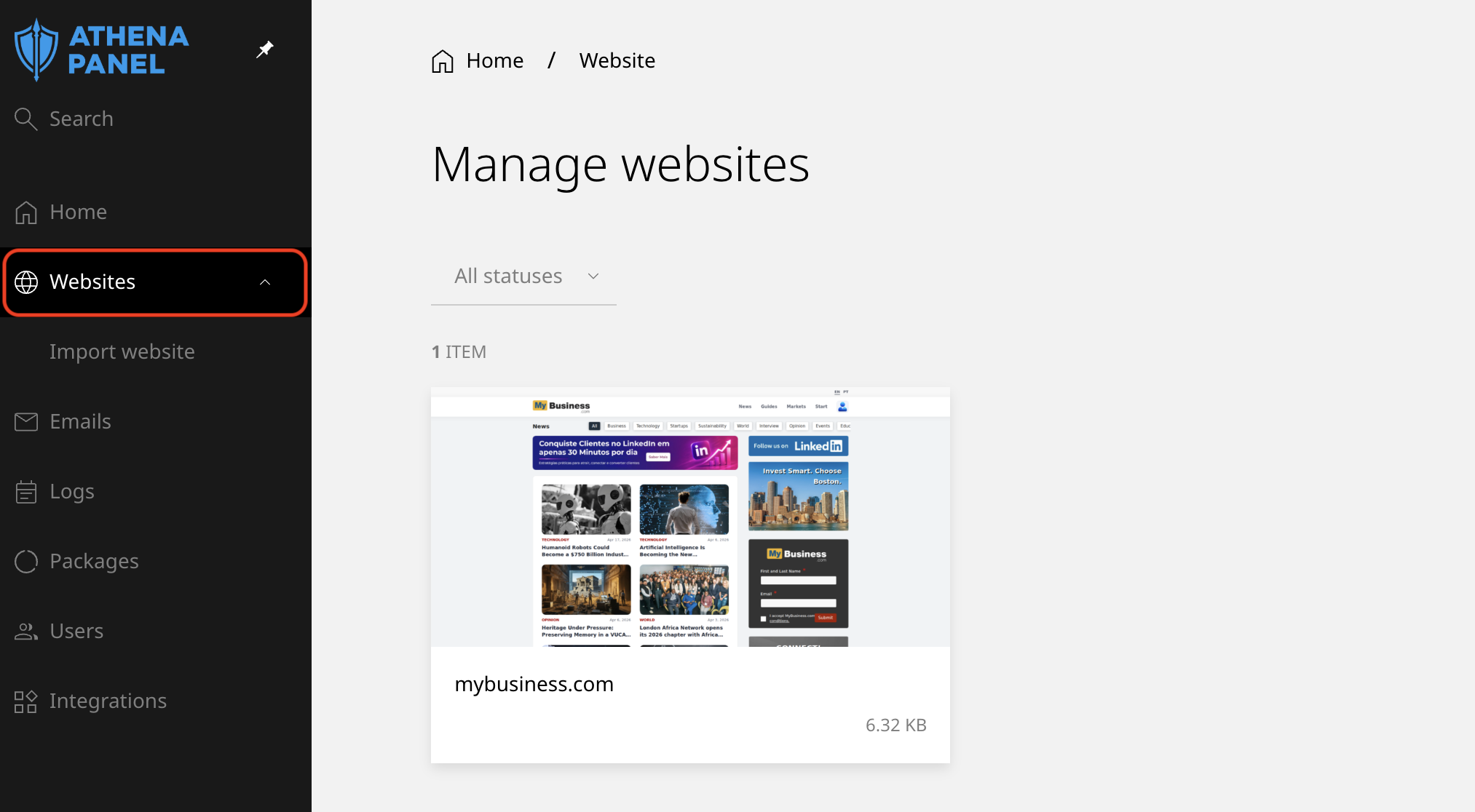
- Log in to your hosting panel and click Websites in the left-hand menu.
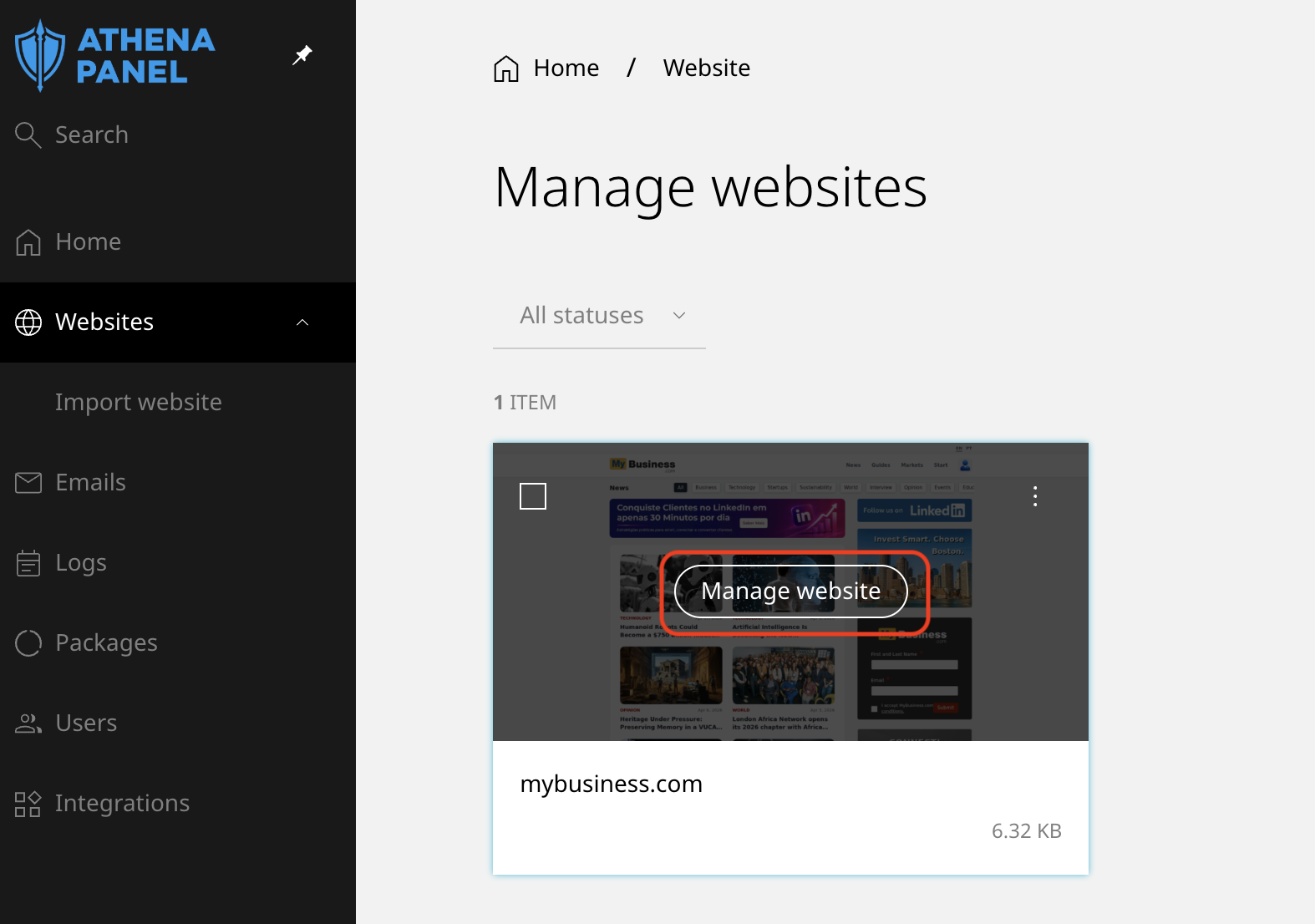
- Click the site you want to change.
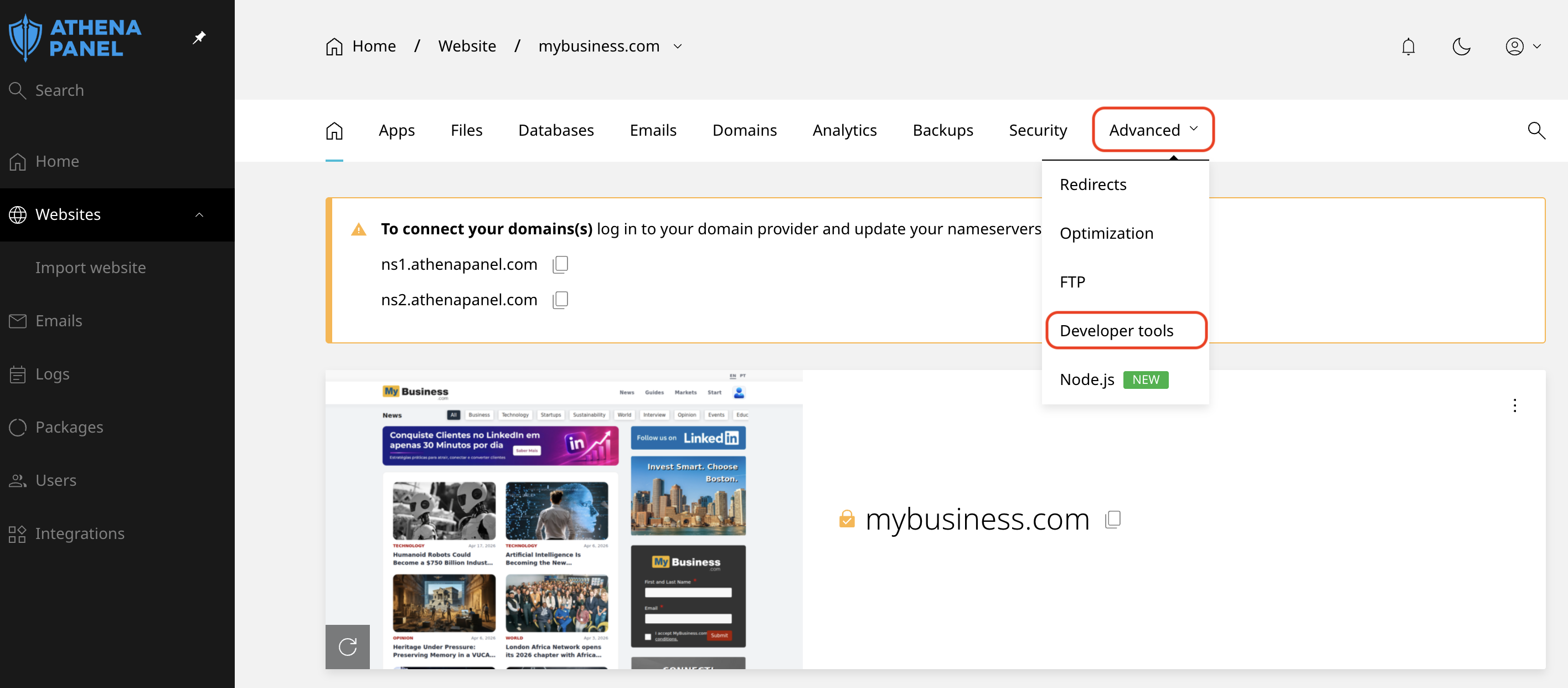
- Open the Developer tools section of that website, which can be found in the Advanced menu.
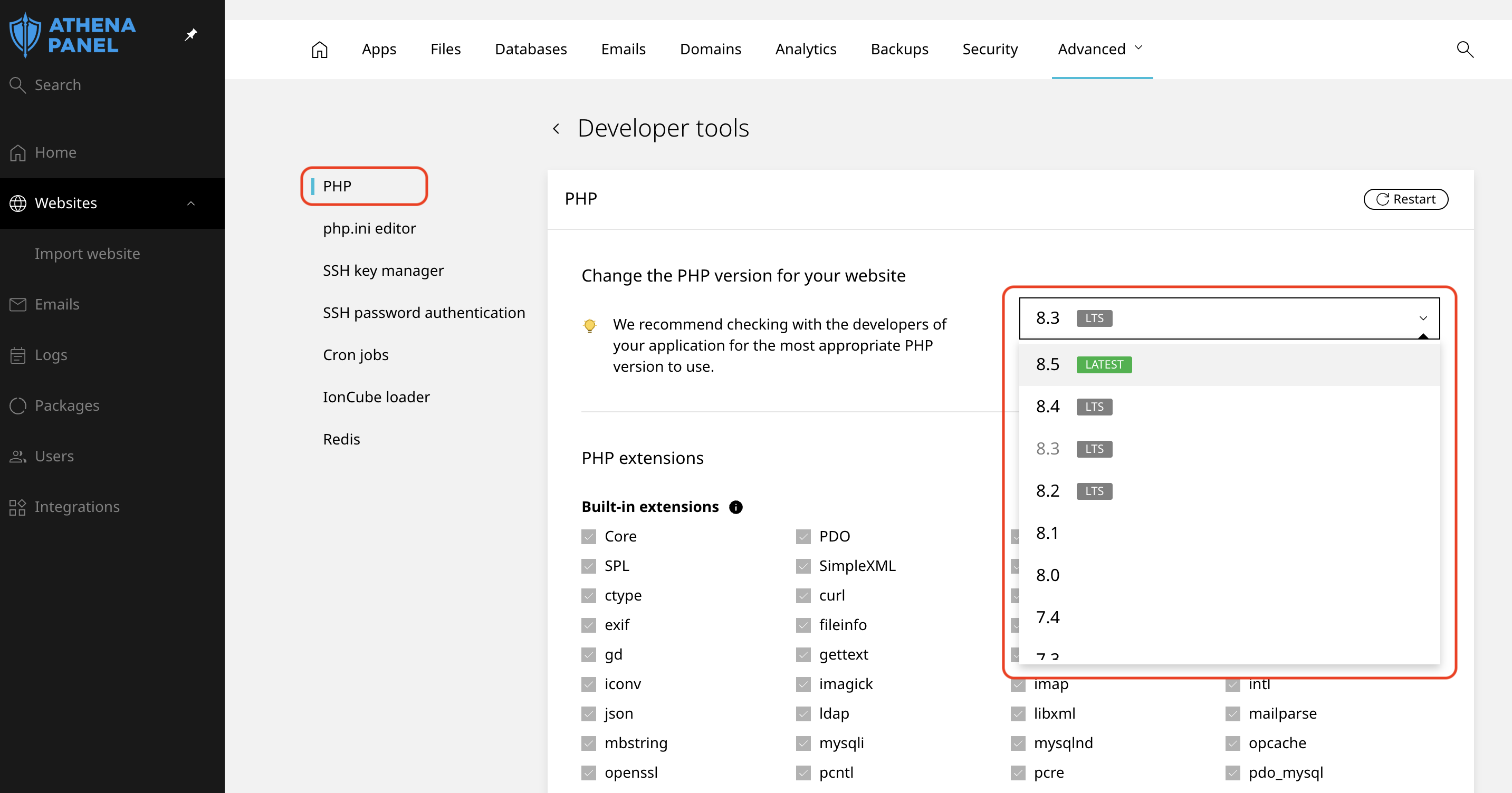
- Select the version you want from the dropdown. Versions are listed as 8.1, 8.2, 8.3 and so on. Higher is generally better for speed and security, as long as your software supports it.
- Save the change.
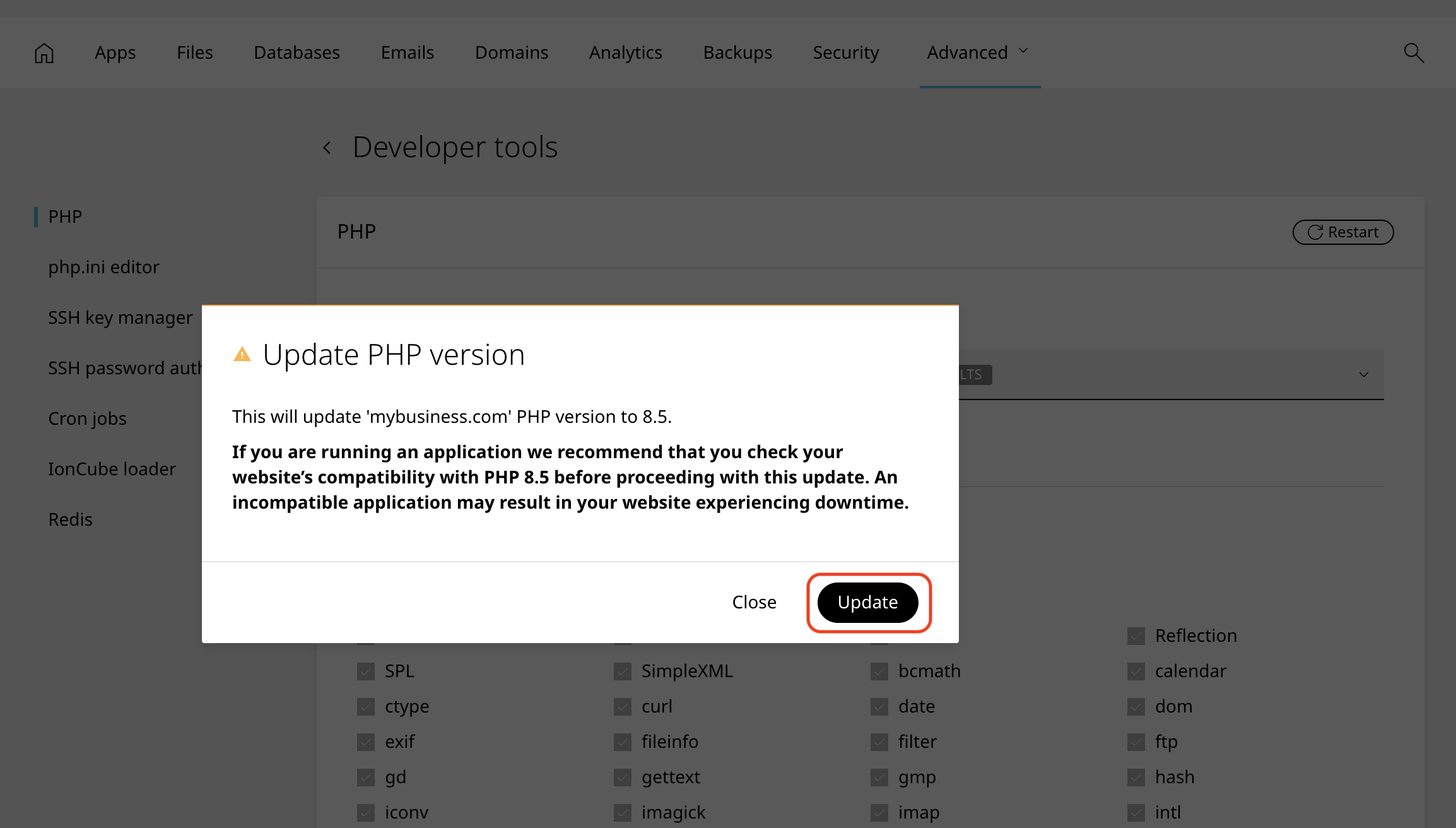
The new version is active within a few seconds. There's nothing to restart and no need to re-upload anything.
If you're unsure how far to jump, move one version at a time (8.1 to 8.2, then 8.2 to 8.3) rather than going from something very old straight to the newest. When something breaks, you'll know exactly which step caused it.
How to check it worked
The panel shows the active version next to the site, so that's the quickest confirmation.
To see what the site itself is running, use your application. In WordPress, go to Tools → Site Health → Info → Server, and the PHP version is listed there.
Then open your site and click through the parts that do real work: the contact form, the checkout, the login page, the admin area. The homepage loading fine doesn't tell you much, because homepages rarely use the features that break.
You can also try adding a file such as phpinfo.php using the following code:
<?php
phpinfo();
?>
This will show you the version of PHP you are currently using.
If something goes wrong
Go back to the same screen and select the previous version. The site returns to how it was, because nothing in your files changed. Once it's back up, work out what caused it before trying again.
Common problems
-
A blank white page, or a 500 error, right after the switch. Almost always an old theme, plugin or script that doesn't support the new version. Revert first, then check your error log to see which file is named.
-
A specific feature stops working, but the rest of the site is fine. Usually a missing PHP extension, such as imagick for image processing or intl for translations. Some extensions are enabled per version, so the one you just switched to may not have what the old one did. Enable it in the PHP settings for the site if your panel exposes it, or open a ticket and we'll turn it on.
-
The version you want isn't in the list. Very old versions get removed once they stop receiving security patches, and brand new ones appear only after we've tested them. If you need one that isn't there, tell us which application requires it.
-
You changed the version, but the site still reports the old one. Give it a minute, then reload with a hard refresh. If the site uses a caching plugin or a CDN, clear that cache as well. Site Health reports what it sees, and what it sees may be cached.
-
Your other sites are unaffected, and you expected them to change too. Each website has its own PHP version. Changing one does not affect the others, so if you have several sites, repeat the process on each.
-
A cron job or command-line script behaves differently. Scheduled tasks can run under a different version than the website, depending on how the command is written.