Web Hosting4 min read
How to Back Up and Restore Your Website
See your automatic backups, take a manual copy before risky changes, and restore a full website, mailboxes or just a single file.

Your site is backed up automatically, and the Backups tab is where you see what exists and restore it. It's also where you take a manual copy before doing something risky, which is a habit worth building.
Reading the list
- Log in to your hosting panel and click Websites in the left-hand menu.
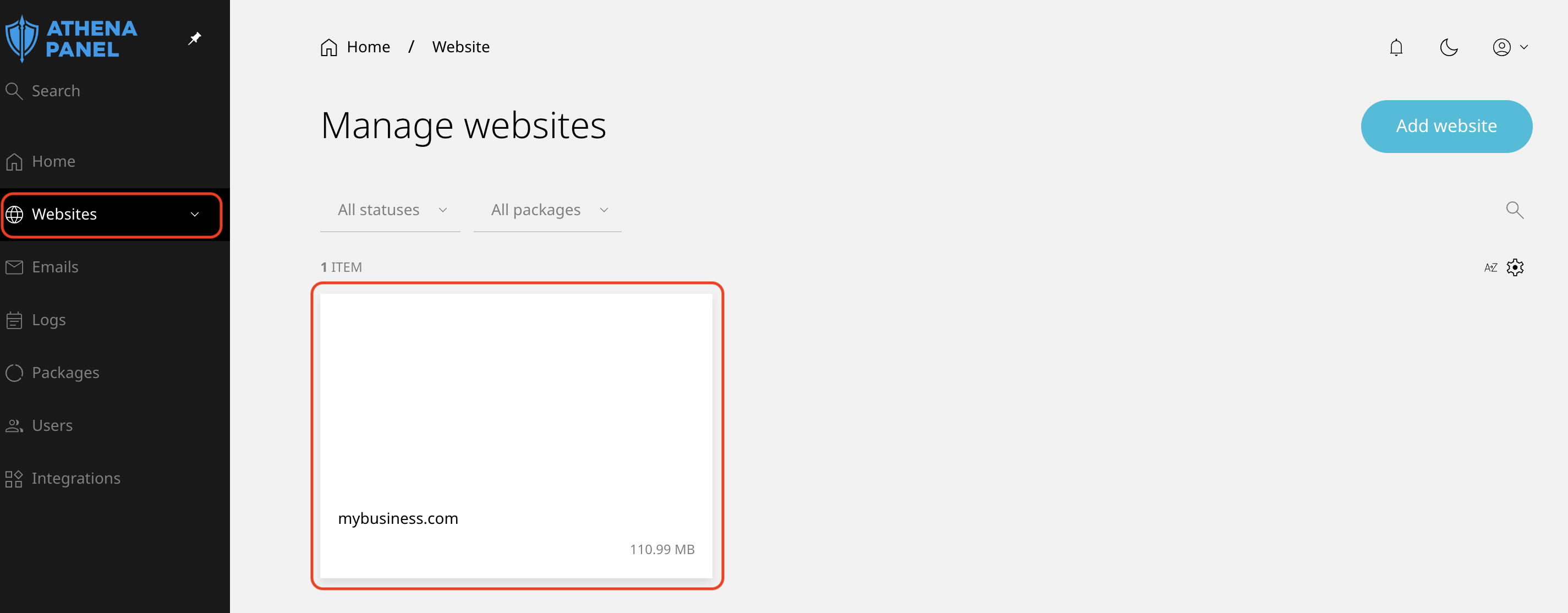
- Click the site, then open the Backups tab.
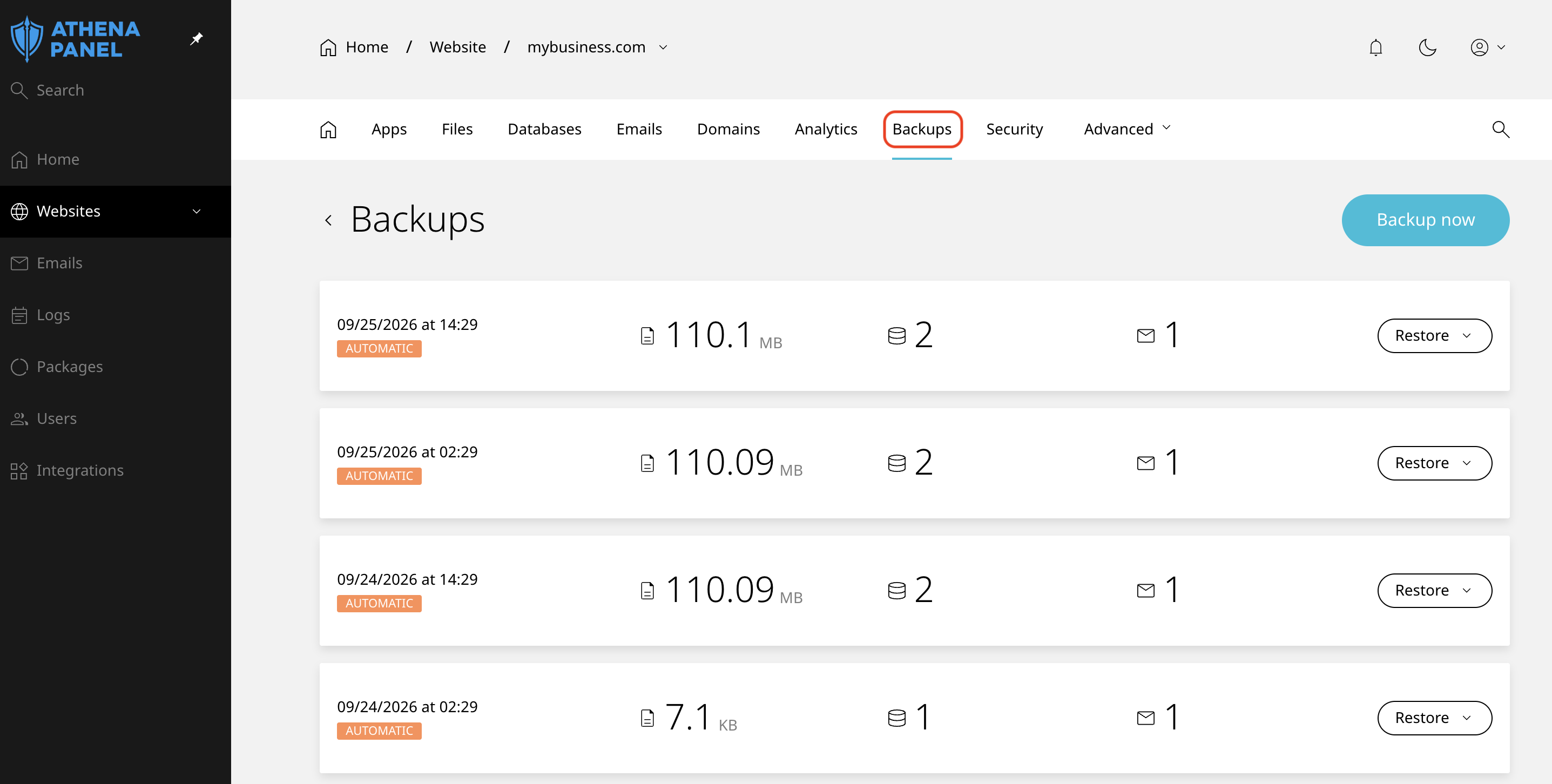
Each entry shows the date and time it was taken and what's inside it: the size of the files, how many databases, and how many mailboxes. Copies made on a schedule are marked Automatic.
Older copies roll off as new ones are taken, so the list shows what you can actually restore right now. That's the practical reason to act quickly when something has gone wrong: the window isn't unlimited.
Taking a manual backup
Click Backup now before anything you'd rather be able to undo: a plugin or theme update, a PHP version change, a bulk import, a redesign, editing files by hand.
It takes a few minutes on a normal site. Let it finish before you start the work.
Restoring
Click Restore on the copy you want and choose one of three options.
| Option | What it puts back | When to use it |
|---|---|---|
| Full website | The site's files and databases | The site itself is broken: a bad update, a failed edit, a hack |
| All mailboxes | The email on the domain | Messages or a mailbox were deleted, or mail was lost |
| Custom | Exactly what you select | You need one file, one database, or one mailbox rather than everything |
Prefer Custom when you know what went wrong. Restoring everything to fix one file also reverts every change made since that backup, which is often more than you meant.
Before you restore anything
Take a backup now first. Restoring replaces what's on the server with the older copy, so anything created since that copy was taken is gone: orders, comments, form submissions, new posts, new emails. A fresh backup gives you a route back to the current state if the restore isn't what you expected.
Choose the right copy. The newest one isn't automatically the right one. If the site broke on Tuesday afternoon, the copy from Tuesday night contains the broken version. Work backwards from when things were last known to be working.
Keep files and databases together for an application. Restoring a WordPress site's files without its database, or the other way round, can leave the two out of step after a version change. When in doubt on an application-driven site, restore both.
Restoring a single file or mailbox
Use Custom, select only what you need, and leave everything else alone. This is the option for the common cases: a configuration file someone edited badly, a database that got a failed import, a mailbox emptied by accident.
How to check it worked
Open the site in a private browsing window and click through the parts that matter: homepage, an inner page, the contact form, the checkout, the admin area.
For a mailbox restore, open webmail rather than your phone, since a mail app can take a while to resynchronise and will show you its own cached view in the meantime.
If the restore fixed the symptom, work out what caused it before repeating whatever you were doing. A restore undoes damage; it doesn't remove the cause.
Common problems
-
You restored and lost recent orders or posts. The restore replaced them with the older copy. If you took a backup immediately beforehand, restore that to get back to where you were. If you didn't, open a ticket the same day.
-
The site is still broken after restoring. Either the problem predates the copy you chose, in which case go further back, or the cause is outside the backup: DNS, a certificate, a resource limit, or something in the application's own configuration.
-
Email didn't come back. Mail is restored through All mailboxes or Custom, not by restoring the website. Run the mailbox restore separately.
-
The mailbox looks unchanged in your mail app. Check webmail. IMAP clients cache aggressively and may need to resynchronise, or the account removed and added again.
-
The backup you need isn't in the list anymore. Retention has a limit, and older copies are removed as new ones arrive. This is why a manual backup before risky work matters, and why deletions should be reported the same day rather than the following week.
-
You want a copy on your own computer. What's in the panel is a restore point rather than a file you can take with you. For your own archive, export the databases and download the site's files yourself, and do that before any migration away from us.
-
A restore is taking a long time. Large sites and large mailboxes take a while. Let it finish rather than starting another one, since overlapping restores make the state harder to reason about.