Web Hosting4 min read
How to Adjust PHP Settings
Change PHP memory, upload size, execution time and input limits per site from the hosting panel, with sensible values and fixes for settings that don't apply.

Every site runs with a set of PHP limits: how much memory a script may use, how large a file visitors can upload, how long a script may run before it's stopped. The defaults suit an ordinary website. Applications that import data, process images or handle large media often need more.
These settings are per site, so changing them on one does not affect the others.
Which setting fixes which problem
| What you're seeing | The setting to change |
|---|---|
| "Allowed memory size exhausted" or a blank white page | memory_limit |
| "The uploaded file exceeds the maximum upload size" | upload_max_filesize and post_max_size |
| An import or backup stops halfway with no error | max_execution_time |
| A long WordPress menu or form silently loses items when saved | max_input_vars |
| Large form submissions time out while uploading | max_input_time |
Two of these are commonly missed.
post_max_size has to be at least as large as upload_max_filesize, because the file arrives inside the request. Raise the upload size alone and nothing changes, which is why people raise it three times and conclude the setting doesn't work.
max_input_vars is the one behind menus that quietly drop entries. Nothing errors; the save just comes back incomplete.
Steps
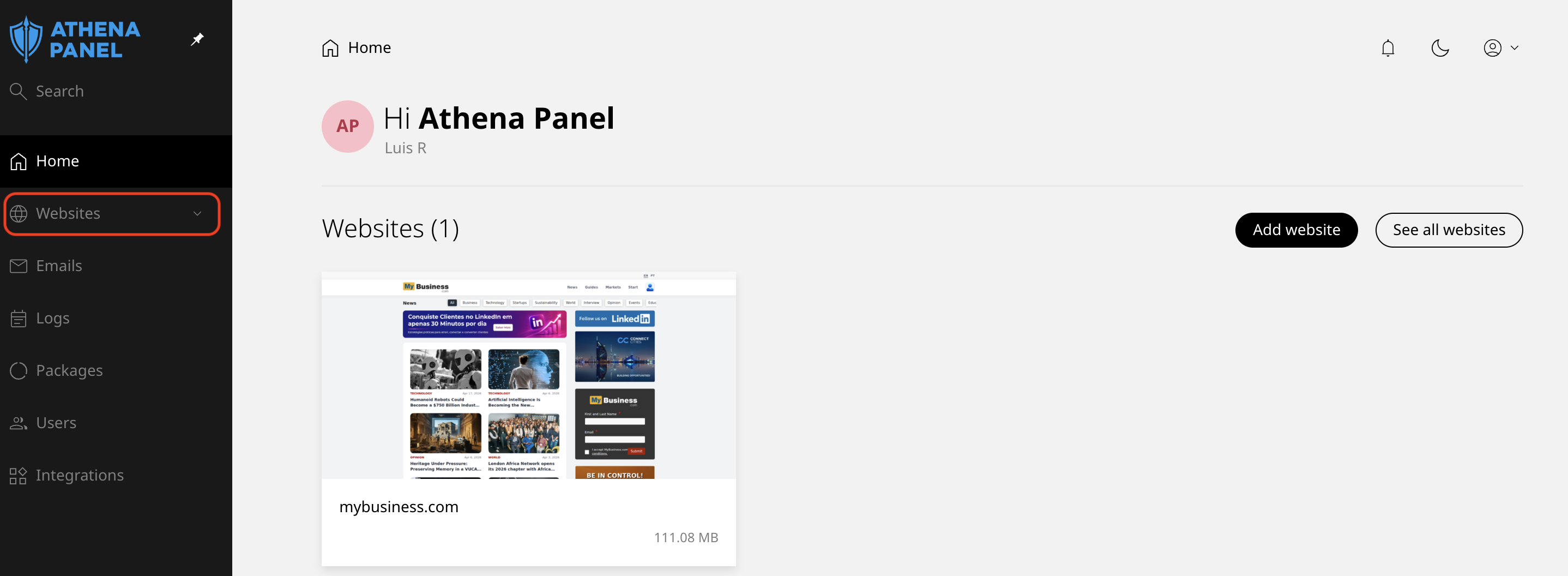
- Log in to your hosting panel and click Websites in the left-hand menu.
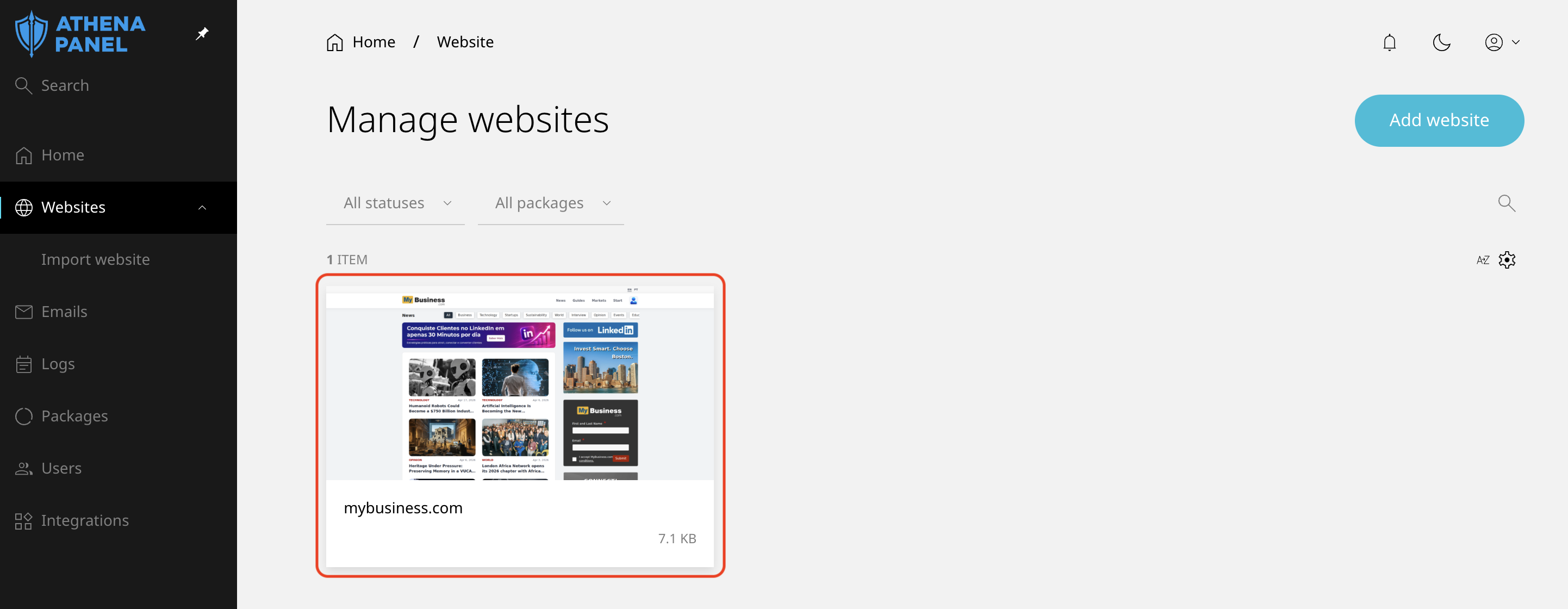
- Click the site.
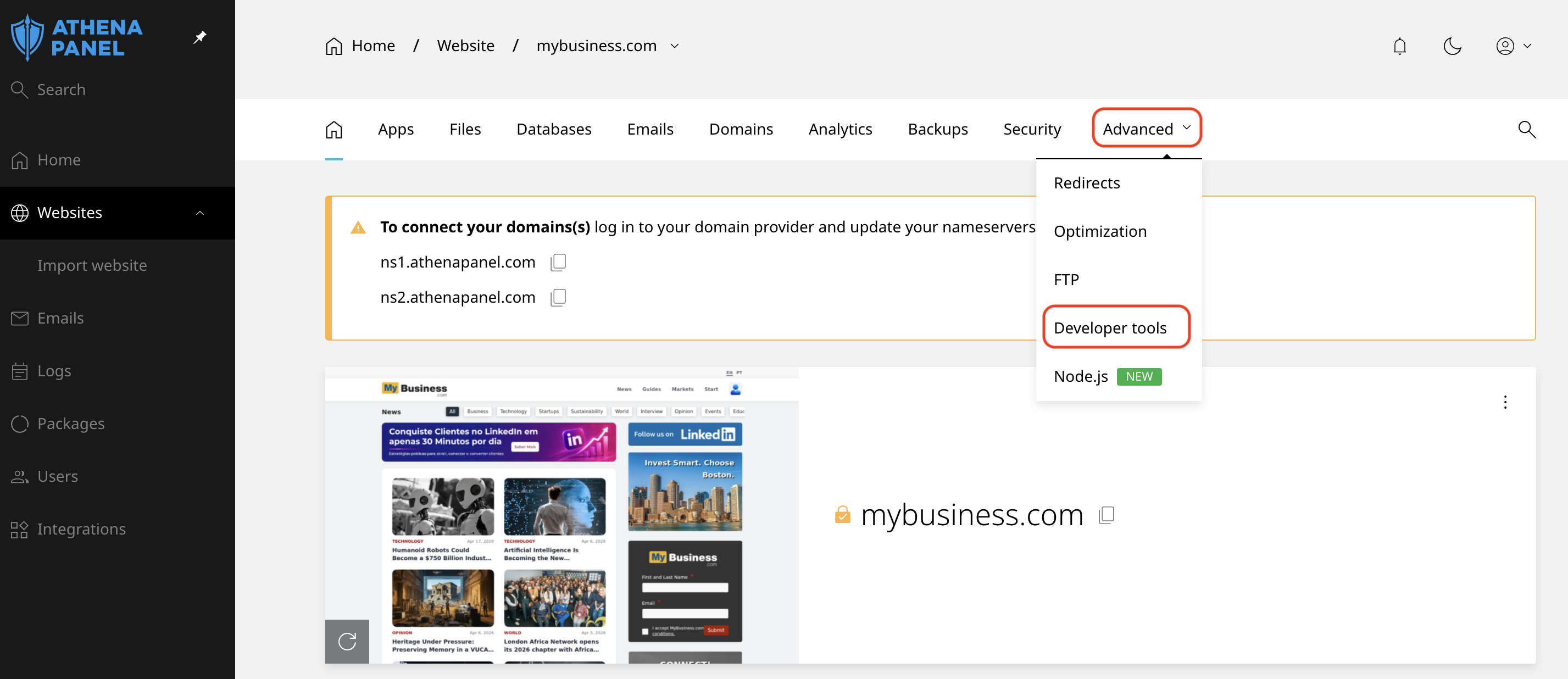
- Open its Developer tools. This is the same area where the PHP version is chosen.
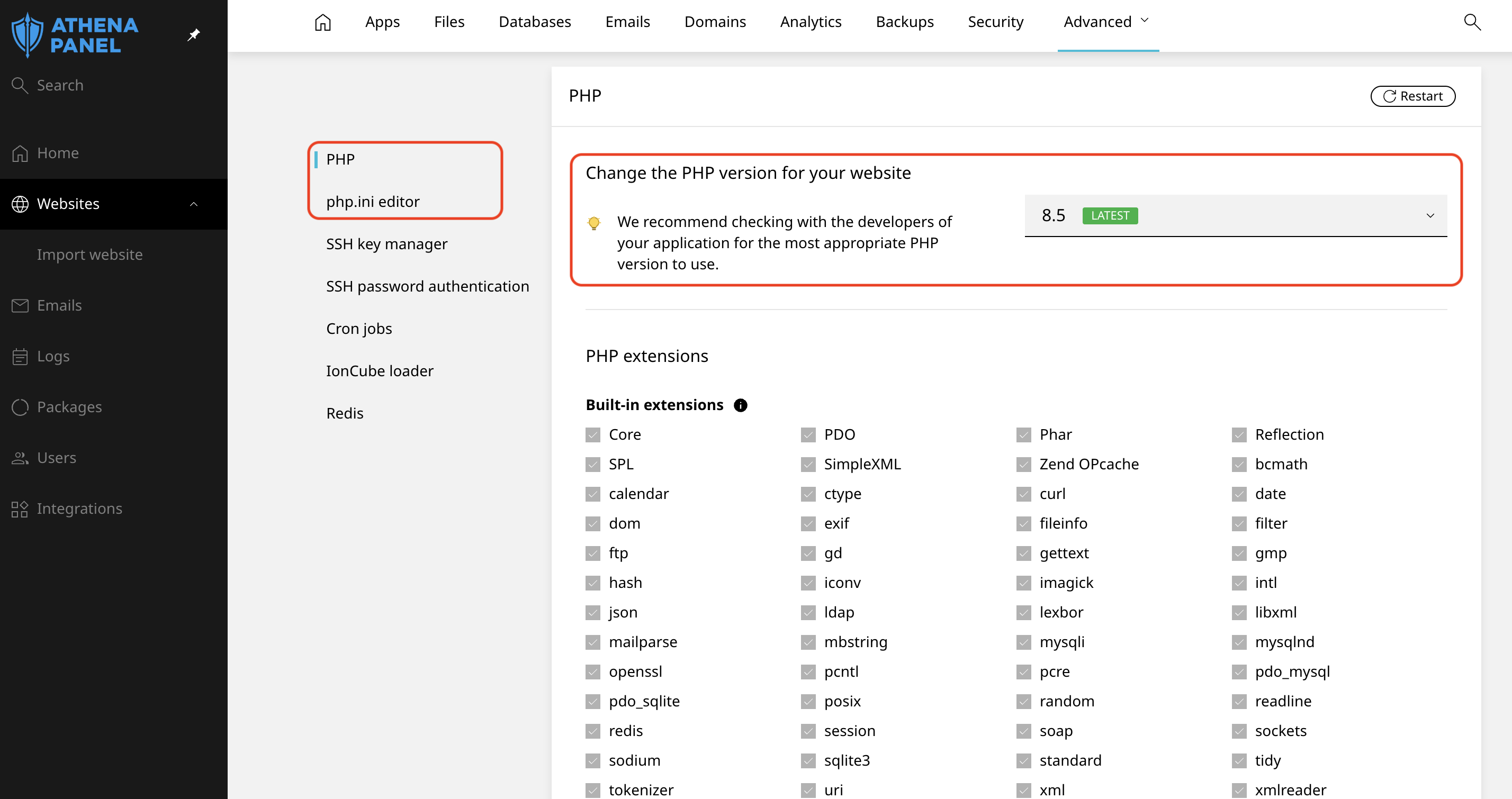
- Find the value you want to change and set it.
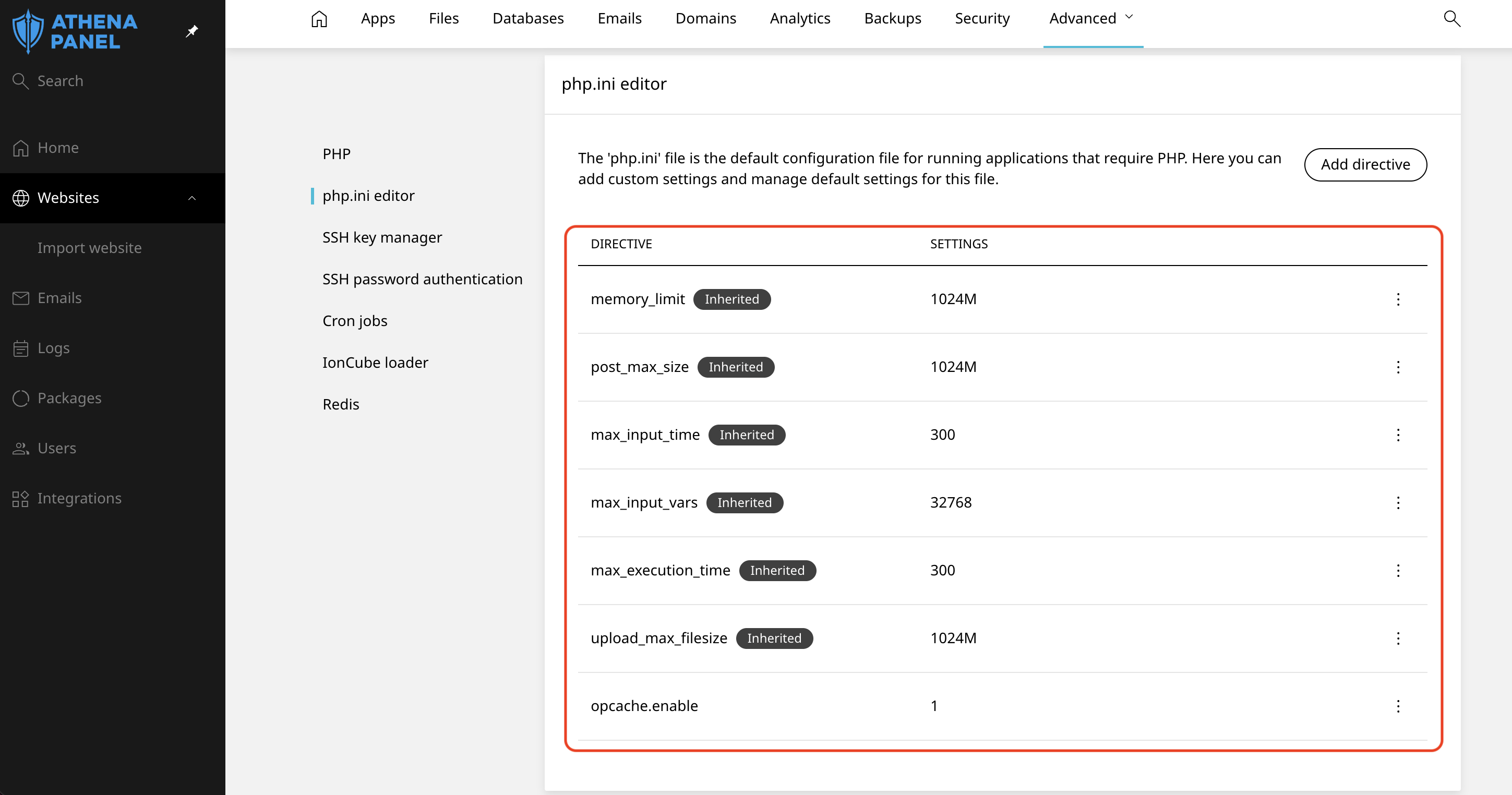
The change applies within seconds. Nothing needs restarting.
Reasonable values
Start modestly and increase only if the problem persists. Generous limits mean a runaway script consumes more before it's stopped, which affects the rest of your site.
| Setting | A sensible starting point |
|---|---|
memory_limit | 256M for WordPress with a normal plugin set; 512M for WooCommerce or a page builder |
upload_max_filesize | 64M, or 256M if you upload video |
post_max_size | The same as, or slightly above, upload_max_filesize |
max_execution_time | 120 seconds; 300 while running a large import |
max_input_vars | 3000 for large menus or forms |
Your plan sets a ceiling on how high these can go. If the field won't accept the value you want, that's the limit you're hitting.
Put max_execution_time back to its normal value once a one-off import is done. Leaving it high means a stuck script occupies resources for five minutes instead of two.
Raising a limit is not always the fix
A limit being reached is information. WordPress with ordinary plugins does not need a gigabyte of memory, and a page that needs five minutes to load is broken rather than busy.
Raise the limit to get working again, then look at what made it necessary. A plugin that recently started demanding much more memory is usually the answer, and disabling it one at a time on a staging copy will find it.
How to check it worked
The panel shows the values you've set, but the application is what matters.
In WordPress, go to Tools → Site Health → Info → Server. Memory limit, maximum upload size and execution time are all listed there, as PHP is actually reporting them to the site.
For the upload limit specifically, just try uploading the file that failed before.
Common problems
-
You raised the upload limit, and uploads still fail at the same size.
post_max_sizeis still lower. Raise both. -
The panel shows the new value but the application reports the old one. Three usual causes: the application is overriding it (WordPress can set its own memory limit through
WP_MEMORY_LIMITinwp-config.php), an.htaccessor.user.inifile in the site is setting a value, or you changed it on a different site than the one you're testing. Checkwp-config.phpfirst. -
Settings reverted after changing the PHP version. Values can be tied to the version they were set under. After switching versions, check that your limits are still what you expect.
-
The site went blank after saving a value. An invalid entry, usually a missing unit. Memory values need the M, as in
256M, not256. Set it back and save again. -
You hit the plan's maximum, and it's still not enough. That's a signal to look at the application rather than the hosting. Open a ticket with the exact error, and we'll tell you what the site is actually doing.
-
You see error 508 rather than a memory error. That's a resource limit, not a PHP setting, and raising
memory_limitwon't help. It means the site is consuming more processing power than the plan allows, which is a different investigation. -
Uploads fail with a server error rather than a PHP message. The web server has its own request size limit in front of PHP. If raising both PHP values didn't help, open a ticket, and we'll check that side for you.