Web Hosting4 min read
A Tour of the Panel: What Each Section Does
Learn how the hosting panel is organised into account level and website level, what each tab does and where to find common settings.

The first time you log in, the panel can look like a lot of buttons for what is essentially one website. It's simpler than it appears once you understand how it's organised, and five minutes here will save you a fair amount of clicking later.
The two levels
Everything in the panel sits at one of two levels, and knowing which one you're on answers most "where is that setting?" questions.
Account level is what you see right after logging in. It covers things that belong to you rather than to any particular site: your list of websites, your plan usage, your login details and security settings.
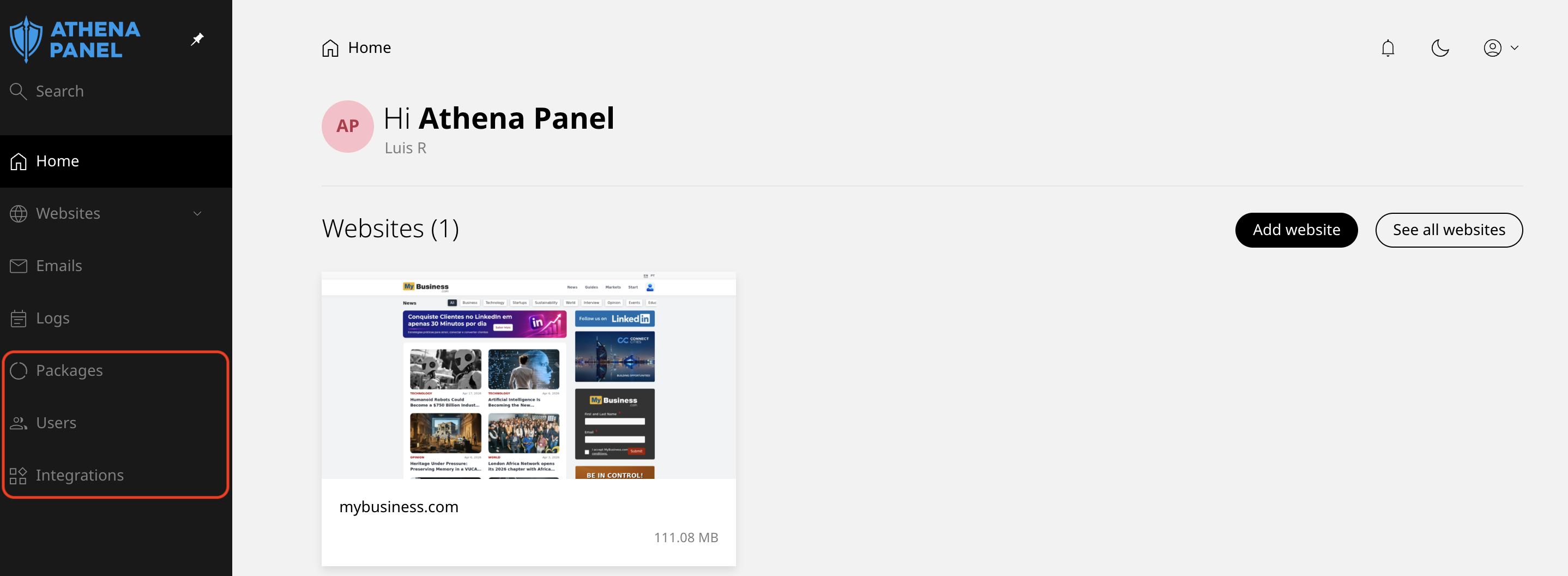
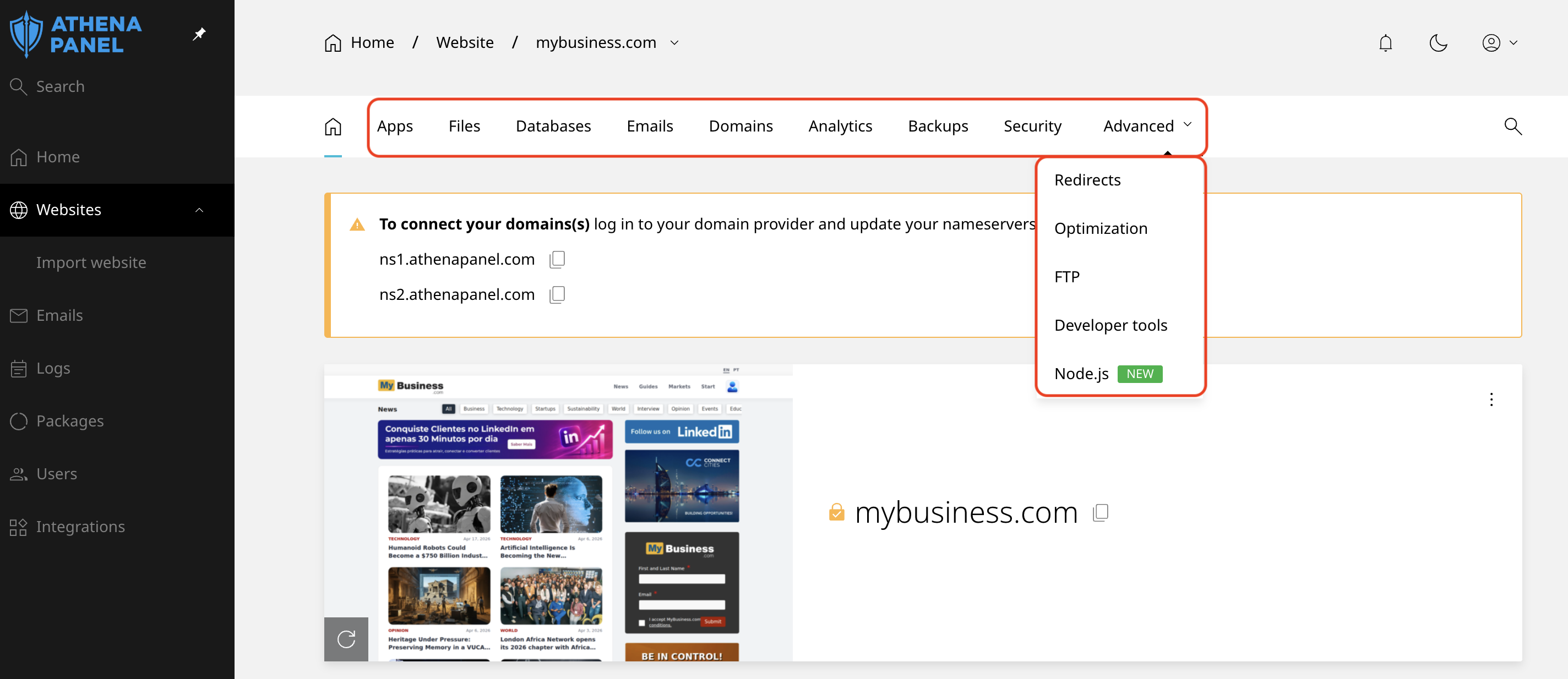
Website level is what you get after clicking a site in that list. Everything from that point on applies to that one site: its files, its databases, its email, its domains, its backups. If you host three sites, each one has its own set, and changing something on one leaves the other two untouched.
Almost every support question that starts with "I changed it, but nothing happened" turns out to be a change made on the wrong site.
At account level
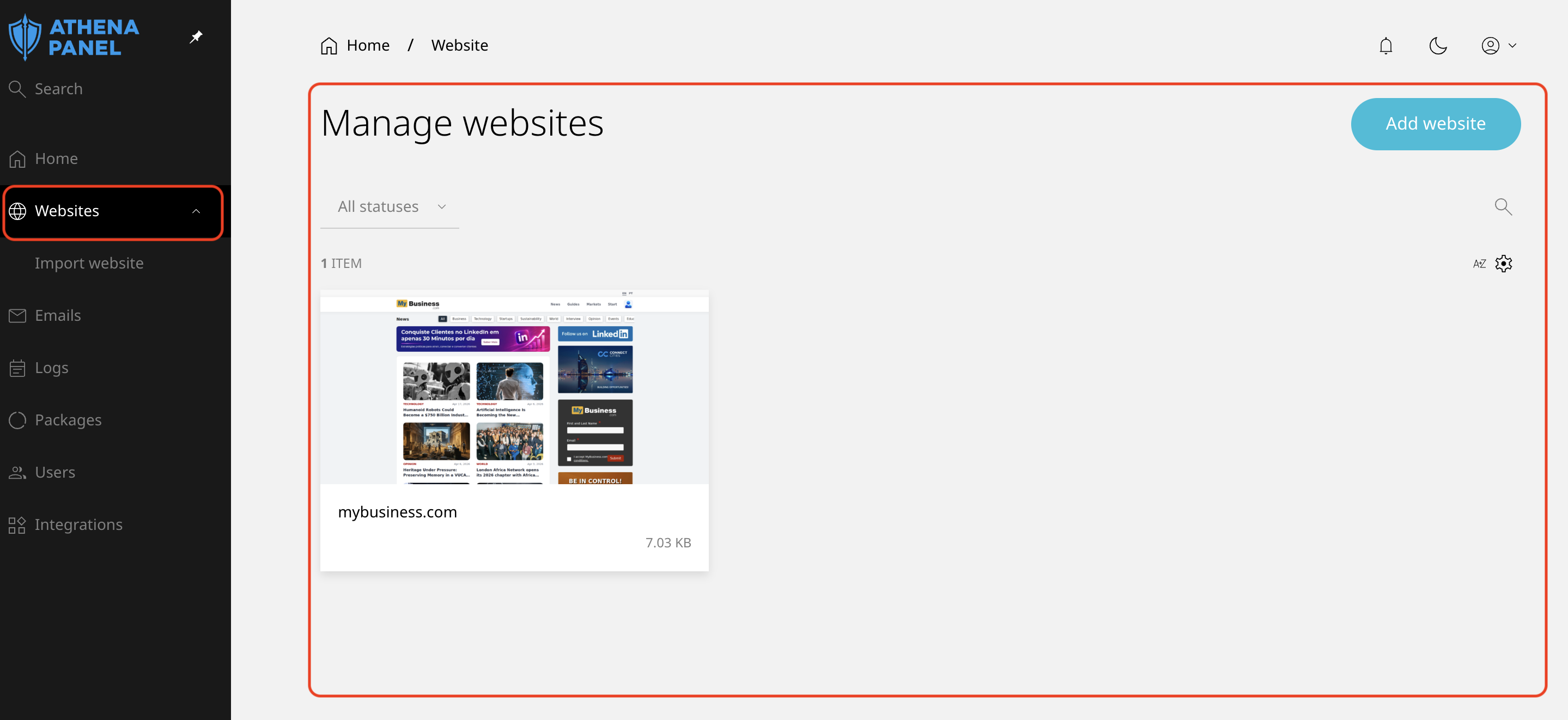
Websites is the main list and your starting point for nearly everything. Each site shows its primary domain and status, and clicking one takes you into it.
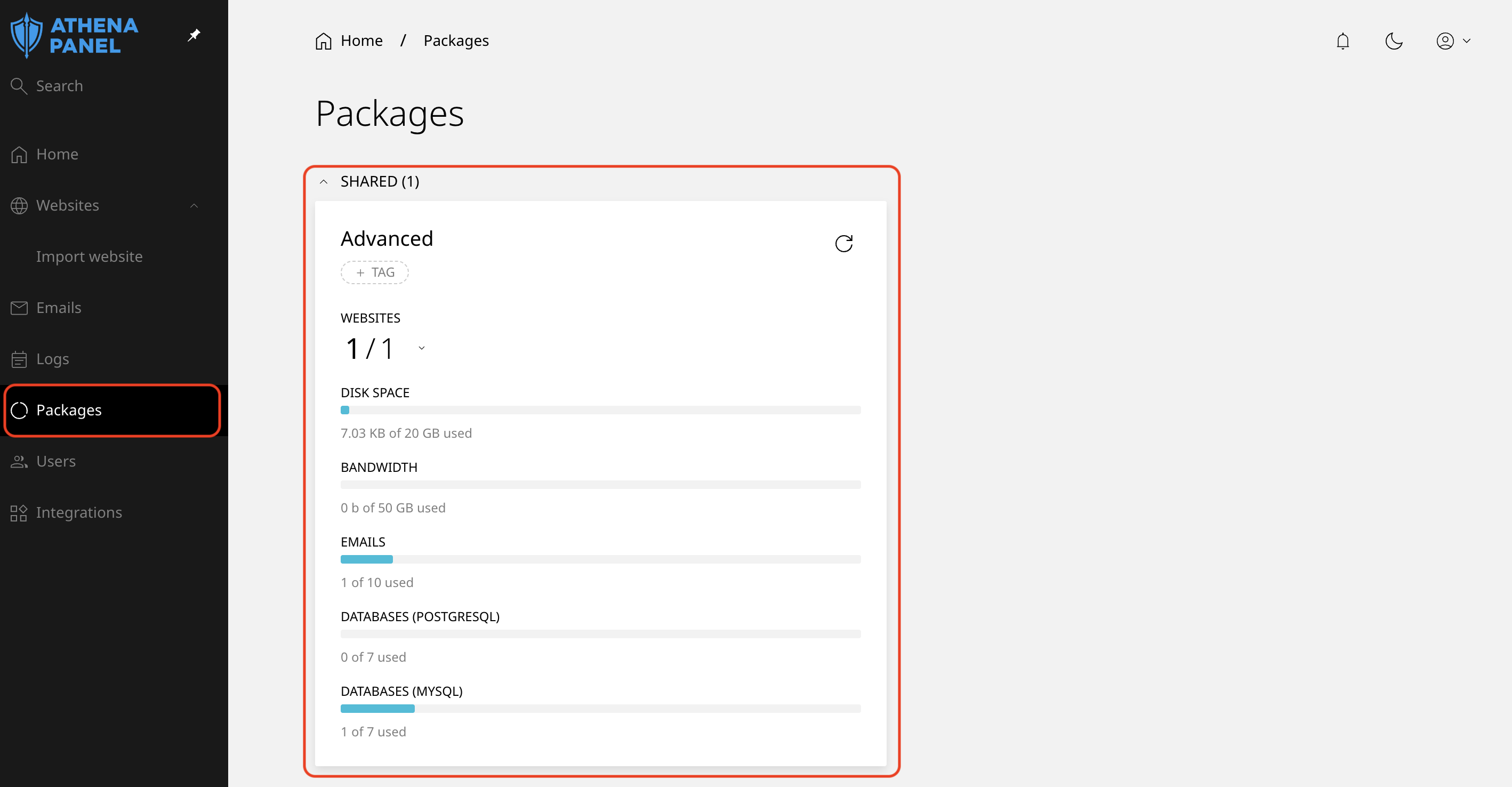
Packages shows how much of your plan you've consumed: disk space, number of websites, mailboxes. Check here before assuming something is broken, because plans stop letting you add things once a limit is reached, and the message isn't always obvious about why.
Account settings hold your own details. Your contact email (which is where password resets and service notices go), your time zone, and your interface language.
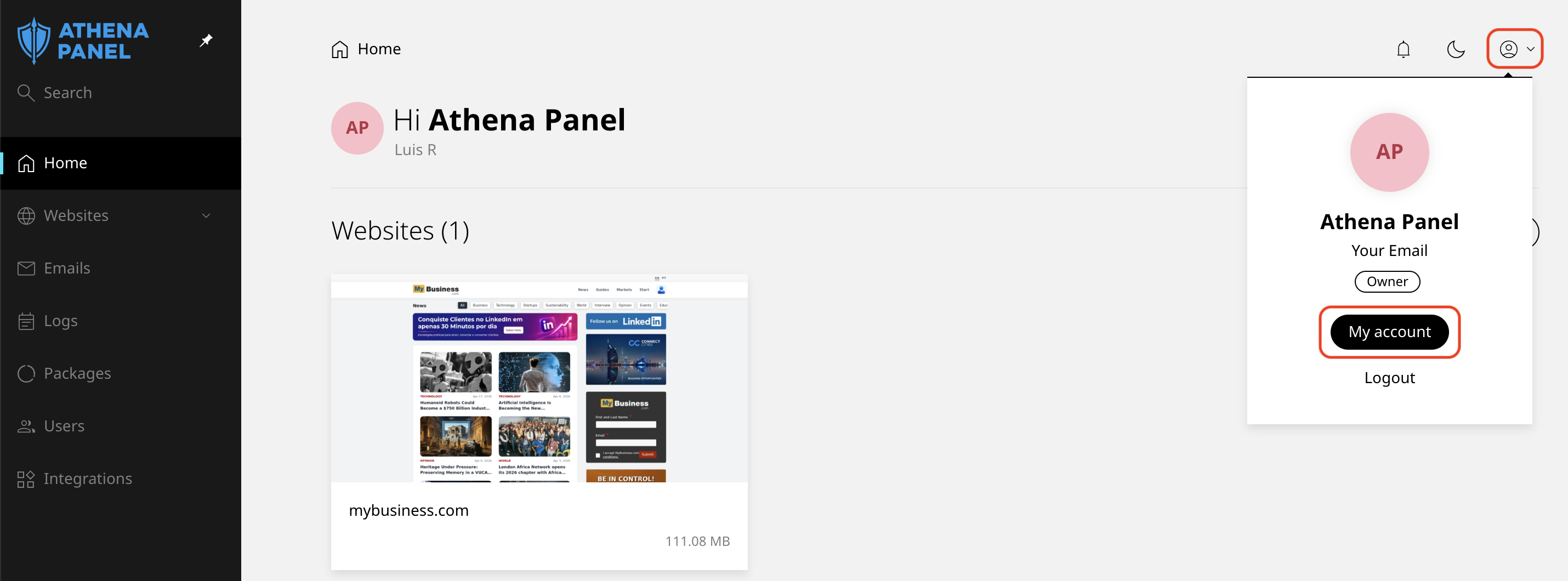
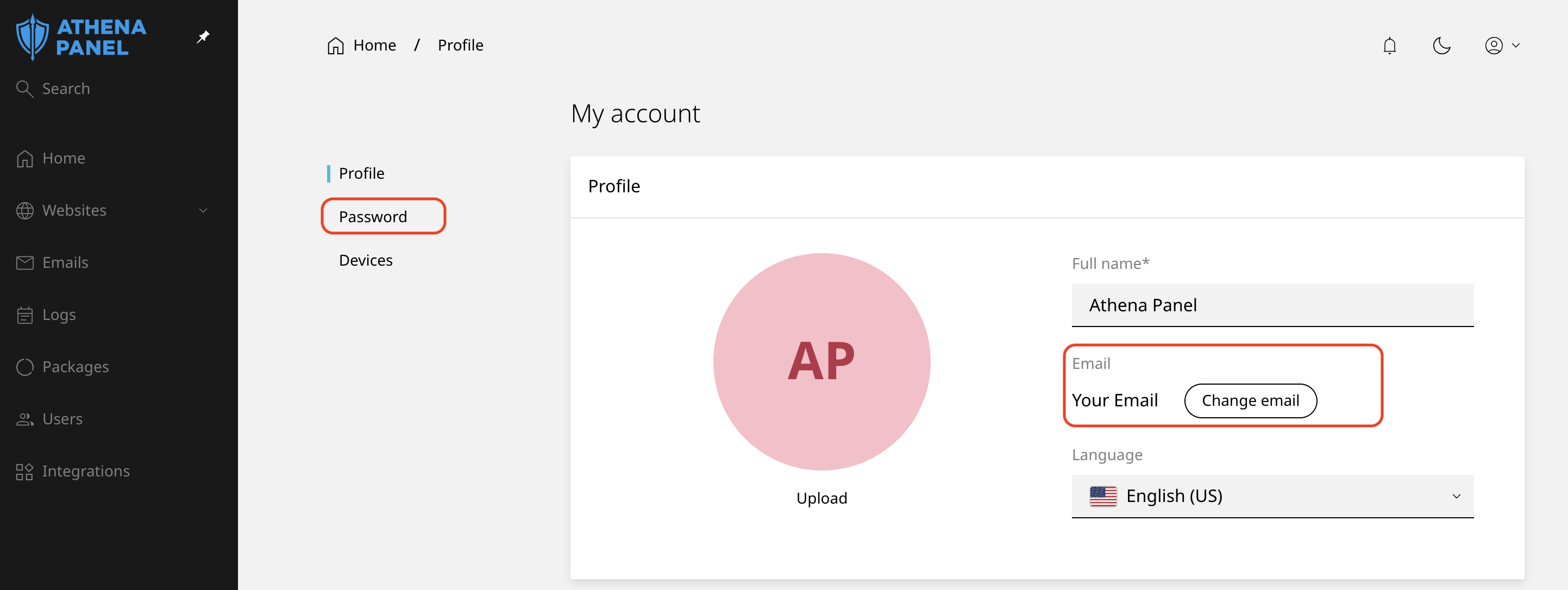
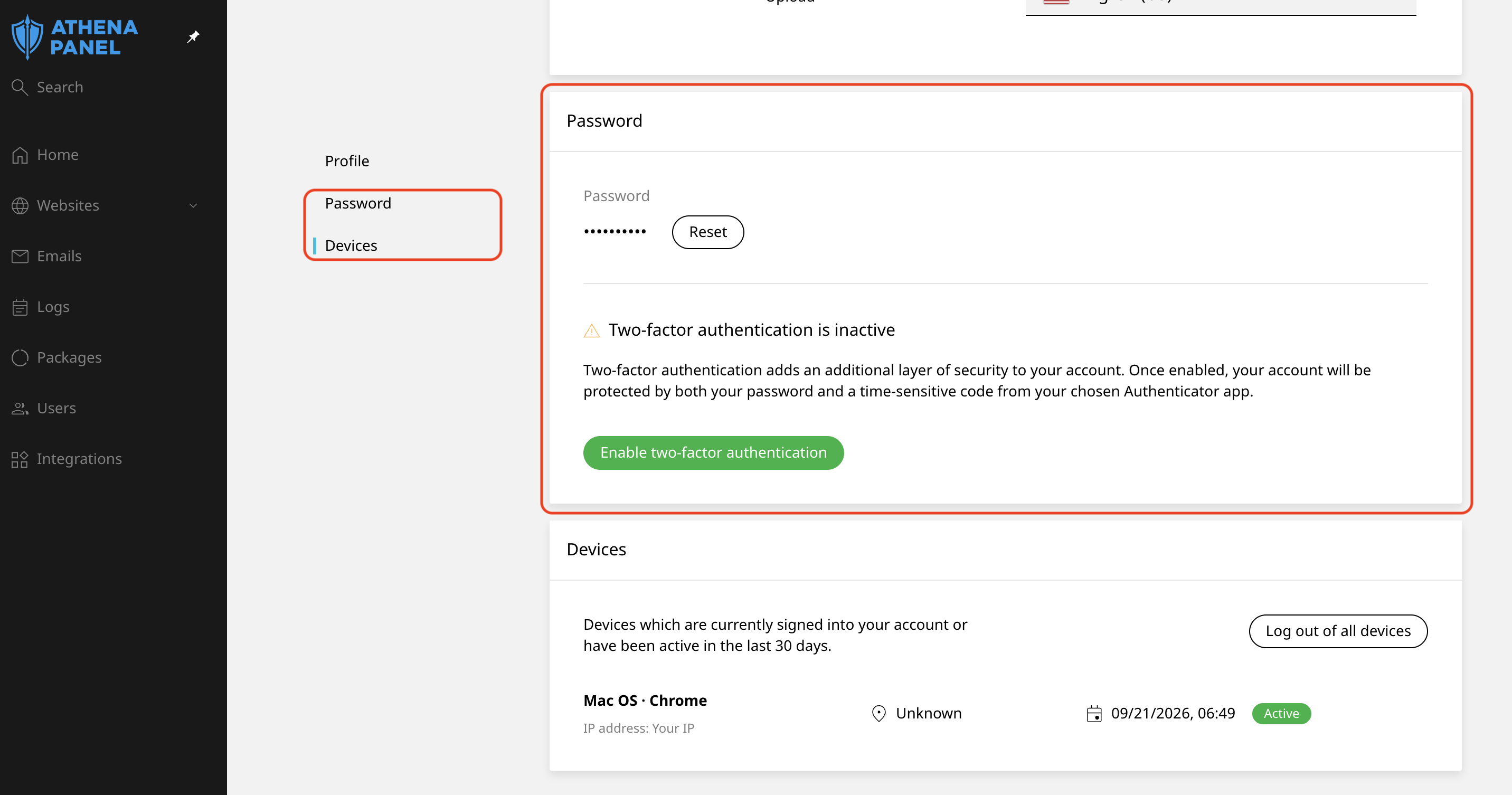
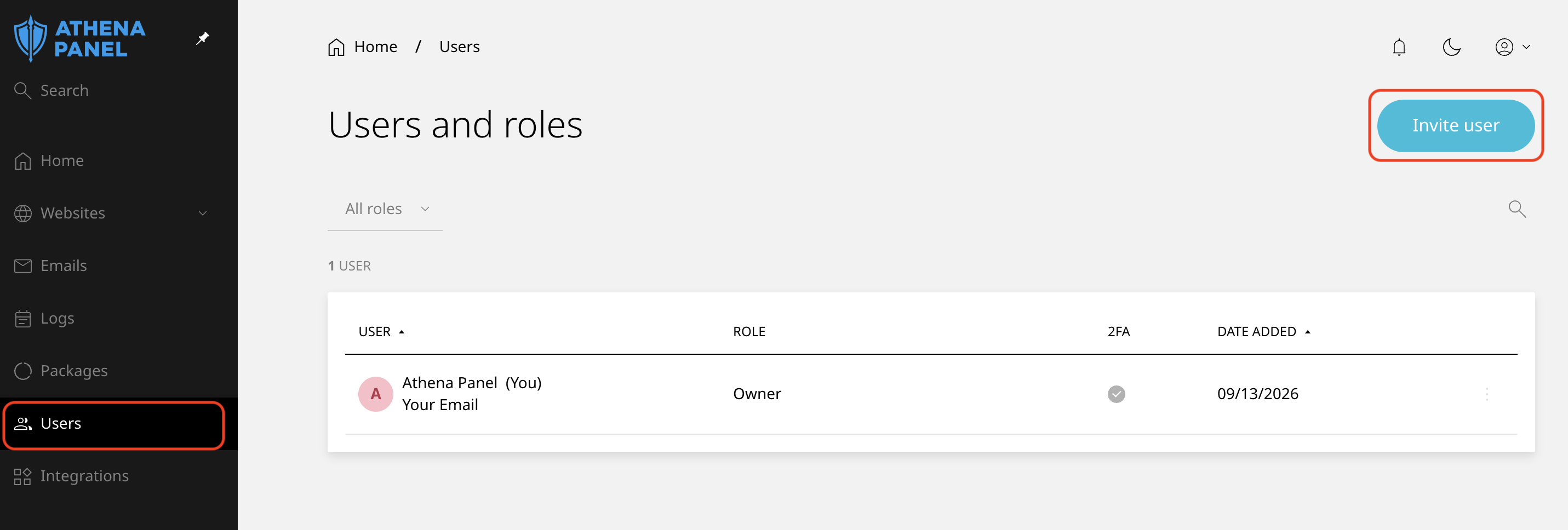
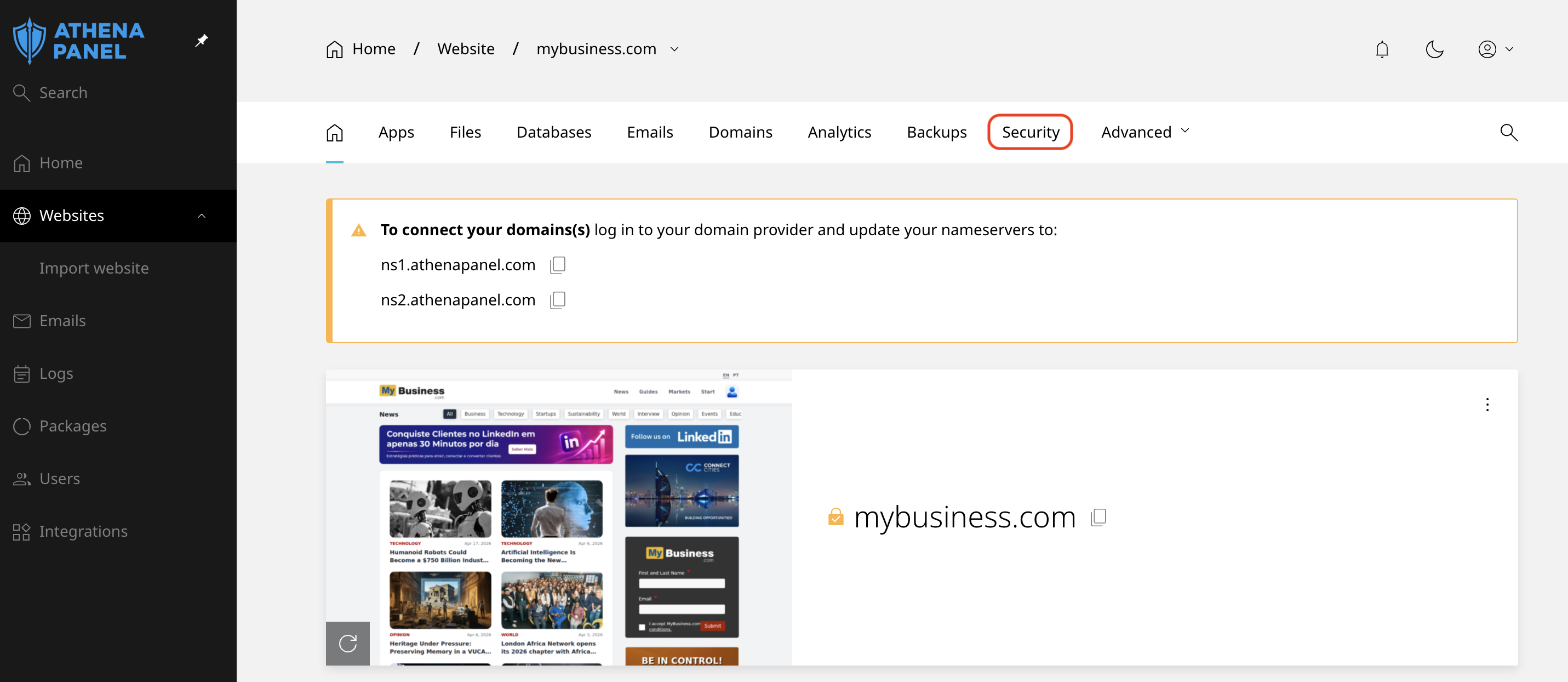
Security is where you change your panel password and switch on two-factor authentication. If more than one person works on your sites, it's also where you add extra users with their own logins instead of sharing yours.
Inside a website
Click a site, and you'll see a row of tabs. These are the ones you'll actually use.
Overview summarises the site: its domain, the PHP version it runs, and how much space it takes. A quick health check rather than a place you change things.
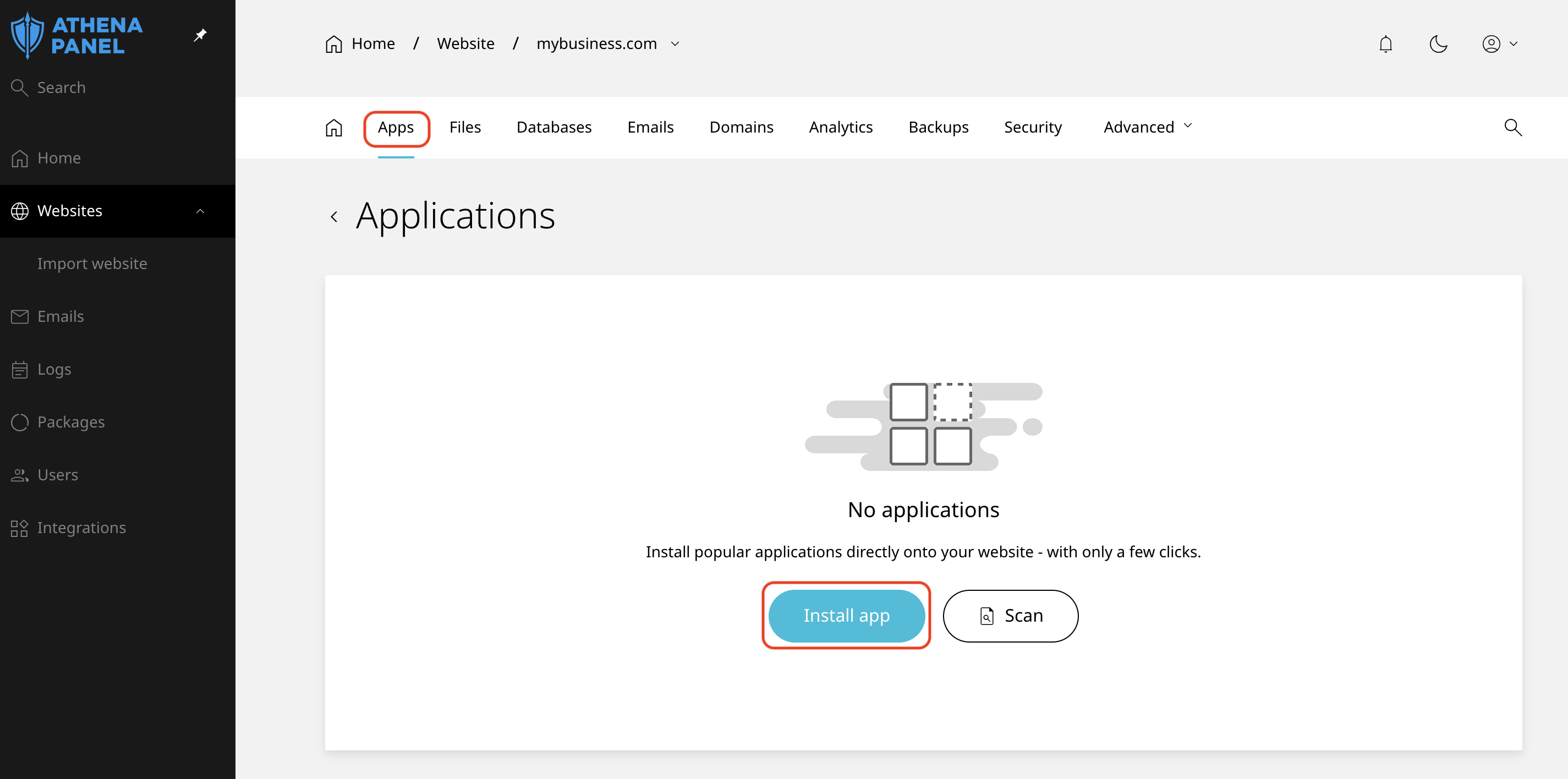
Apps lists the applications installed on the site and lets you install new ones. This is where WordPress goes in with a single click, and where you manage it afterwards.
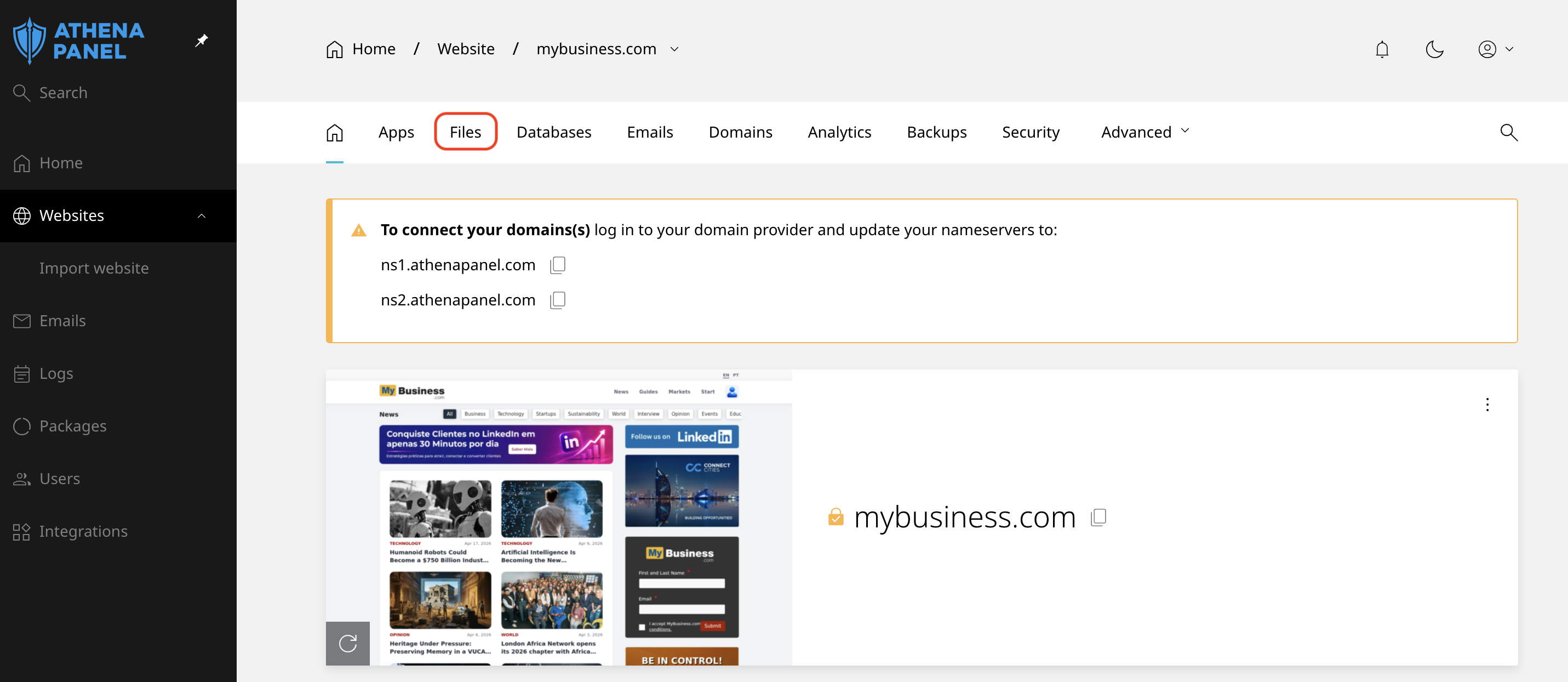
Files is the built-in file manager. Browse folders, upload, download, and edit text files in the browser. Your public website lives in the public_html folder. FTP accounts are managed from here too, for when you'd rather use a desktop client.
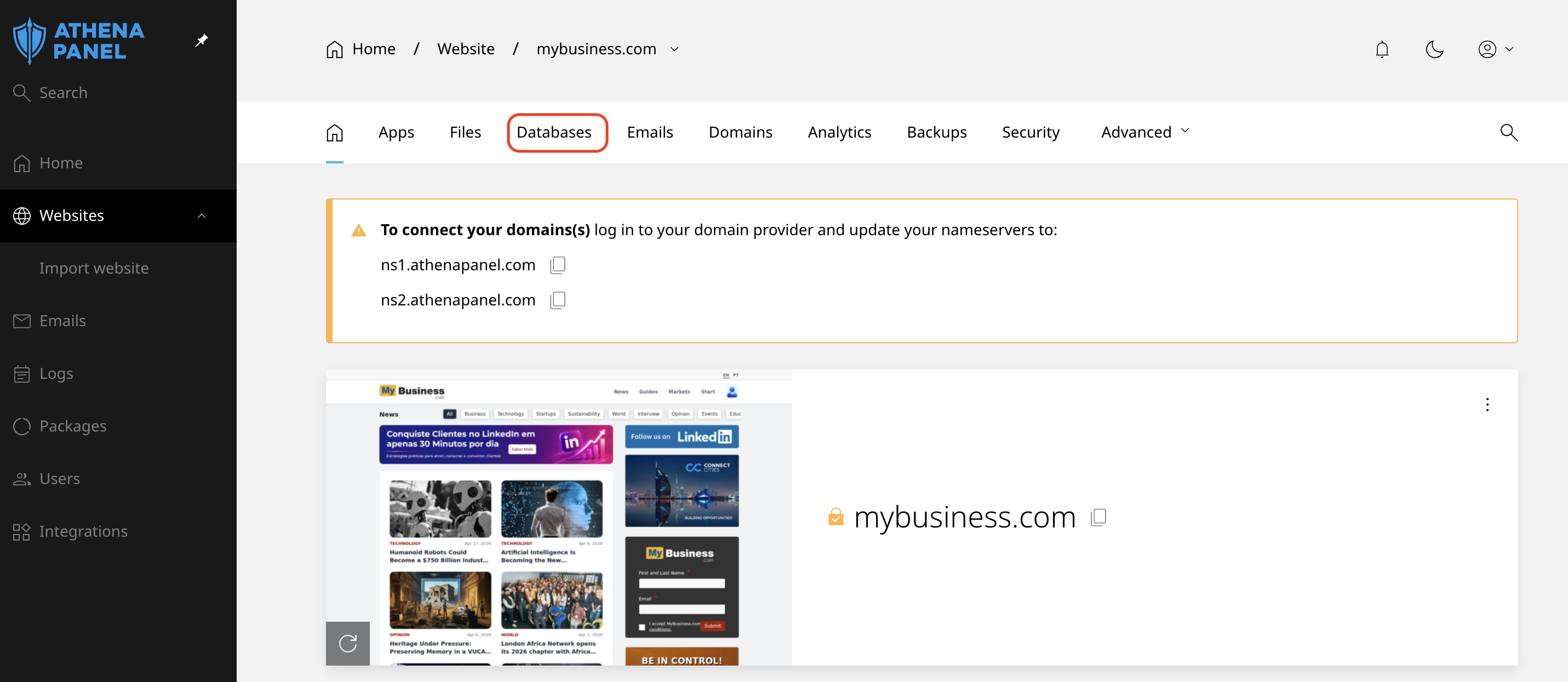
Databases cover the databases your applications store their content in, along with their users and phpMyAdmin access. If you installed your application from the Apps tab, its database already exists here and you don't need to create anything.
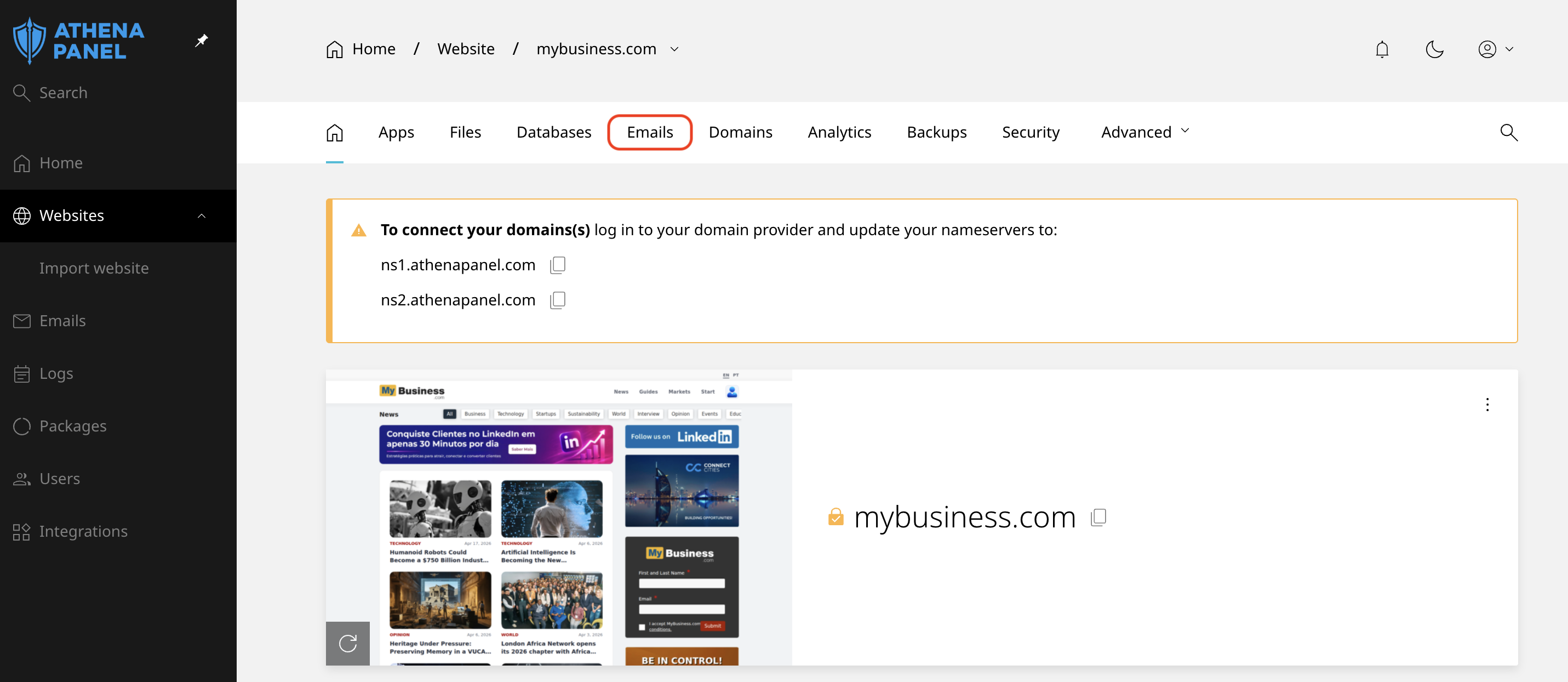
Email is where mailboxes on your domain are created and managed, along with forwarders, auto-replies and spam settings. Webmail is reached from here as well.
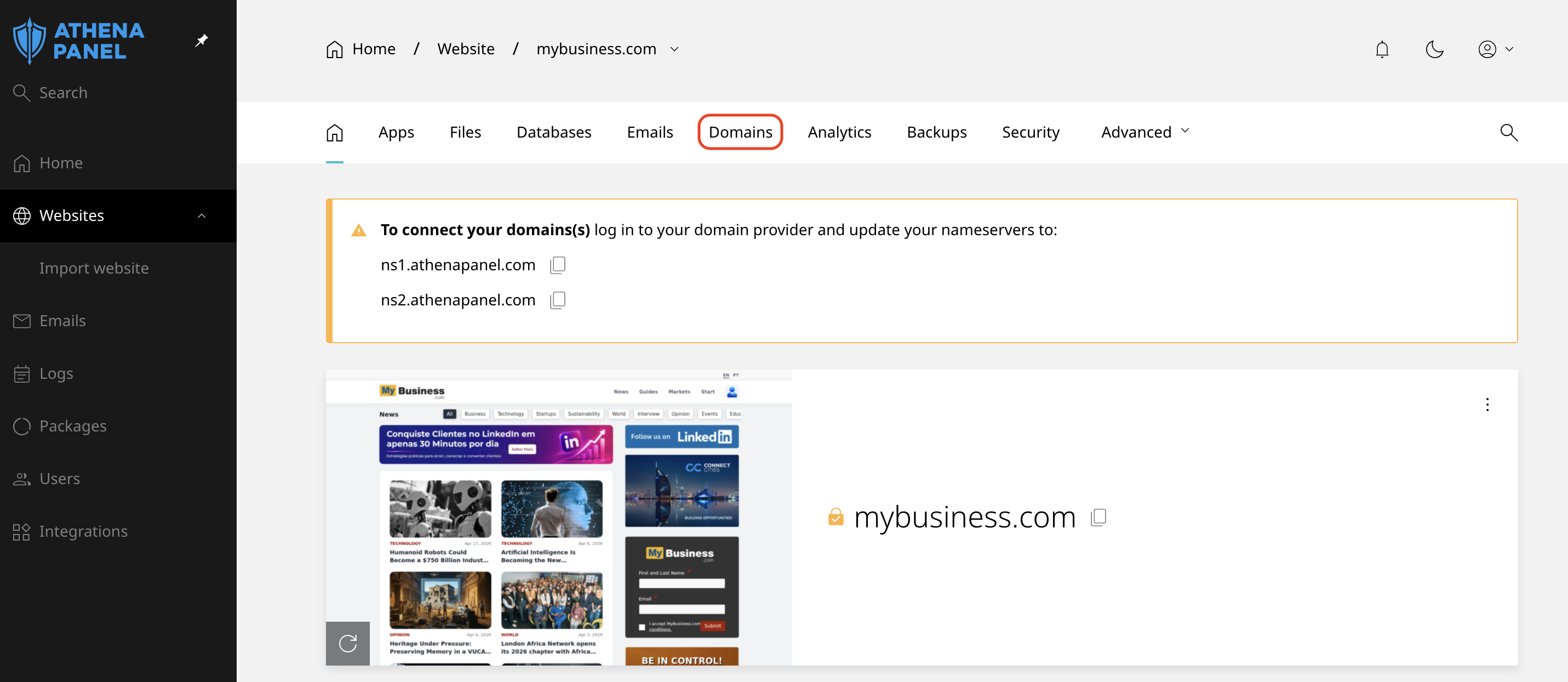
Domains hold every hostname attached to the site: the main domain, extra domains, subdomains and aliases. DNS records and redirects live here too, so this is the tab to open when mail or the website itself is pointing somewhere unexpected.
SSL or certificates shows the certificate status for each domain on the site. Certificates are normally issued and renewed automatically, so most people only come here when a browser complains that a site isn't secure.
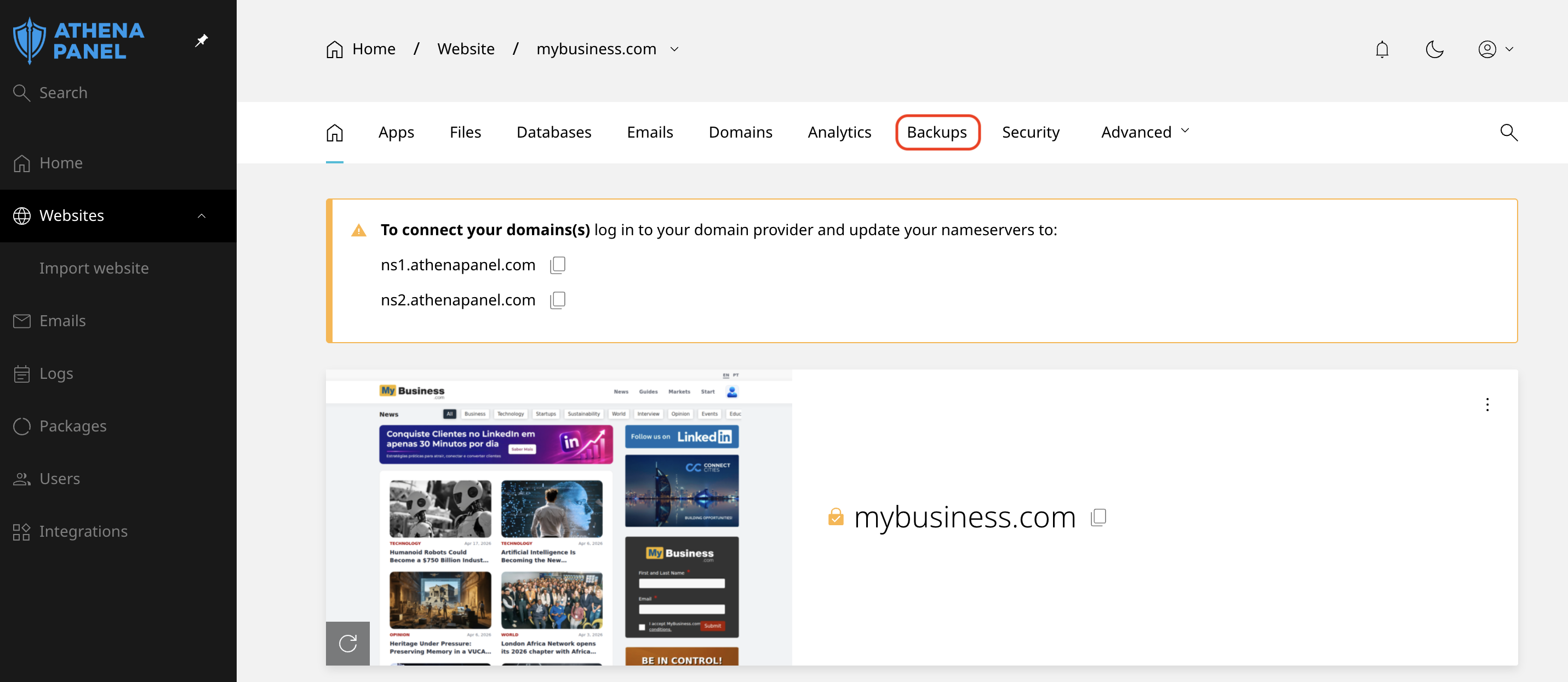
Backups lists the automatic copies of your site and lets you restore them. You can bring back everything, or just the website, just the email, or a single file.
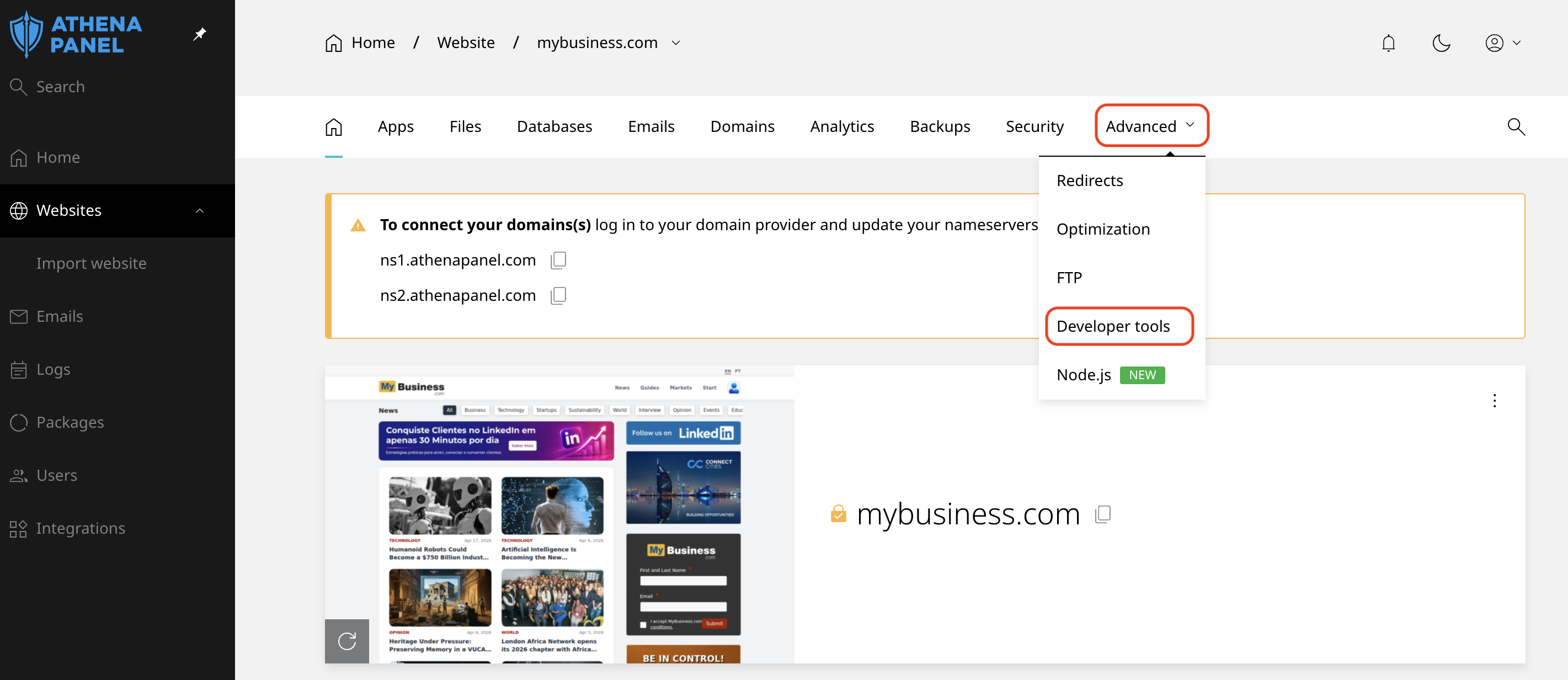
PHP settings let you choose the PHP version and adjust values like the memory limit and maximum upload size. Each site has its own version, which is what makes it safe to run an old application on one site and a current one on another.
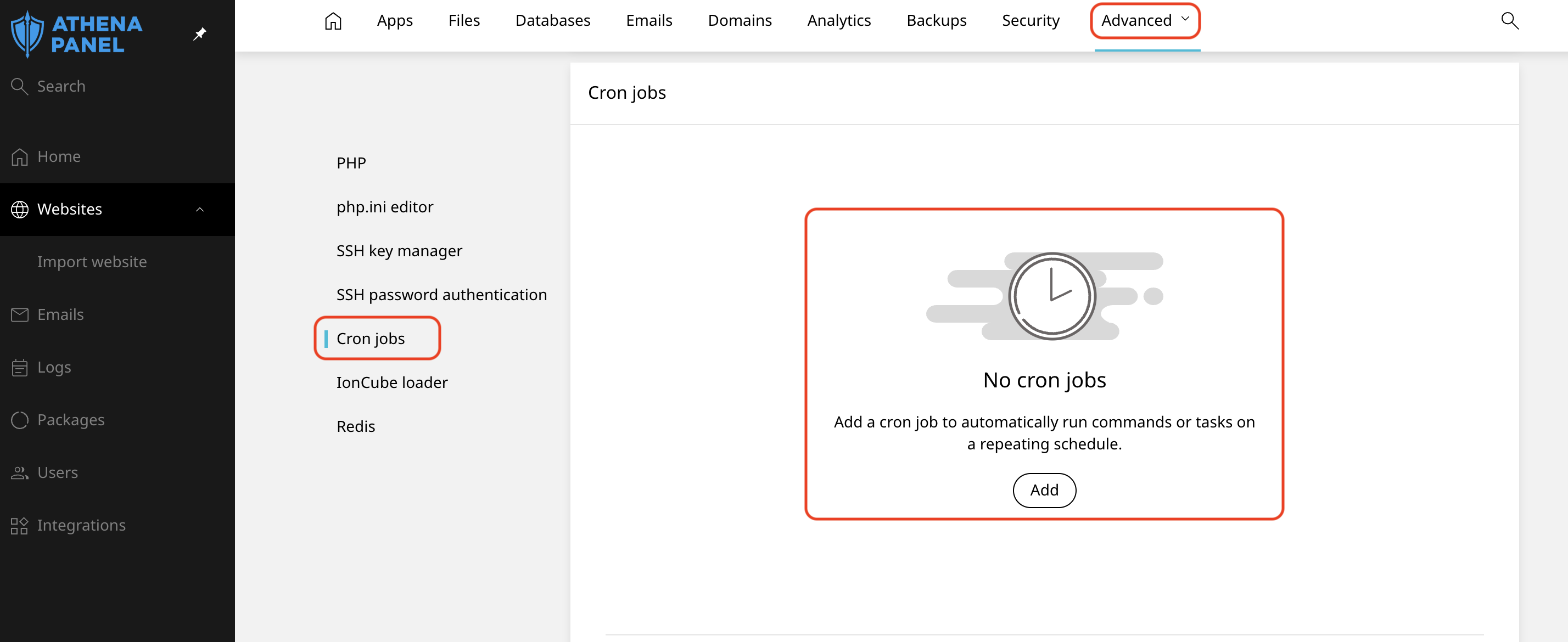
Cron jobs schedule commands to run automatically at set times. Most people never open it, unless an application asks them to.
If you can't find something
| What you want to do | Where it is |
|---|---|
| Change your panel password or turn on 2FA | Account level, security settings |
| Add a new website | Account level, Websites |
| Create an email address | Website level, Email tab |
| Point your domain here, or edit DNS | Website level, Domains tab |
| Upload files or fix a broken page | Website level, Files tab |
| Restore something you deleted | Website level, Backups tab |
| Fix "your connection is not secure" | Website level, SSL tab |
| Raise the maximum upload size | Website level, Developer tools tab |
A few things worth knowing early
Your panel is not your domain registrar. Renewing a domain, changing its owner or moving it to another company happens where you bought it, even though the DNS records for it are edited here.
It's also separate from billing. Your client area handles invoices, plan changes, and payment details, not the hosting panel.
And if a label in your panel doesn't exactly match what you see written here, that's normal. Panel versions differ slightly, and some sections get renamed between updates. The structure stays the same: account level for you, website level for each site.