FiveMless than a minute read
How to Add Custom Clothes to FiveM Server
Learn how to add custom clothes to your FiveM server by installing EUP and streaming clothing packs from your resources folder.

How to Add Custom Clothes to FiveM Server
Understanding how to add custom clothes to FiveM server environments allows owners to enhance roleplay immersion with unique clothing packs, police uniforms, and player props. Streaming custom clothing ensures these outfits load automatically for every player.
You need to do two things before proceeding:
-
Get a FiveM Element Club Argentum membership. Go to FiveM's membership page and subscribe to the Argentum tier.
-
Install EUP, a clothing pack that most servers use as their base. Upload it to your server's
resourcesfolder before adding any other clothing.
Installing EUP
-
Download EUP.
-
Extract the downloaded files locally.
-
Access the RocketNode Panel.
-
Stop the server.
-
Go to the Files tab.
-
Open the
txDatafolder. -
Open the folder ending in .base.
-
Open the
resourcesfolder. -
Create a new folder named
[EUP].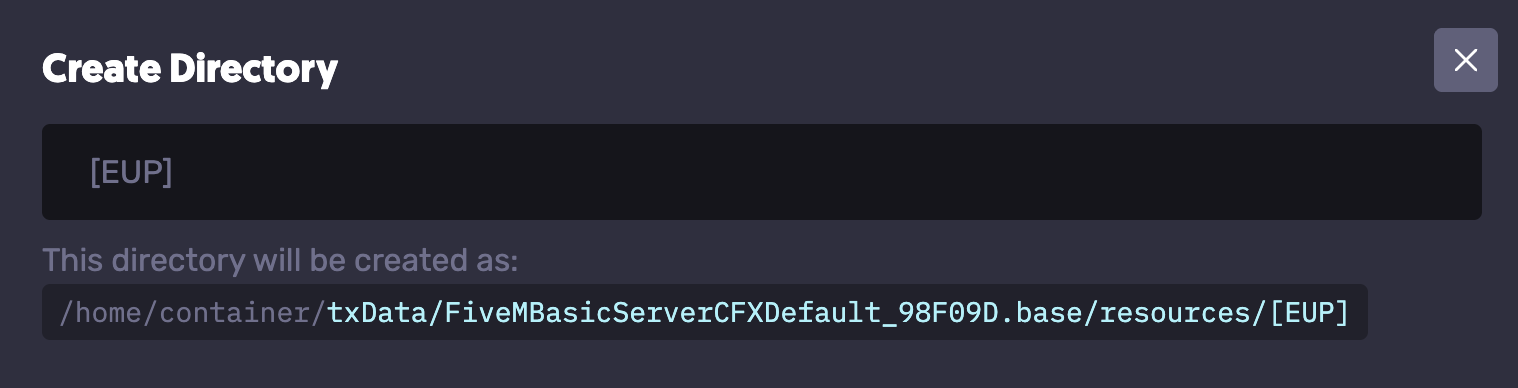
-
Open the
[EUP]folder and upload the extracted EUP files into it. -
Head back to the .base folder and open
server.cfg.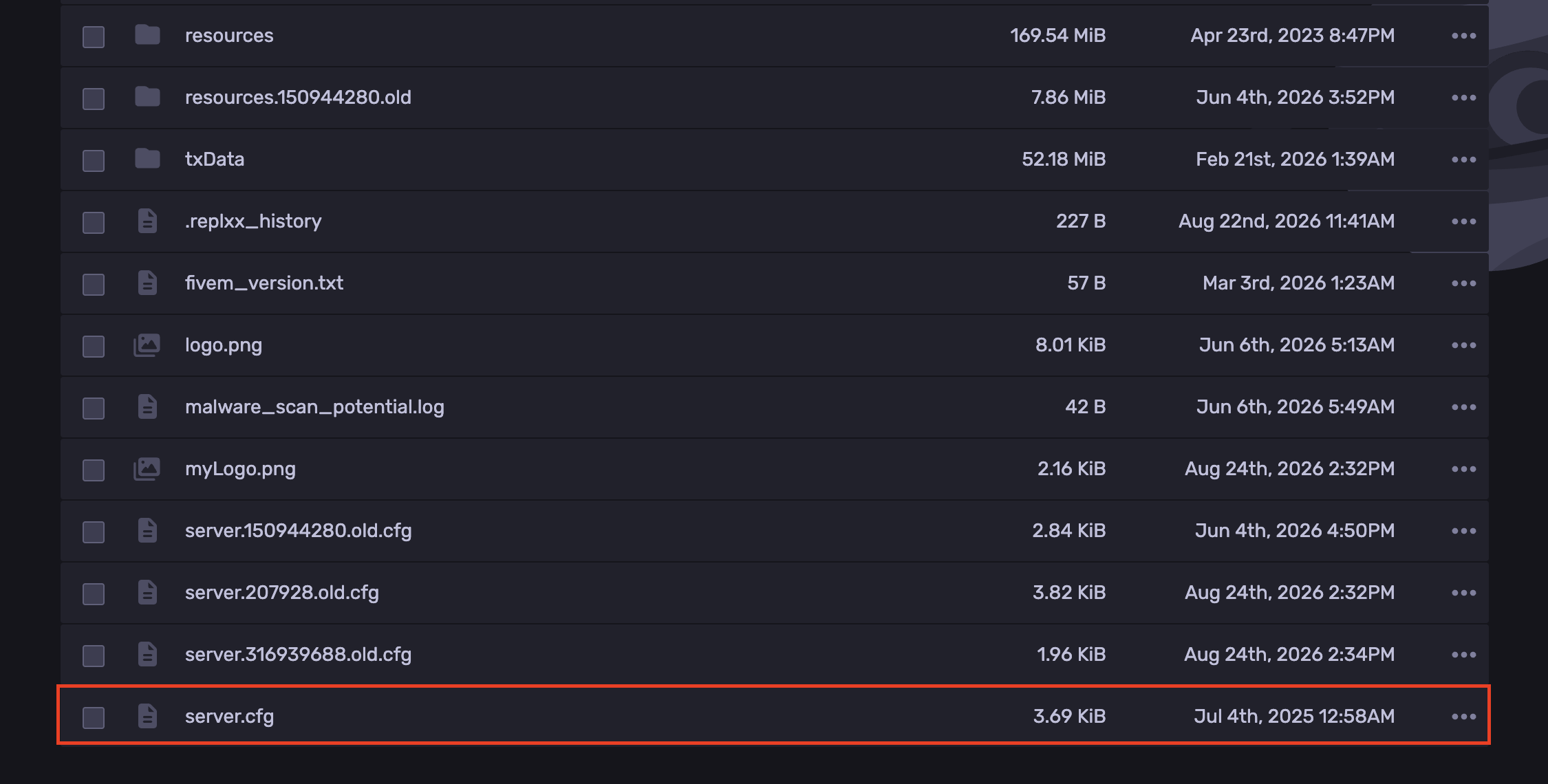
-
On a new line, add
ensure [EUP].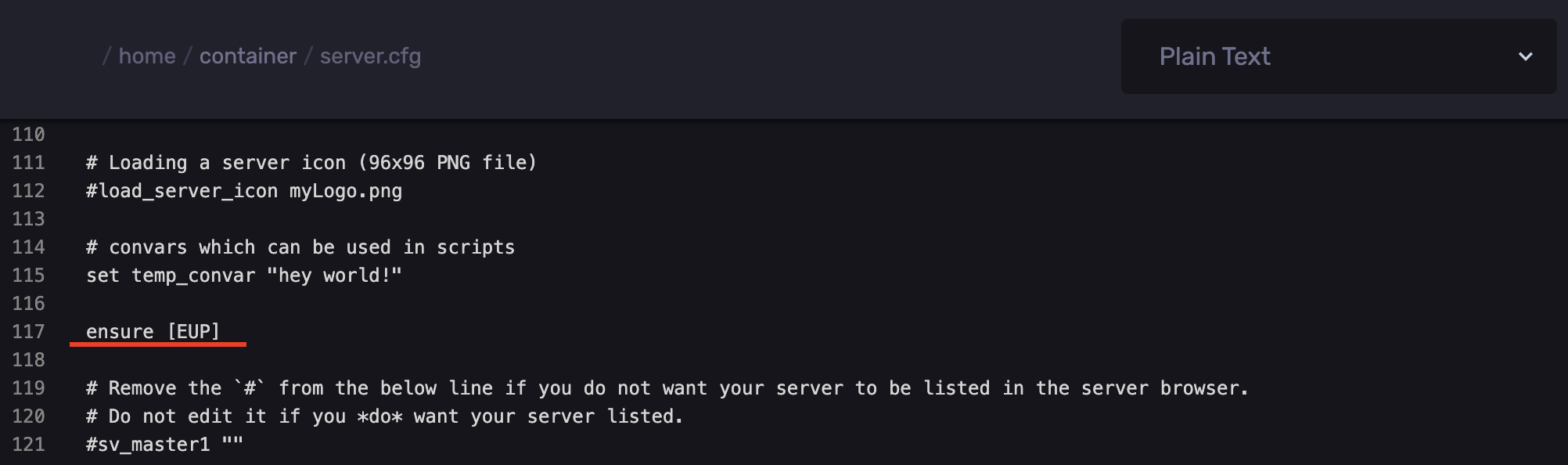
-
Click Save Content.
-
Start the server.
Adding Custom Clothes
-
Download the desired clothing.
-
Extract the folder locally.
-
Access the RocketNode Panel.
-
Stop the server.
-
Go to the Files tab.
-
Open the
txDatafolder. -
Open the folder ending with .base.
-
Navigate to
resources/[EUP]and upload the extracted clothing folders inside it. -
Open the
server.cfgfile. -
On a new line, add
ensure [EUP]if it isn't already there. -
Click Save Content.
-
Start the server.
Find out more about FiveM server hosting with the help of our Knowledgebase articles that can be found here. For any questions please contact the support team via Discord or on-site Tickets.