How To Fix Falling Through The Map In FiveM
 RocketNode Staff
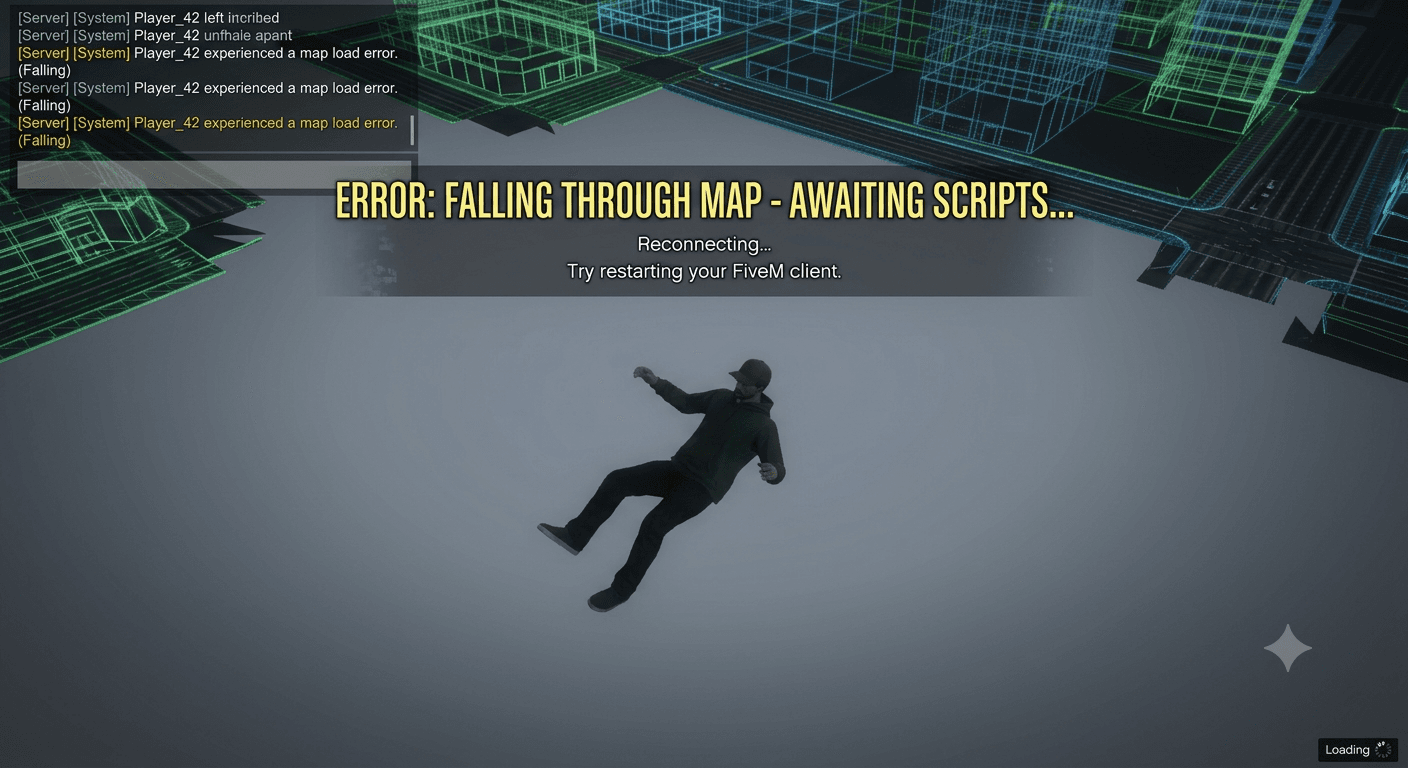
To fix falling through map issues in FiveM, start by turning on DirectX 11 for the game and clearing the FiveM cache, since this issue is often caused by a streaming or rendering bottleneck. Increasing your Extended Texture Budget in graphics settings is another crucial fix. Most users on the Cfx.re Community Forum agree that these rendering limits cause the world to disappear in high-density city environments.
Why Am I Falling Through The Map Or Experiencing Texture Loss In FiveM?
Falling through the map or seeing blurry, missing textures in FiveM is a common problem known as Texture Loss (or streaming memory overload). It happens when the GTA V game engine cannot stream world assets, collision models, and map content fast enough relative to your movement speed or your PC's capabilities.
Here are the primary causes behind this issue:
Primary Causes
-
Extended Texture Budget Depletion (Client-Side):
GTA V allocates a specific amount of VRAM for streaming textures. When playing heavily modded servers with high-poly custom assets (add-on cars, custom clothing, custom interiors/MLOs), the default budget fills up instantly, causing the engine to unload collision models and ground textures.
-
Slow Disk Read Speed (HDD vs. SSD):
FiveM streams world assets dynamically as you drive through the city. Running FiveM or GTA V on a traditional Hard Disk Drive (HDD) rather than a solid-state drive (SSD or NVMe) creates a massive bottleneck where texture files cannot be loaded fast enough.
-
Server-Side Asset Overload:
If a server streams unoptimized custom vehicles (with polygon counts over 300,000 or uncompressed .ytd texture files over 16MB), it overloads the streaming memory for every player nearby, regardless of their hardware.
-
Insufficient RAM / VRAM & Hardware Settings:
Running FiveM on 8GB of system RAM or a graphics card with under 4GB of VRAM will lead to frequent asset pop-in, invisible roads, and lower FPS. Incorrect XMP or memory profiles in your system BIOS can also limit your memory bandwidth and trigger these problems.
How to Fix Texture Loss (Step-by-Step Solutions)
Here are the step-by-step methods to restore missing textures and prevent falling through map bugs:
-
Increase Extended Texture Budget in Settings — Quickest Fix.
This is the most effective client-side fix:
- Open GTA V / FiveM settings menu.
- Go to Graphics Settings.
- Locate the Extended Texture Budget slider.
- Move the slider to roughly 50% to 75% of the bar (allocate around 2GB–4GB, depending on your VRAM).
- Save changes and apply.
-
Move FiveM and GTA V to an SSD — Storage Optimization.
Ensure both GTA V and FiveM are installed on an SSD or NVMe drive. Mechanical HDDs lack the read speeds required for dynamic streaming in asset-heavy FiveM servers.
-
Lower Heavy Graphics Options — Graphics Tweaks.
Reduce the load on your GPU to free up streaming headroom and boost your FPS:
- Texture Quality: Set from Very High to Normal or High.
- Population Density / Variety: Turn down to 30%–50%.
- MSAA / Reflection MSAA: Turn off or reduce to 2x.
- DirectX Version: Ensure DirectX 11 is selected.
-
Clear FiveM Application Cache — Clear the cache.
Corrupted cached assets can cause severe streaming glitches:
- Press Win + R, type
%localappdata%\FiveM\FiveM.app, and press Enter. - Open the data folder.
- Delete the cache, server-cache, and server-cache-priv folders.
- Relaunch FiveM.
- Press Win + R, type
Server Developer Best Practices (For Server Owners)
If you own or manage a server, texture loss experienced by your player base indicates streaming issues in your resource pack:
- Optimize Vehicle Assets: Downscale .ytd textures to a maximum resolution of 2048x2048 (preferably under 16MB per file).
- Fix MLO Conflicts: Ensure custom buildings and interiors (MLOs) do not have overlapping poly meshes or conflicting .ymap files.
- Enforce Asset Limits: Avoid streaming ultra-high-poly vehicle models that exceed 200,000 polygons.